


Facebook Business Pages or Lead Forms Missing
If your Facebook Business Pages or Lead Forms are missing or not populating correctly in API Nation, the issue is almost always related to incomplete permissions on your Facebook business integration. Follow the steps below to verify and fix it.
Steps to resolve
Access your Facebook Business Integrations
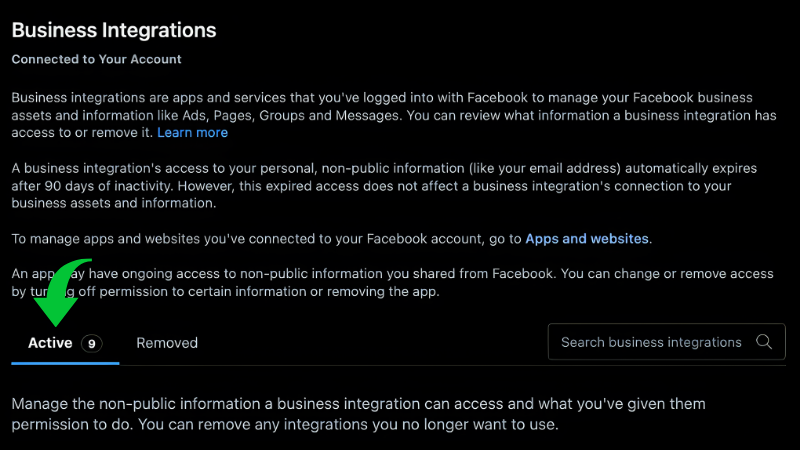
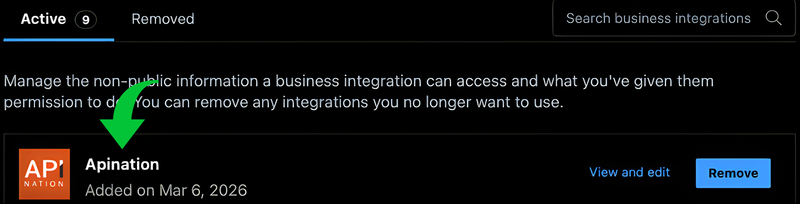
Navigate to your Facebook Business Integrations settings and make sure you're on the Active tab. Look for Apination in the list.
facebook.com/settings/?tab=business_tools →
Open the API Nation integration
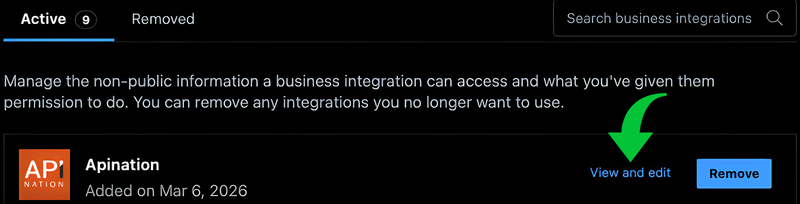
Click View and Edit next to the Apination entry. A panel will open showing all the information and permissions currently shared with API Nation.
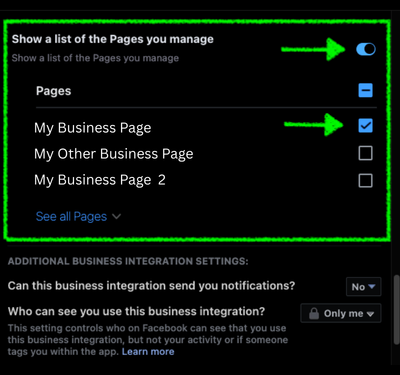
Verify your Business Page is checked in every section
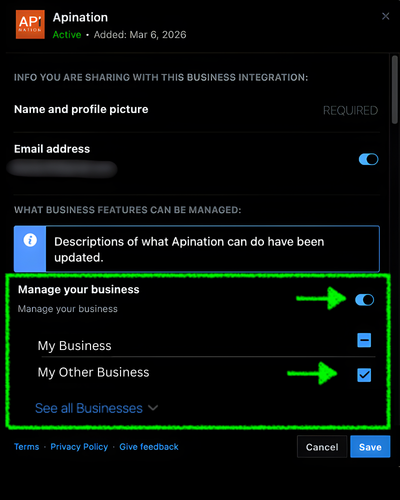
Scroll through all permission categories and confirm your Business Page is enabled under each one. Check for the following:
- Info you are sharing — Name, profile picture, and email address should be enabled.
- What business features can be managed — The "Manage your business" toggle should be turned on.
- Businesses — All specific Businesses should have a blue checkmark next to them.
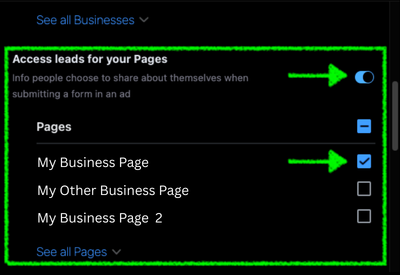
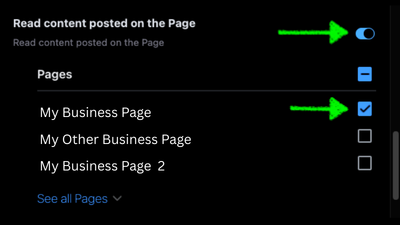
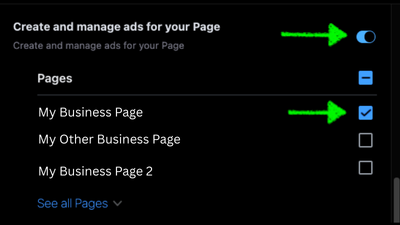
- Pages — All specific Pages should have a blue checkmark in all categories.
Manage your business
Access leads for your Pages
Read content posted on the Page
Create and manage ads for your Page
Manage accounts, settings, and webhooks, and access content enforcement data for a Page
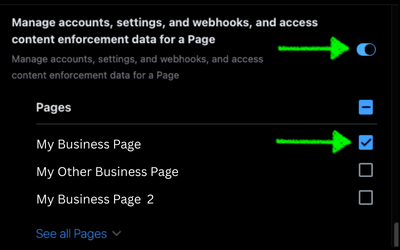
Manage accounts, settings, and webhooks, and access content enforcement data for a Page
Save and re-test in API Nation
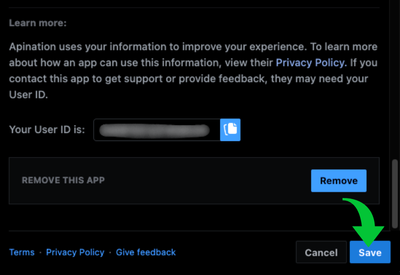
After confirming all permissions are correctly enabled, save your changes and close the panel. Then:
- Return to API Nation and create a new workflow.
- Your Business Pages and Lead Forms should now appear in the list.
Still not working?

