


Phone Format
Phone Format is a mapping option in API Nation workflows that automatically reformats a phone number value from your source system into a specific format before writing it to your destination system. This ensures phone numbers arrive in the exact format the destination application accepts, without requiring manual cleanup.
Why Phone Format matters
Different platforms store and expect phone numbers in different formats. If a destination system receives a phone number in the wrong format, it may reject the record, fail to sync, or store the value incorrectly. Phone Format handles this conversion automatically as part of the mapping.
When to use Phone Format
- Your source and destination systems store phone numbers in different formats.
- The destination system is rejecting records due to phone number formatting issues.
- You want to standardize how phone numbers are written across your connected platforms.
Steps to configure
Open your workflow's Field Mappings
In your workflow's Field Mappings, locate the phone number field mapping.

Click the Settings icon
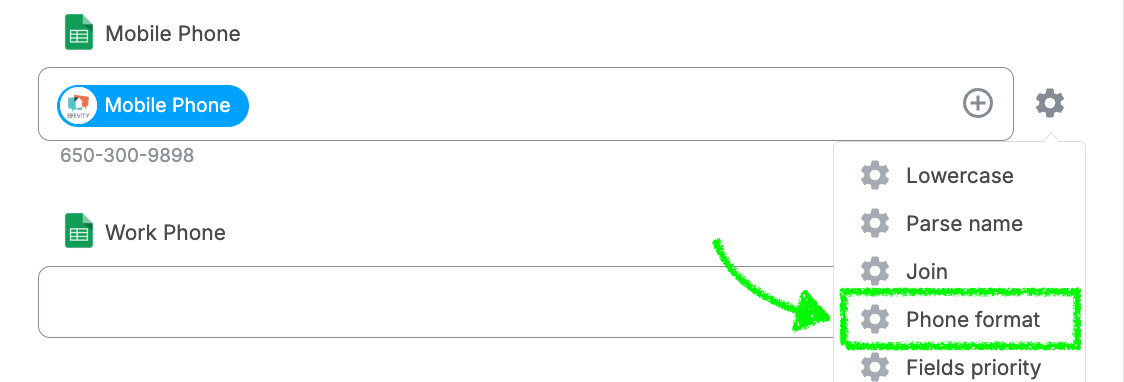
Click the Settings icon next to the phone number field.

Select Phone Format
From the options that appear, select Phone Format.
Choose your format from the drop-down
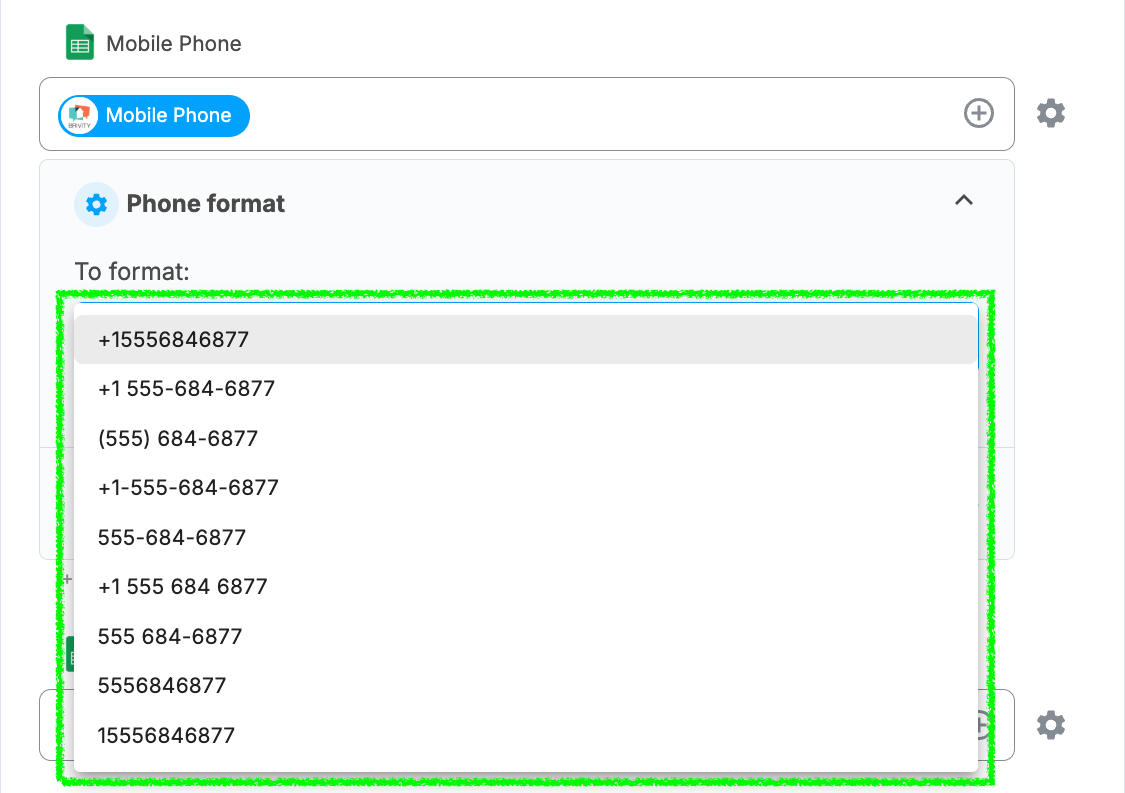
A drop-down menu will appear with all available formats, each shown with an example so you can see exactly how the number will be written.
Save your selection
Choose the format that matches what your destination system accepts and save your mapping.

