


How to use Data Transpose
Data Transpose is a mapping feature in API Nation that allows you to convert a field's value from one system into a different but equivalent value in the destination system. It essentially acts as a translation table — when API Nation sees a specific incoming value, it swaps it out for the corresponding value you've defined before writing it to the destination.
Why Data Transpose matters
Different platforms often use different values to represent the same thing. For example, one system might store a contact's status as Active while another expects 1, or one platform uses Hot for a lead temperature while another uses High. Without Data Transpose, these mismatched values would either sync incorrectly or cause errors in the destination system.
When to use Data Transpose
- Status or stage fields that use different labels across systems (e.g., Open vs. New vs. 1).
- Boolean values where one system uses True/False and another uses Yes/No or 1/0.
- Dropdown or picklist fields where both systems have the same options but store them differently.
- Lead or deal stages that don't share the same naming convention between your CRM and another platform.
How it works
You define a set of value pairs — the incoming value from the source system and the value it should be replaced with in the destination. When a sync runs, API Nation looks up each value against your transpose table and substitutes the correct equivalent before writing to the destination.
Example
| Source value | Destination value |
|---|---|
| Active | 1 |
| Inactive | 0 |
| Pending | 2 |
If the source sends Active, the destination receives 1.
Steps to configure
Open your workflow's Field Mappings
In your workflow's Field Mappings, locate the field you want to configure.
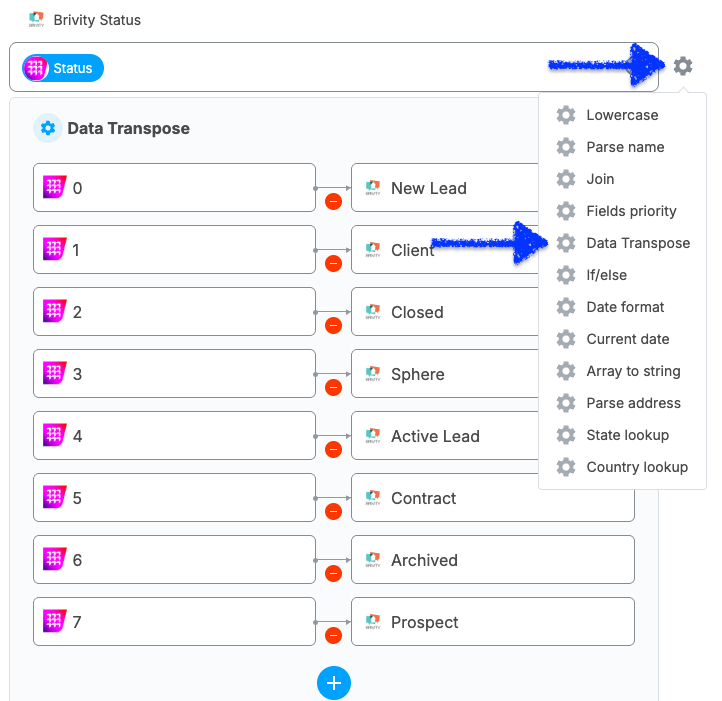
Click the Settings icon
Click the Settings icon next to that field.
Select Data Transpose
From the options that appear, select Data Transpose.
Enter your value pairs
Enter your value pairs — the source value on one side and the desired destination value on the other.
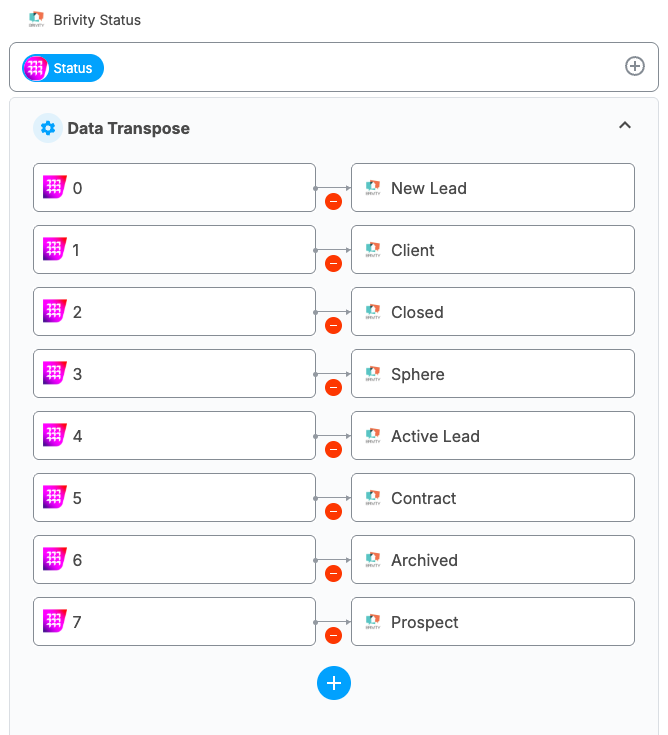
Add all necessary pairs
Add as many pairs as needed to cover all possible values for that field.
Tips

