


Fields Priorities in Workflow Settings
Fields Priorities is especially useful when the same type of data is stored under many different labels within your connected systems. For example, a phone number might exist in your source system as "Mobile Phone," "Cell Phone," or "Primary Phone" depending on how a record was created. Field Priorities ensures that data is pulled over regardless of which label it carries, and lets you choose which label to pull from first by ordering them accordingly.
How It Works
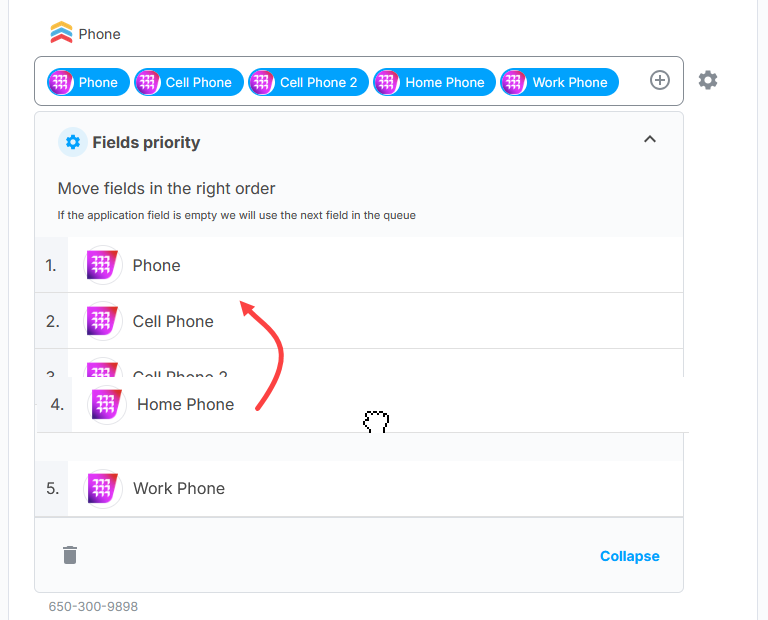
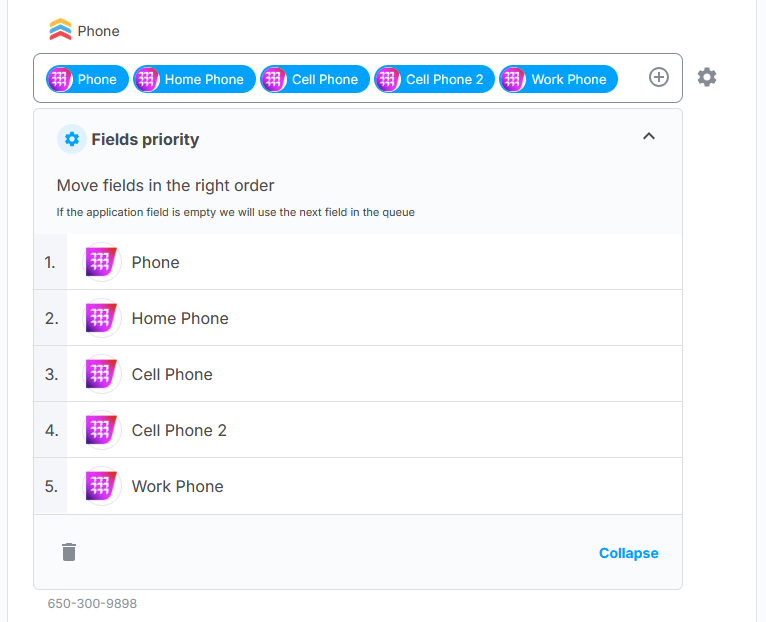
Add multiple labels for a given field, arrange them in your preferred order, and API Nation will work through the queue from top to bottom. The first label that contains a value will be used. If that label is empty, it moves to the next one — and so on until a populated value is found.
When to Use Field Priorities
- Records in your source system use inconsistent labels for the same type of data.
- You want to ensure the destination field is populated whenever any matching label has a value.
- You want to reduce blank or missing values in your destination system by providing multiple fallback options.
Example
You want to sync a phone number, but different records use different labels. You set up Field Priorities like this:
| Priority | Label |
|---|---|
| 1 | Mobile Phone |
| 2 | Work Phone |
| 3 | Home Phone |
If Mobile Phone has a value, that is used. If it's empty, API Nation checks Work Phone. If that's also empty, it falls back to Home Phone.
STEPS TO CONFIGURE
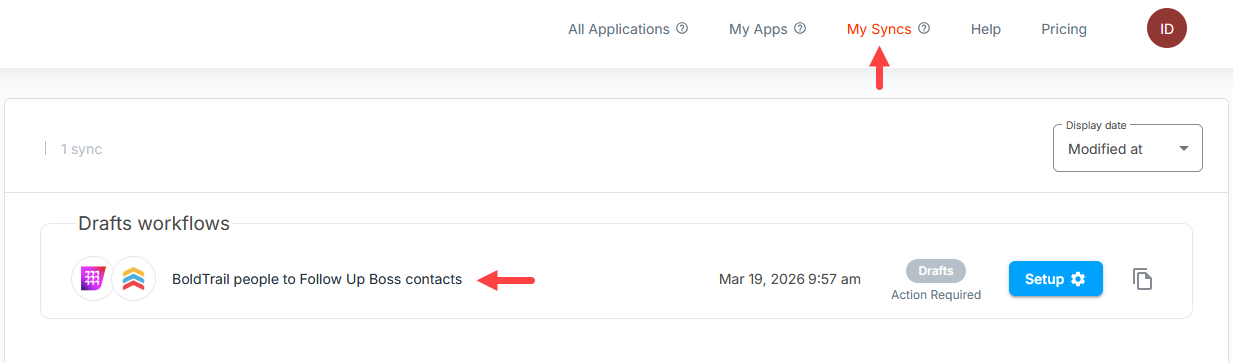
Open your Workflow
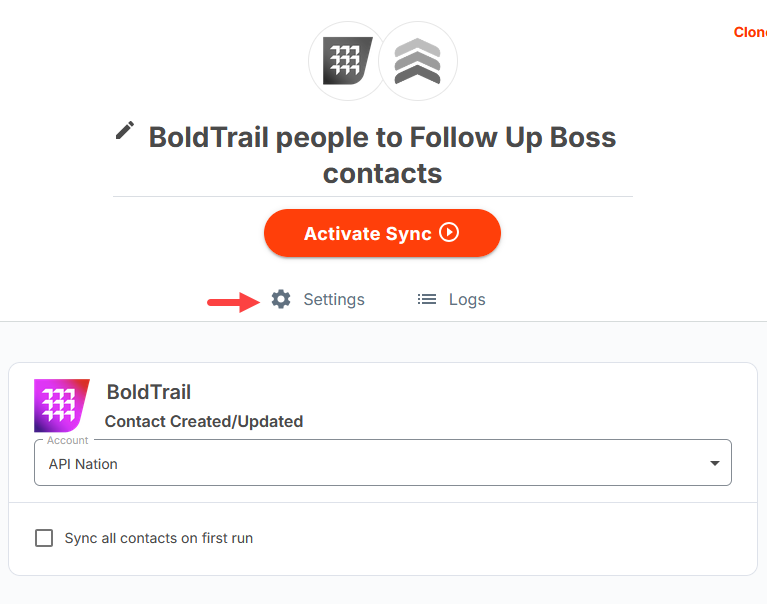
Navigate to your workflow in API Nation and go to the Settings panel.
Go to Field Priorities
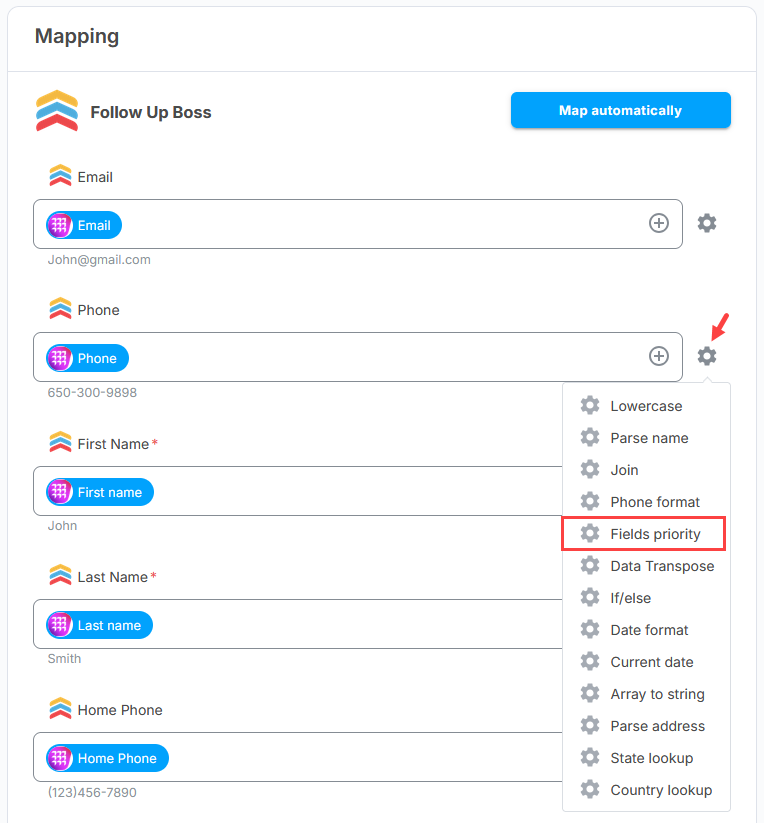
Navigate to the Field Priorities section within Settings.
Add your labels
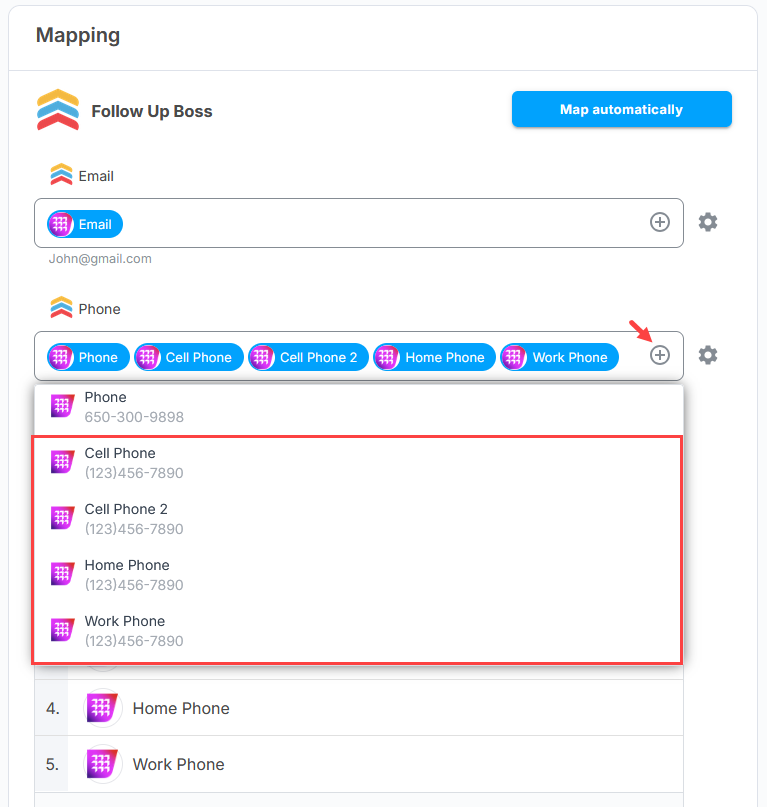
Add all the labels you want to include for a given field mapping. Only add labels that represent the same type of data (e.g., different labels for a phone number, or different labels for an email address).
Order your labels
Drag and reorder the labels so your most preferred or most commonly populated label is at the top of the list.
Save your settings
Important — Keep Labels the Same Data Type
Field Priorities should only ever be used with labels that represent the same kind of data. Do not mix different data types in the same priority queue. For example:
- Do not mix — Mobile Phone, Work Email, Home Address in the same queue. These are different types of data and will cause incorrect values to be synced.
- Do use — Mobile Phone, Work Phone, Home Phone. All three represent a phone number and are safe to prioritize together.
Tips

