


dotloop / Dropbox Backup Integration Setup
Whether you are looking to maintain a separate backup of your dotloop files or preserve your documents before losing access to dotloop, the dotloop + Dropbox integration is a great option. In this article we will walk you through how to connect your accounts, configure your settings, and turn on the integration.
In this article:
How does it work?
You will begin by connecting your dotloop and Dropbox accounts in API Nation. Once connected, any time a file is added or updated inside a dotloop loop, that file will automatically be synced to the Dropbox folder you specify during setup.
This integration is available to all dotloop users and provides:
- A backup of all files and documents from your selected dotloop loops to Dropbox
Connecting your Accounts
Before getting started, you will need to connect both your dotloop and Dropbox accounts in API Nation.
Connecting dotloop
Log in to API Nation
Log into your API Nation account at my.apination.com.
Find dotloop
Select All Applications at the top of the page, search for "dotloop", and select the dotloop tile.
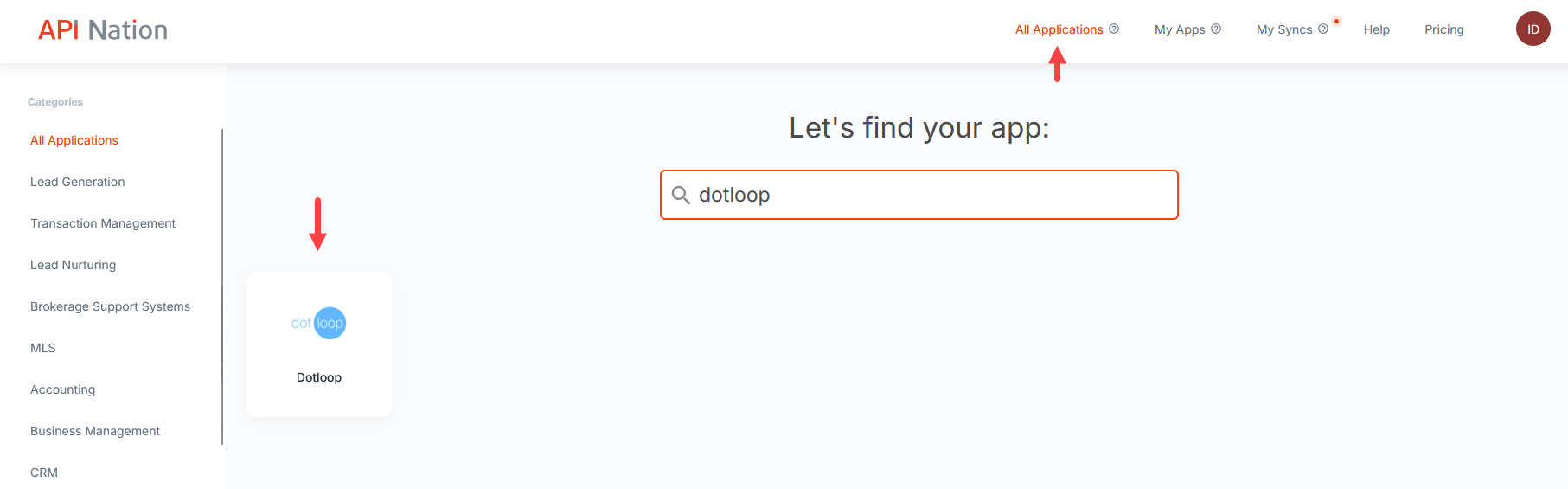
Add your dotloop account
Select the Connections tab, then click Add Account. Enter the email and password for your dotloop account and click Approve to authorize API Nation.
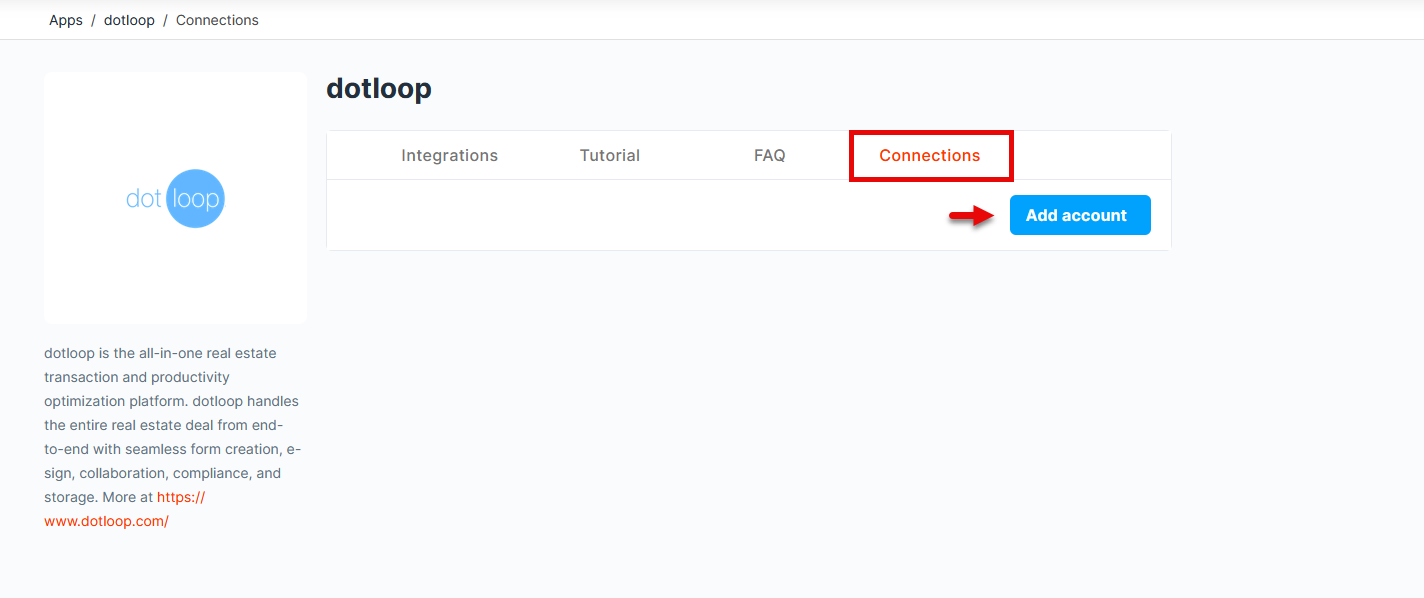
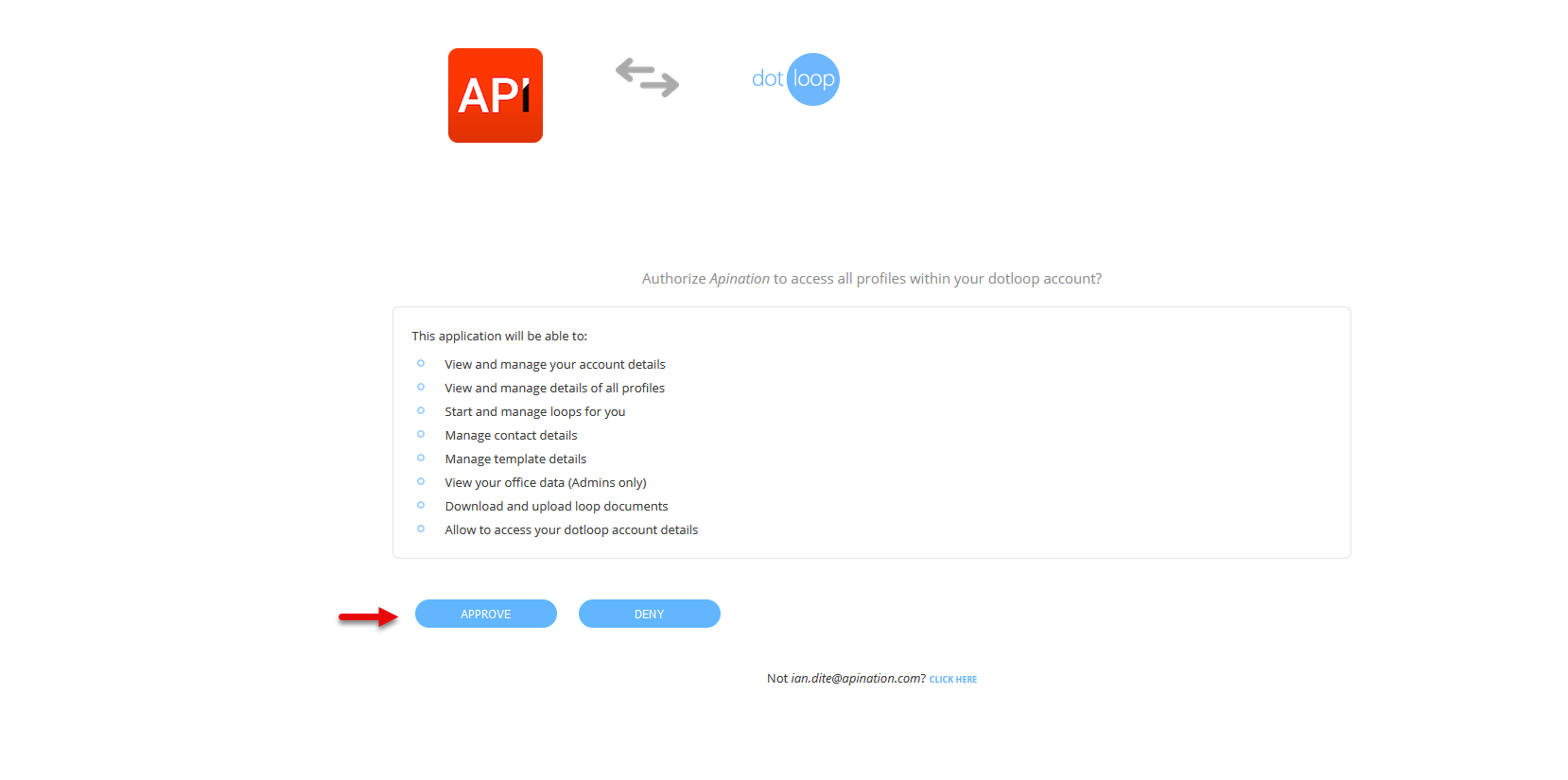
Connecting Dropbox
Find Dropbox
Select All Applications at the top of the page, search for "Dropbox", and select the Dropbox tile.
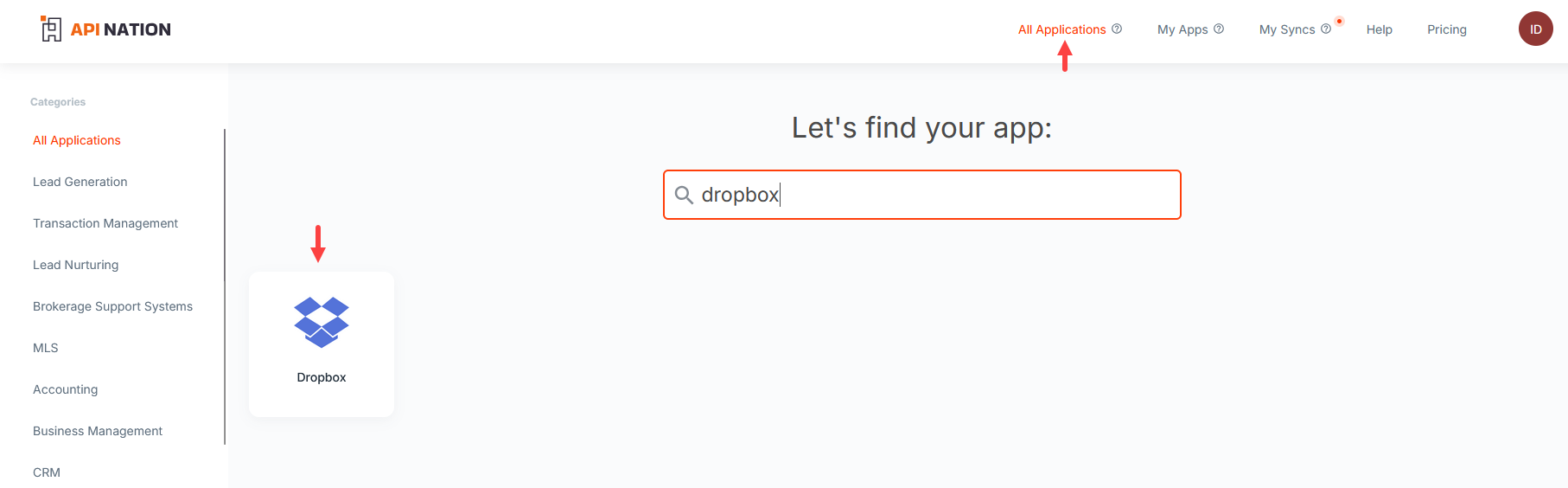
Add your Dropbox account
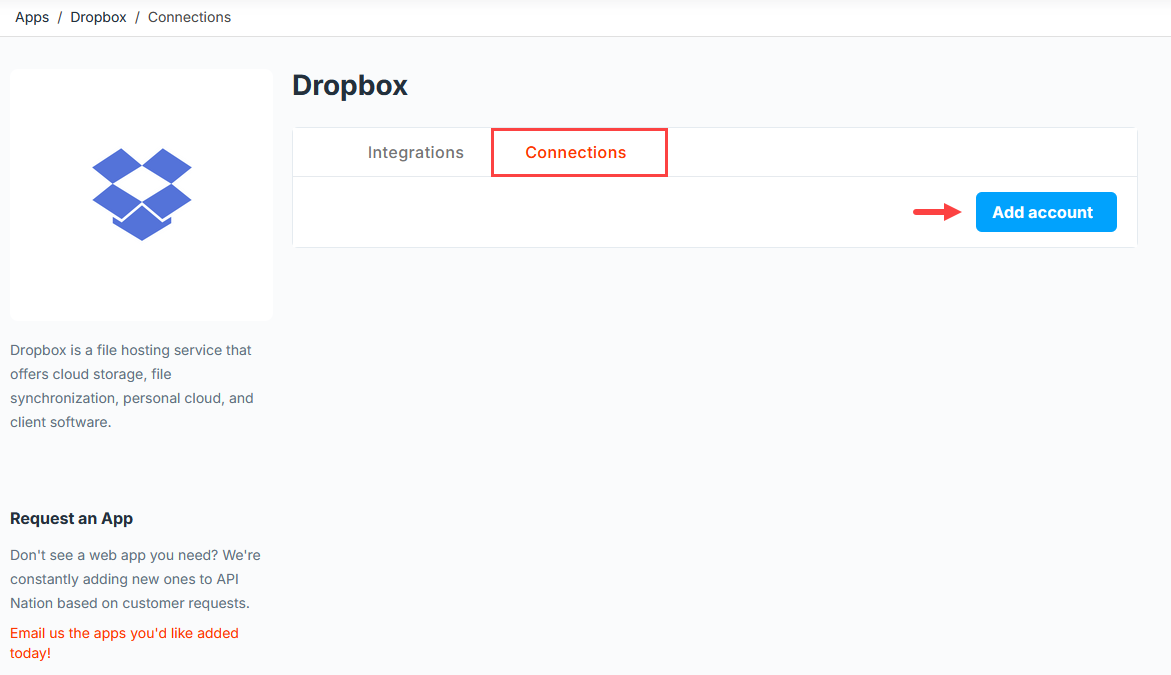
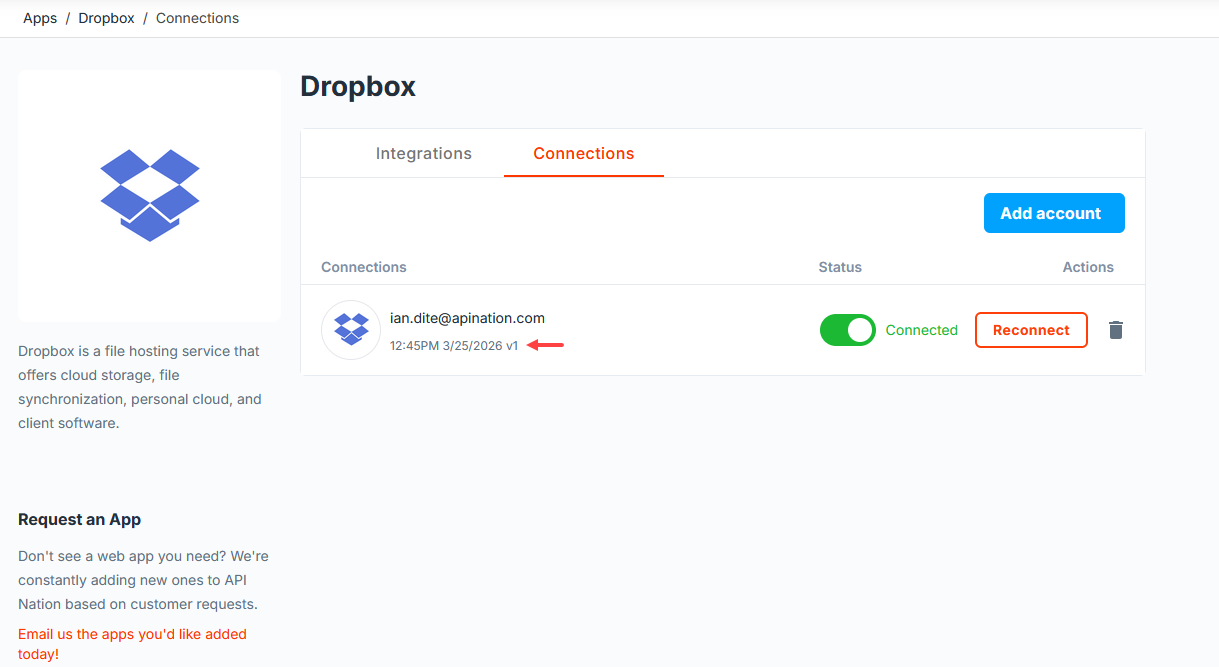
Select the Connections tab, then click Add Account. You will be redirected to Dropbox — sign in and allow API Nation the access required. Once complete you will be returned to the dashboard and your connection will be confirmed with a date/time stamp.
Setting up the Integration
These next steps will walk you through configuring your dotloop and Dropbox settings before turning on the integration.
Selecting the integration
Navigate to the integration
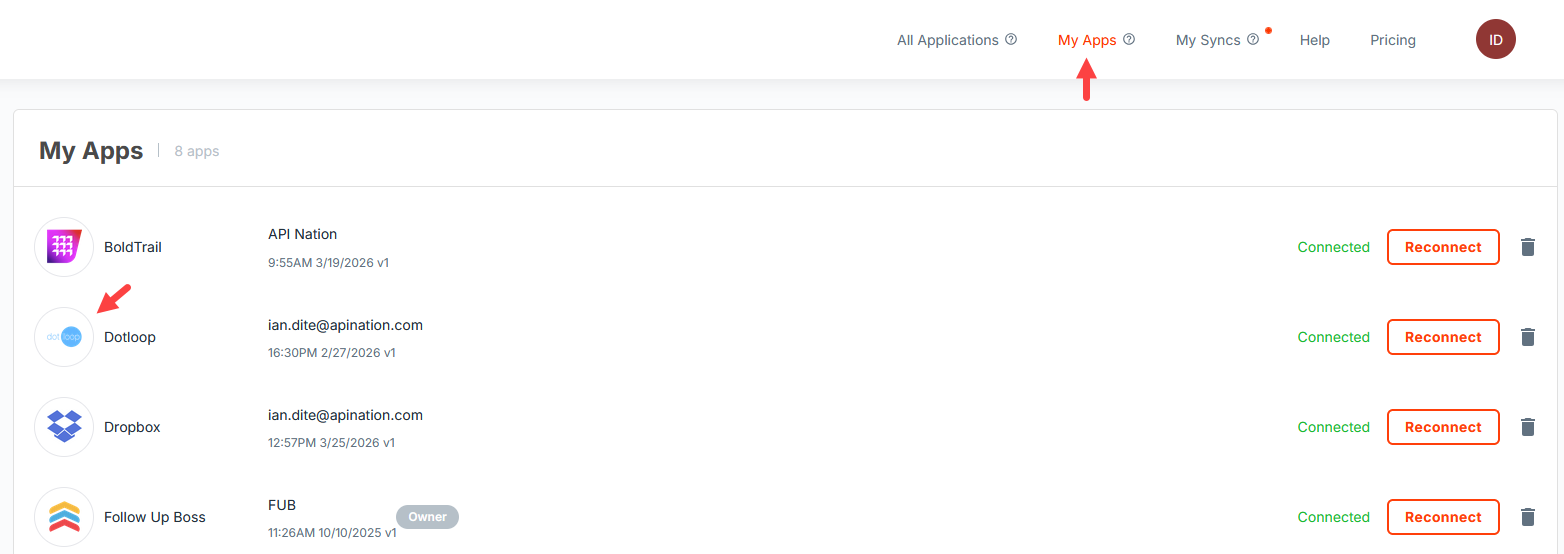
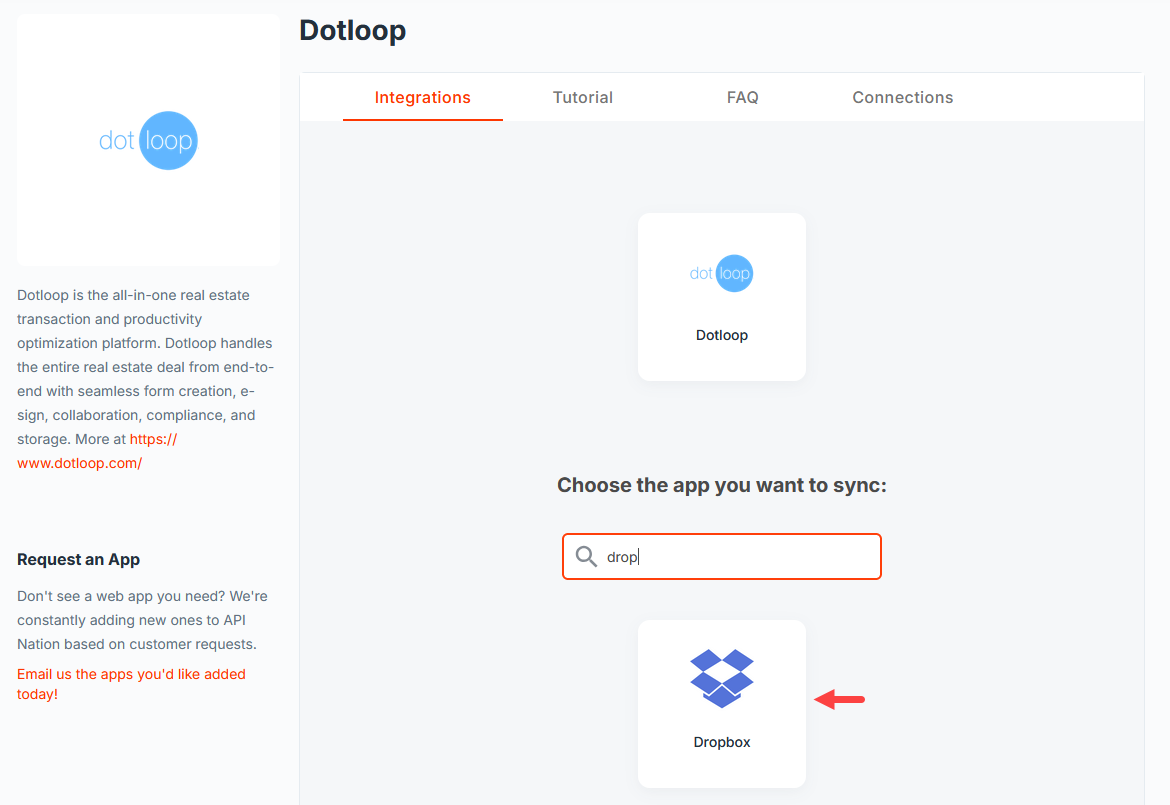
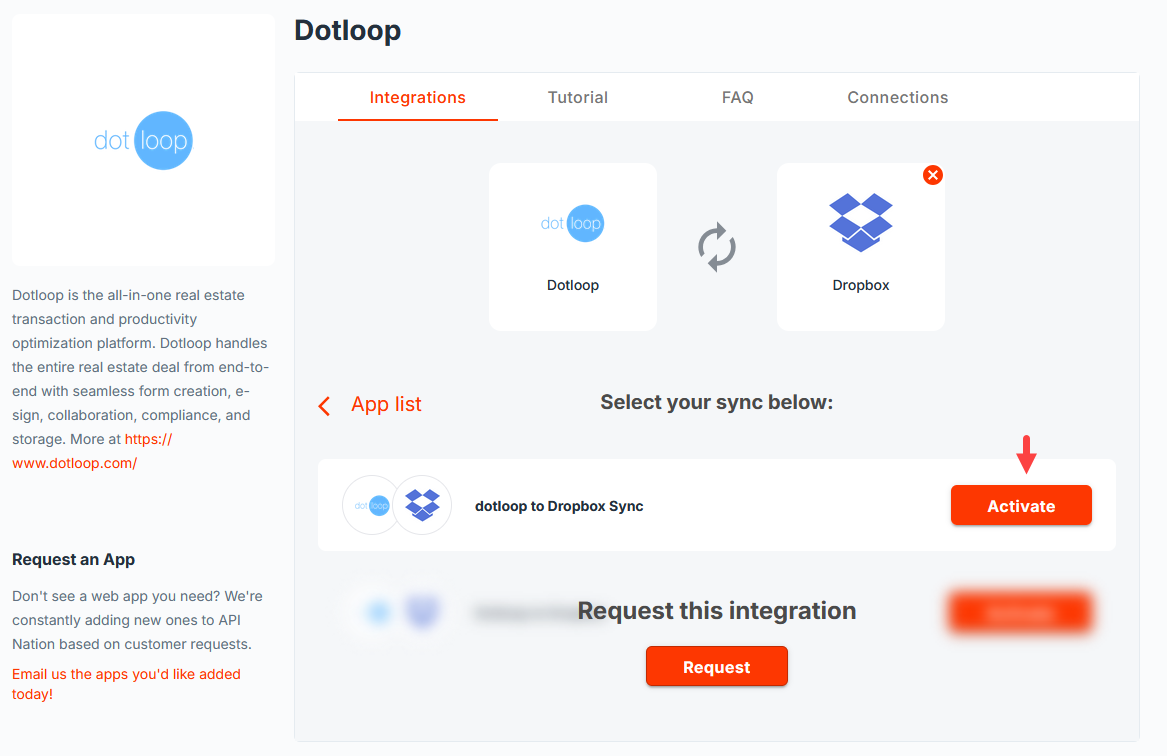
Select My Apps at the top of the page, then click the dotloop tile. In the search bar, type "Dropbox" and select the Dropbox tile. When ready, click Activate next to the Setup Wizard.
Connect your accounts
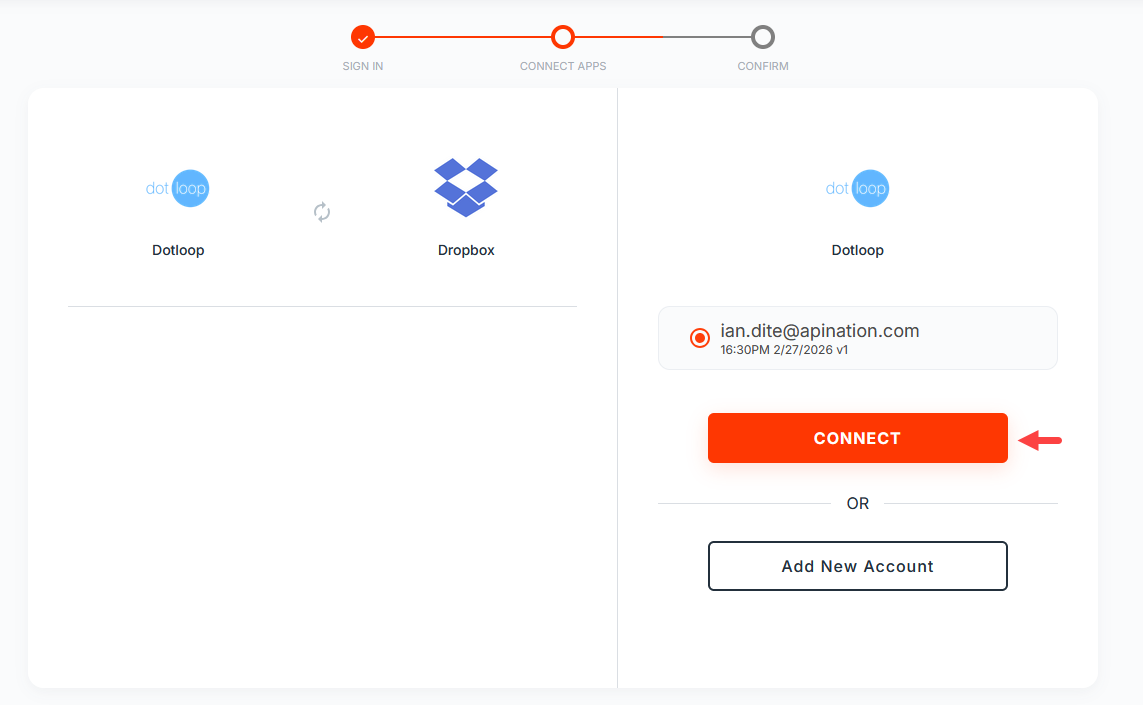
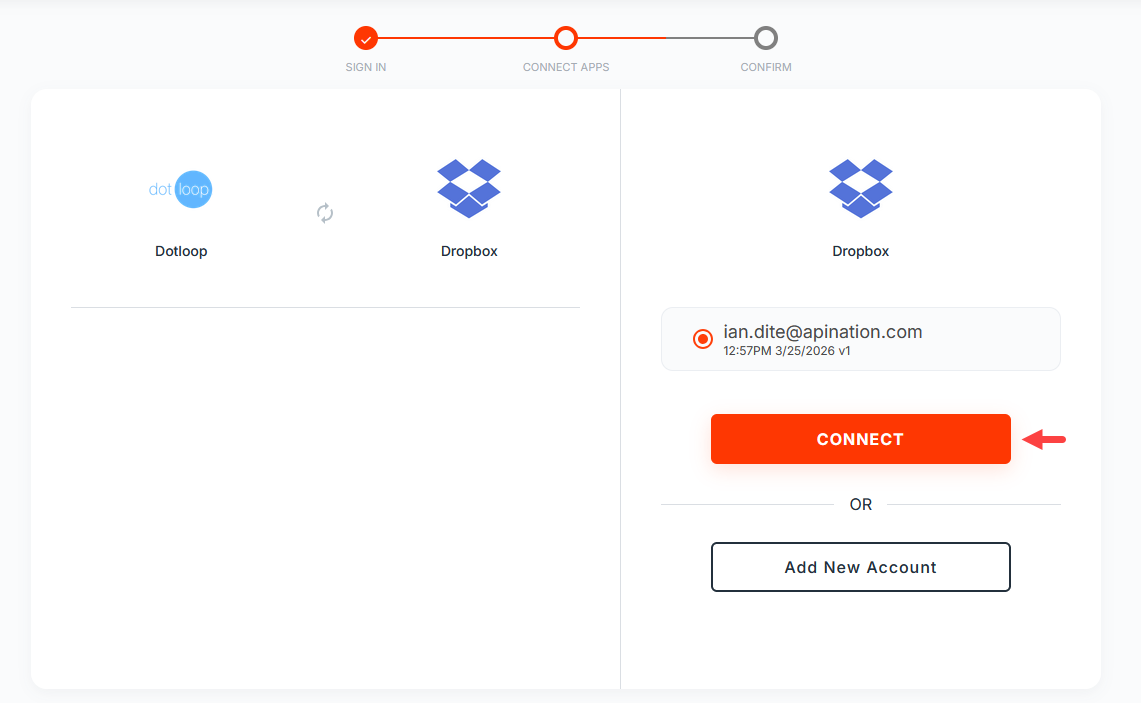
You will be prompted to select the accounts you wish to use for this integration. Since you connected your accounts in the previous steps, simply click Connect for both dotloop and Dropbox.
dotloop Settings
There are 3 settings to configure for dotloop:
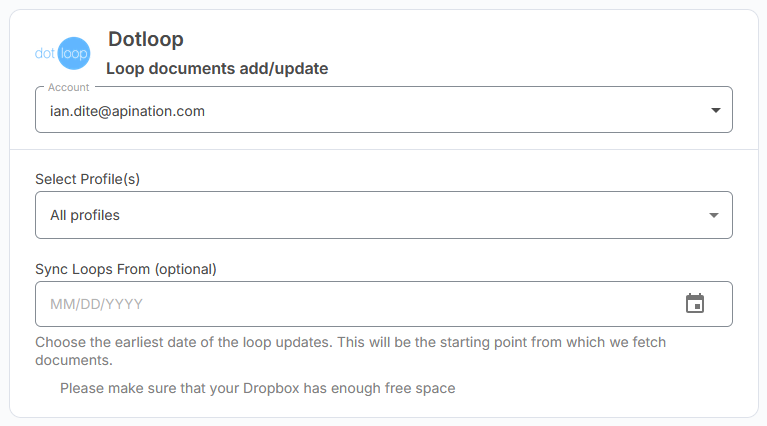
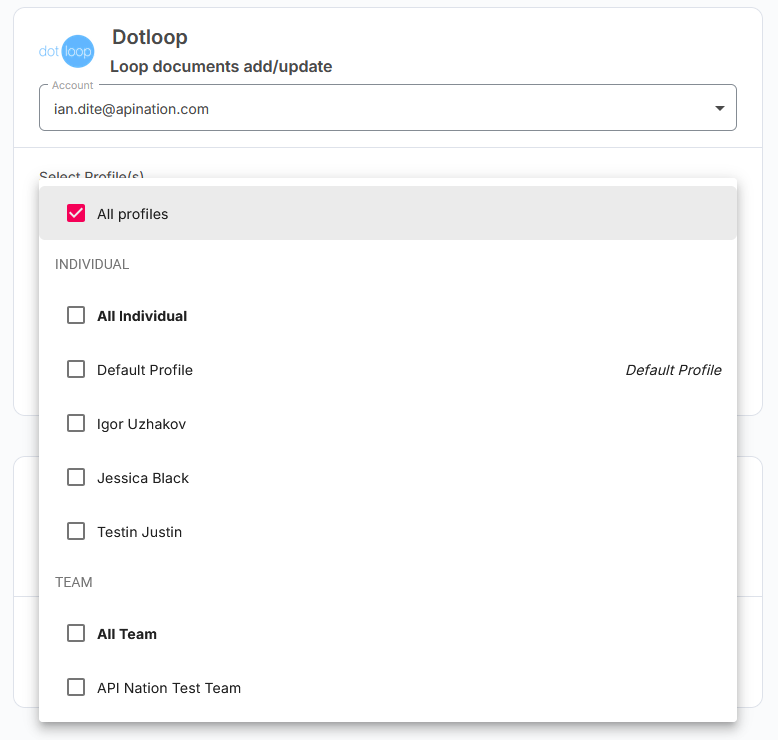
Select Profile(s)
By default, All Profiles will be selected. If you only want to back up files from specific profiles, use the dropdown to select the profile(s) you wish to sync from.
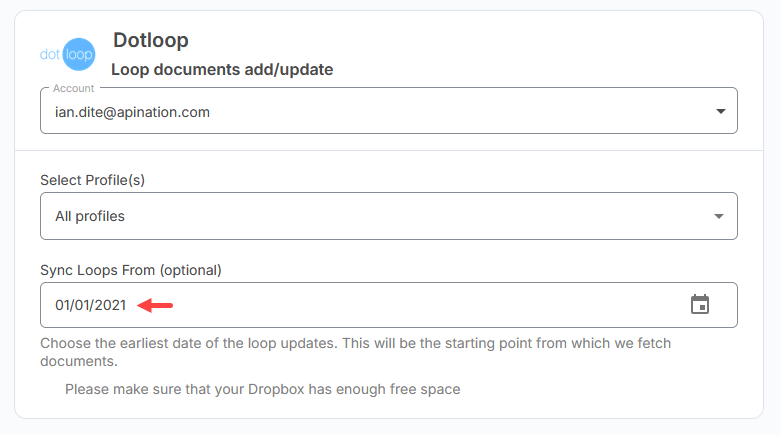
Sync Loops From (optional)
This field is optional. If you only want to back up files for loops that have been updated on or after a specific date, select that date using the calendar dropdown. If left blank, the integration will include loops regardless of when they were last updated.
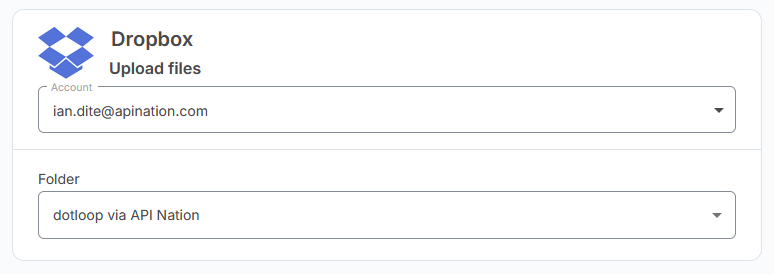
Dropbox Settings
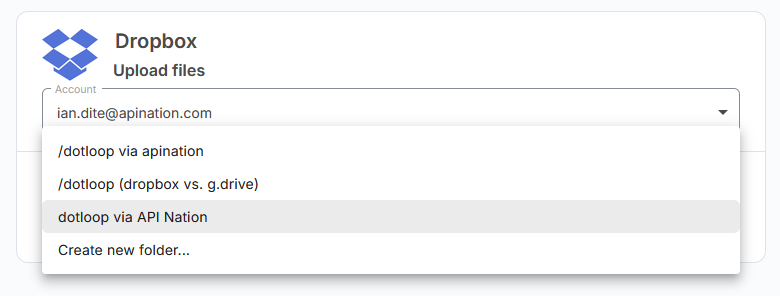
Select Destination Folder
Choose the Dropbox folder where your synced files will be saved. You may select an existing folder or specify a new folder path to be created.
Turning on the Integration
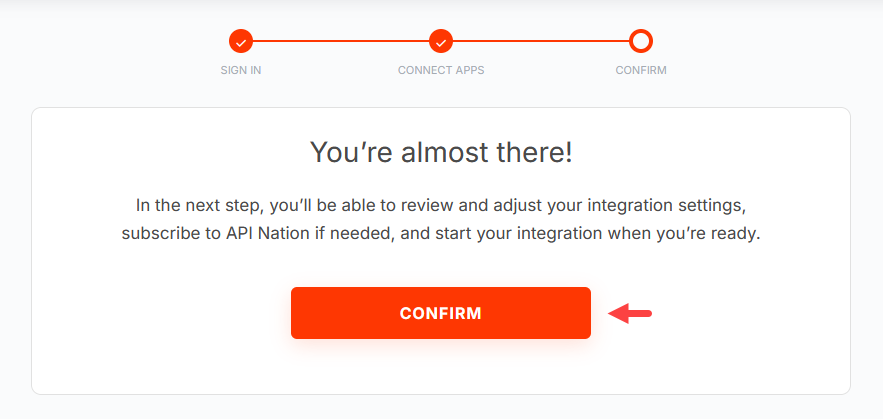
Once you have reviewed your settings and are ready to begin syncing, scroll to the top of the setup window and click Activate Sync. If you do not have an active subscription you will be prompted to select the plan that best fits your needs.
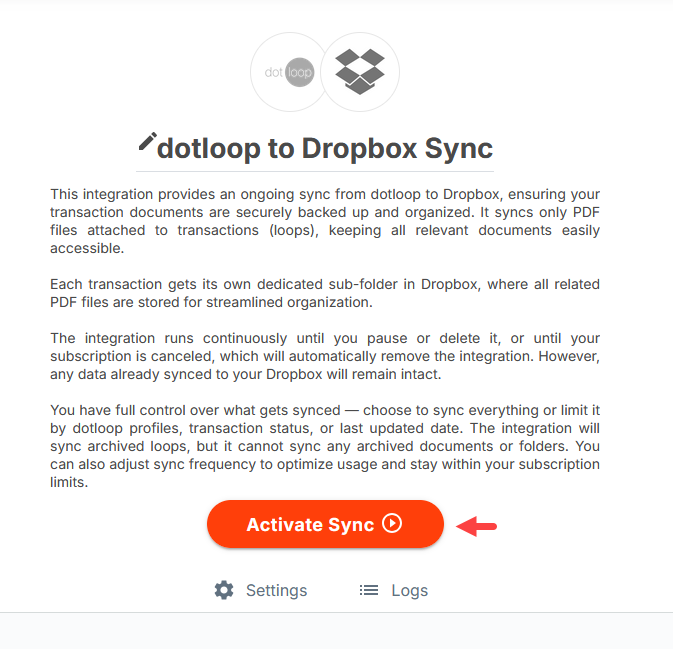
From this point forward, any file added or updated in your selected loops will automatically sync to your chosen Dropbox folder.
Happy Syncing! 🎉
Tips / Still not working?

