


How to Remove an API Nation Connection Inside Mojo
This article is primarily intended to help troubleshoot a specific issue: when you try to connect Mojo to API Nation and receive a message saying it is already connected, even though it doesn't appear to be working. In that case, you will need to remove the existing connection and reconnect fresh.
This article may also be used any time you need to intentionally disconnect API Nation from your Mojo account. Removing a connection will stop all data syncing between Mojo and the connected third-party application.
Before You Begin
Review the following before removing your API Nation connection to avoid unintended data loss or workflow disruption.
- Note which workflows or automations currently depend on the API Nation connection so you can update or pause them first.
- Ensure any in-progress syncs have completed before proceeding.
- Previously synced data is not deleted — records already transferred to Mojo or the third-party app will remain in place.
What Happens When You Remove the Connection
Disconnecting your API Nation integration will have the following effects:
- Data syncing stops immediately — no further records will be passed between Mojo and the connected app.
- Active workflows using this connection will fail — any automation that relies on the removed connection will stop functioning and may generate errors.
Steps to remove the connection
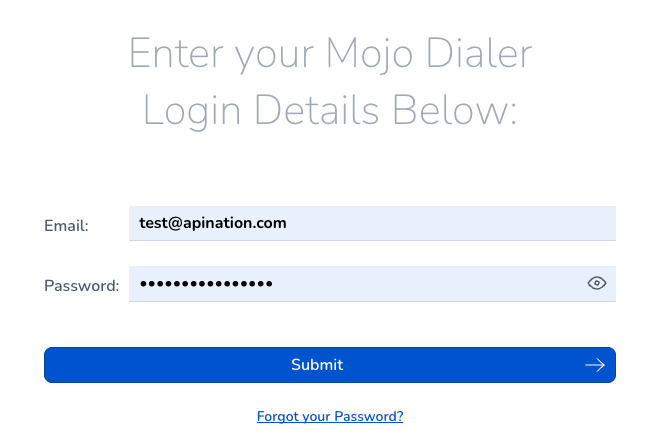
Log in to Mojo
Sign in to your Mojo account.
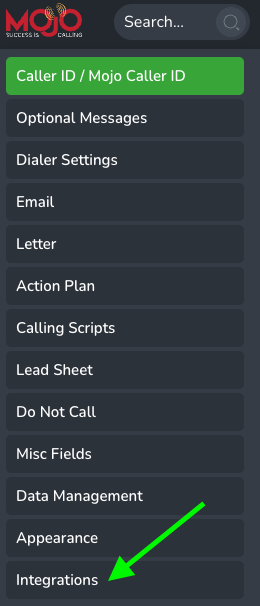
Navigate to Integrations Settings
From the main navigation, go to Settings and select the Integrations tab. This page lists all active third-party connections for your account.

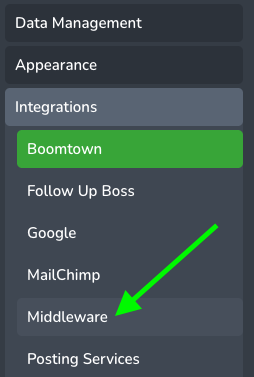
Locate the API Nation Connection
Scroll through the integrations list to find the Middleware, the API Nation connection will then appear in the list.
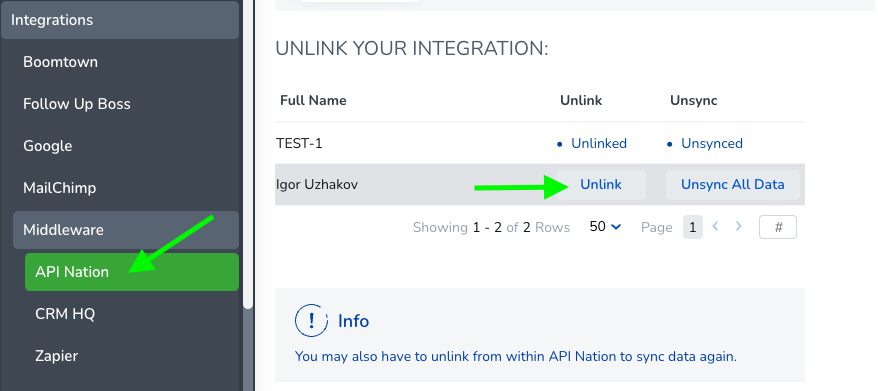
Select Unlink
Click the Unlink button associated with the API Nation connection needing to be removed. A confirmation dialog will appear.
Confirm the Removal
Review the confirmation prompt and click Confirm to finalize the disconnection. The API Nation connection will be removed from your Mojo account immediately.
Connection Status Reference
The following table describes the possible connection states you may see on the Integrations page.
| Status | Description |
|---|---|
| Linked | Integration is active and syncing data normally. |
| Unlinked | Integration has been successfully removed and is no longer active. |
Still not working?

