

How to Connect Your ONE Suite Account to API Nation
This article walks through connecting your ONE Suite account to API Nation. Once connected, you'll be able to build workflows that share your ONE Suite contacts with other tools, like Follow Up Boss and Google Sheets. You'll sign in with your Realty ONE Group ONE Suite credentials to authorize the connection.
Before you begin
- An active Realty ONE Group ONE Suite account with access to the CRM Contacts area.
- Your ONE Suite (Realty ONE Group) login email and password.
- A free API Nation account. If you don't have one yet, you can create one during the connection steps below.
Steps to configure
Log in to API Nation
Log into your API Nation account at my.apination.com.
Find ONE Suite
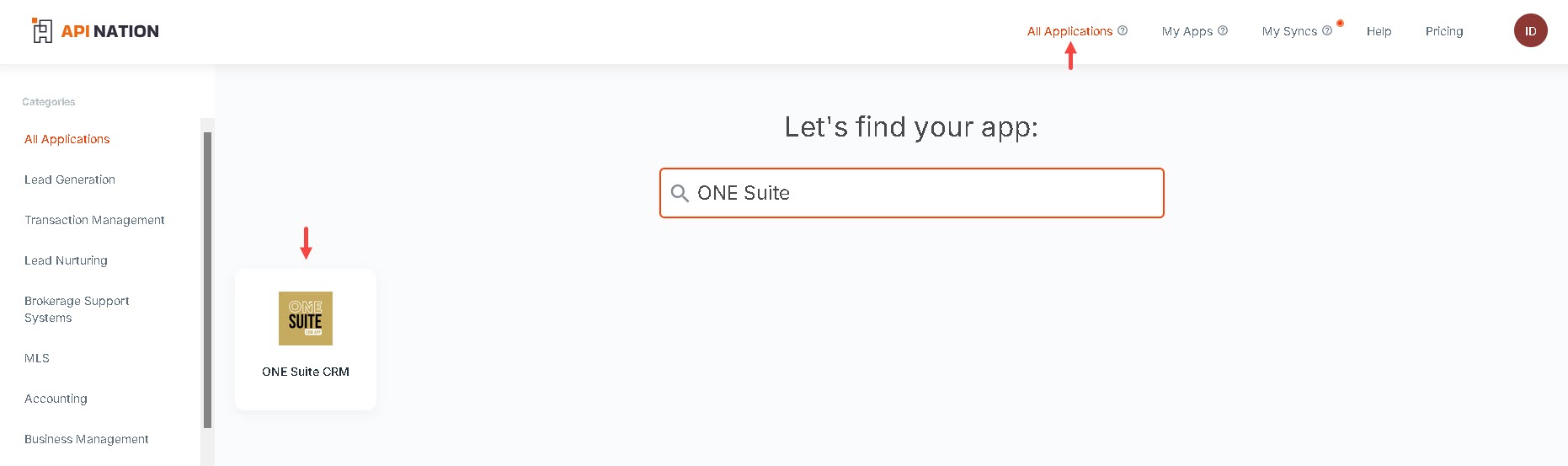
Select All Applications at the top of the page, search for "ONE Suite", and select the ONE Suite tile.
Open the Connections tab
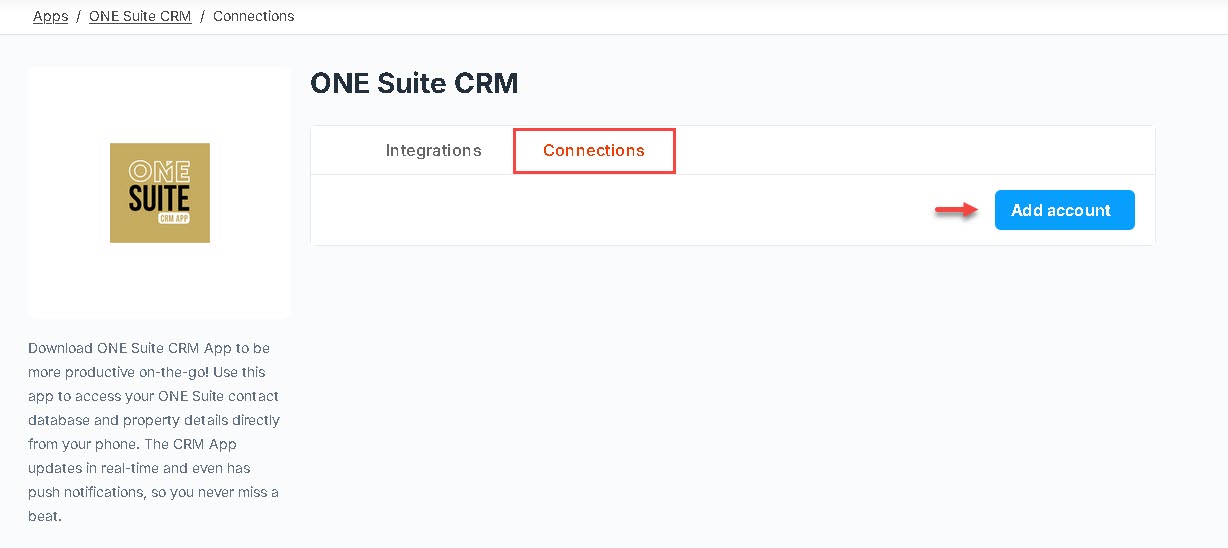
Select the Connections tab, then click Add Account.
Sign in to ONE Suite
You'll be redirected to the Realty ONE Group sign-in page. Enter your ONE Suite email and password, then click Sign In.
Authorize API Nation
Review the permissions API Nation is requesting to access your ONE Suite contacts, then click Allow (or Authorize).
Confirm the connection
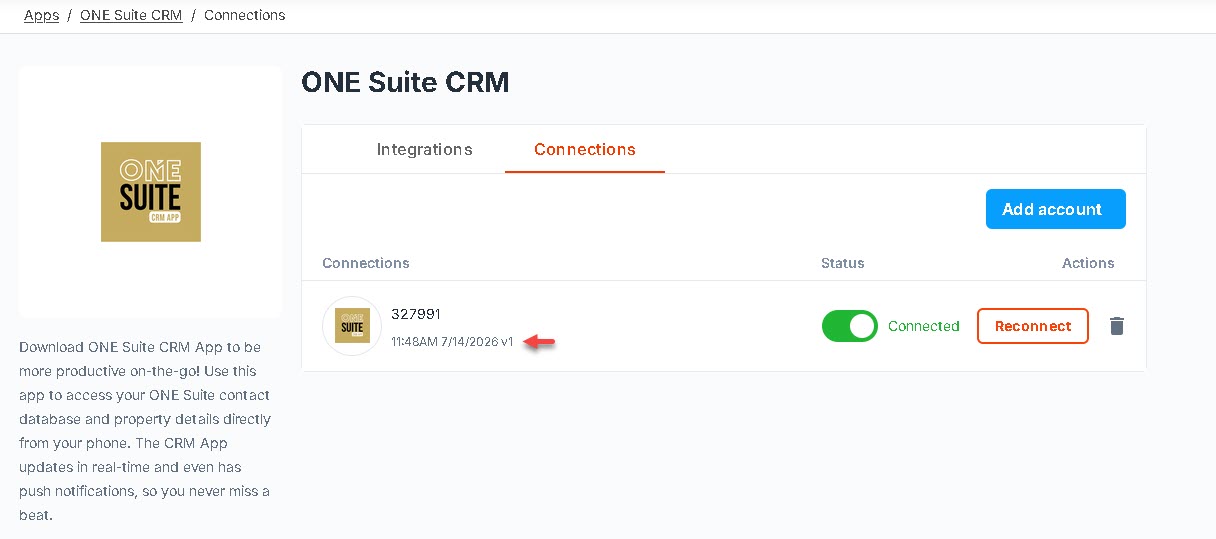
You'll be returned to API Nation, and your connection will be confirmed with a date/time stamp under Connections. From here you're ready to set up a workflow, such as sending contacts to Follow Up Boss or Google Sheets.
Issues connecting?
A couple of things to double-check when authorizing the connection:
- Use the right ONE Suite login — connect using the ONE Suite account whose contacts you want to sync. Signing in with a different user's credentials will connect that user's contacts instead.
- Confirm your permissions — your ONE Suite user role needs access to the Contacts you want to sync. If your role doesn't have that access, the connection itself will still succeed, but workflows built on it won't find any contacts to sync.
Still not working?

