


How To Connect and Update BoldTrail (kvCORE) Connection
This article covers how to connect BoldTrail to API Nation for the first time, as well as how to update an existing connection if your API key has changed or your workflows are failing with authentication errors.
HOW TO GET YOUR BOLDTRAIL API KEY
Both sections below require your BoldTrail API key. Follow these steps to locate it.
Log in to BoldTrail
Log in to your BoldTrail account.
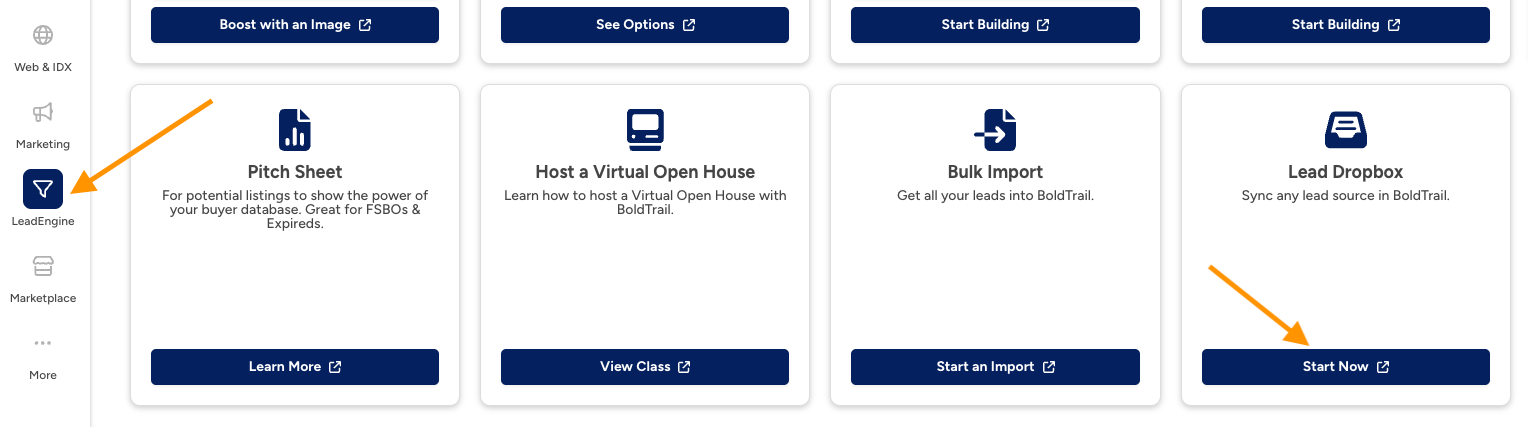
Navigate to Lead Dropbox
Click Lead Engine on the left menu, then click Lead Dropbox.
Generate a new API key
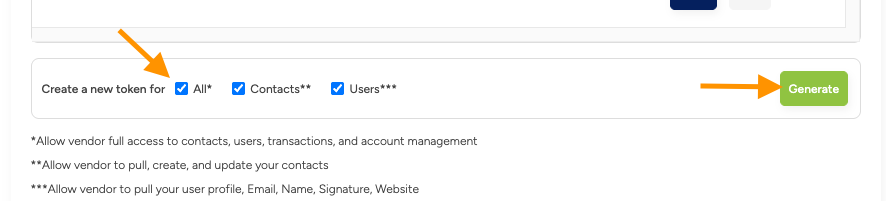
Check the ALL box, then click Generate.
Copy the API key
Copy the API key — you will need it in the steps below.
Use these steps if you are connecting BoldTrail to API Nation for the first time.
Log in to API Nation
Go to apination.com and log in with your API Nation credentials.
Find BoldTrail in All Applications
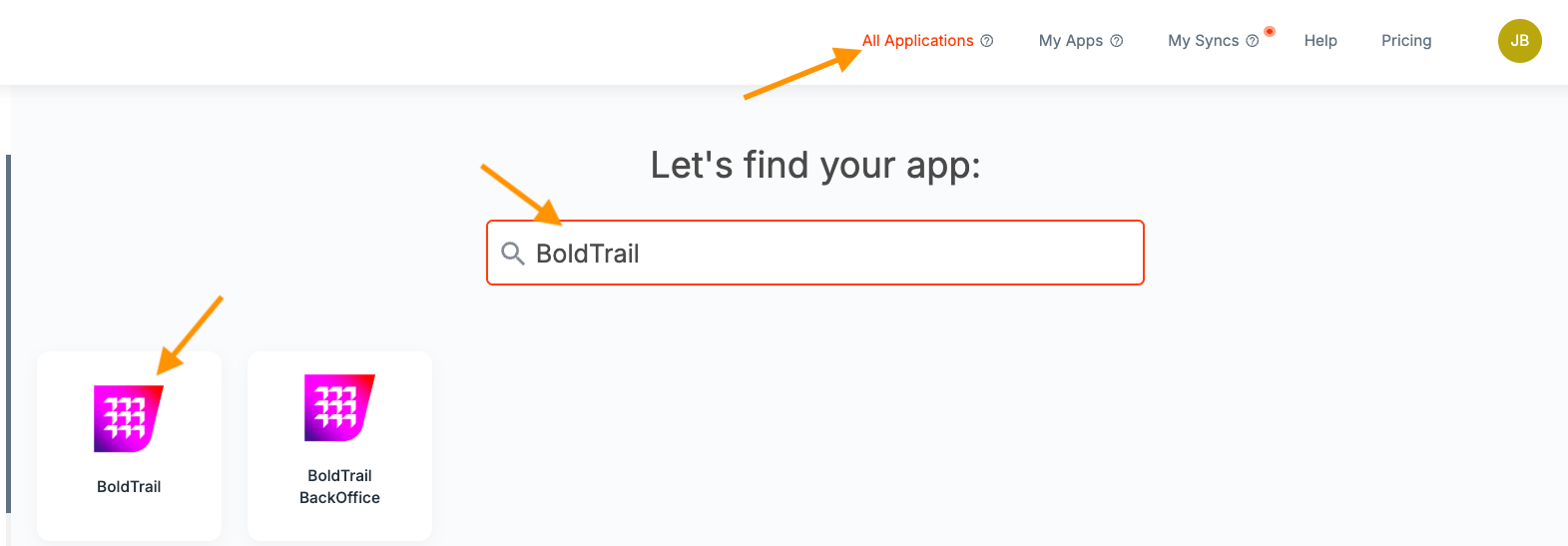
Click All Applications in the top menu. Search for BoldTrail and click on it.
Go to Connections
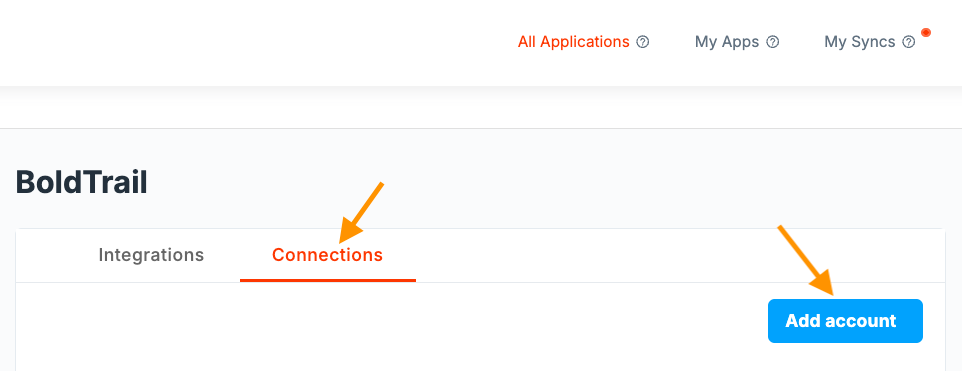
Click on the Connections tab.
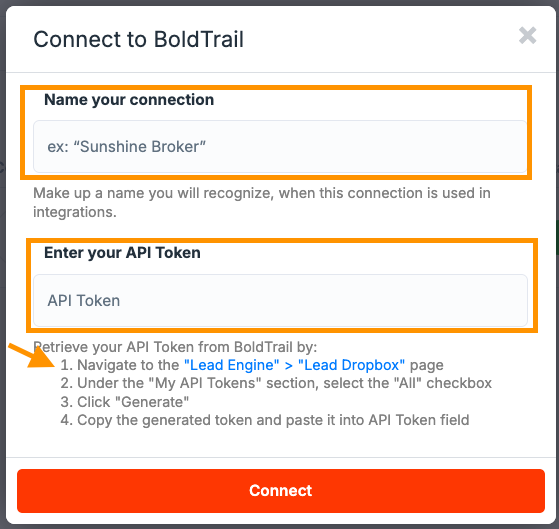
Add your connection
Click the blue Add Account button. Enter a connection name — this can be anything you'd like (for example, "BoldTrail - Main" or your brokerage name). Then paste your BoldTrail API Key.
HOW TO UPDATE BOLDTRAIL CONNECTION
Use these steps if BoldTrail is already connected but you need to replace the connection — for example, your API key changed, workflows are failing with authentication errors, or API Nation support has asked you to reconnect.
Log in to API Nation
Go to apination.com and log in with your API Nation credentials.
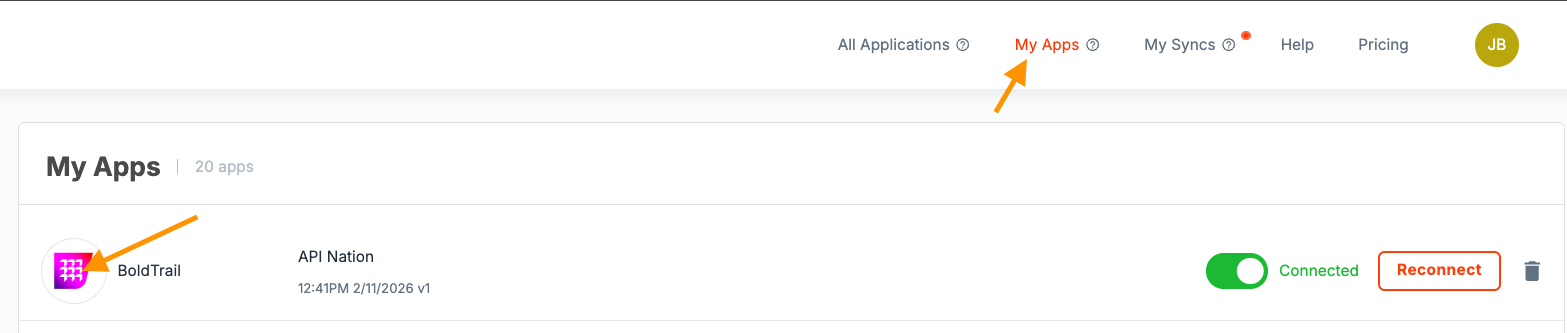
Open BoldTrail in My Apps
Click My Apps in the top menu, then click on the BoldTrail logo.
Go to Connections
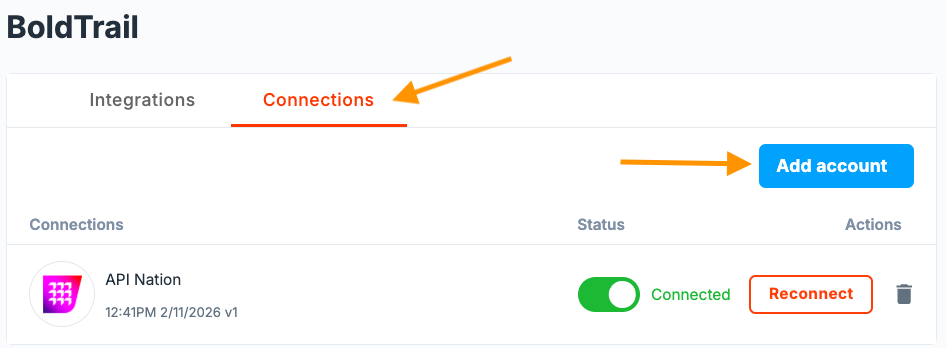
Click on Connections (next to the Integrations tab). You will see your existing BoldTrail connection(s) listed here.
Add a new connection
Click Add Account. Enter a connection name — this can be anything you'd like (for example, "BoldTrail - Main" or your brokerage name). Then paste your BoldTrail API Key.
Delete the old connection
You should now see two BoldTrail connections listed. Click the trash can icon next to the old connection to delete it.
Update your workflows
Click My Syncs in the top menu. Click into each workflow that uses BoldTrail and make sure the new BoldTrail connection is selected. This ensures your workflows use the fresh connection going forward.
Still not working?

