


DocuSign Rooms → Google Drive Backup
This guide walks you through connecting DocuSign Rooms to Google Drive so your files are automatically backed up on a recurring schedule. The whole setup takes just a few minutes.
Before You Begin
Make sure you have the following ready:
- An active DocuSign Rooms account with access to the workspace you want to back up.
- A Google account with Google Drive where backups will be stored.
- An active API Nation subscription — visit my.apination.com/subscriptions/products to choose a plan if you don't have one yet.
Steps to configure
Find the integration
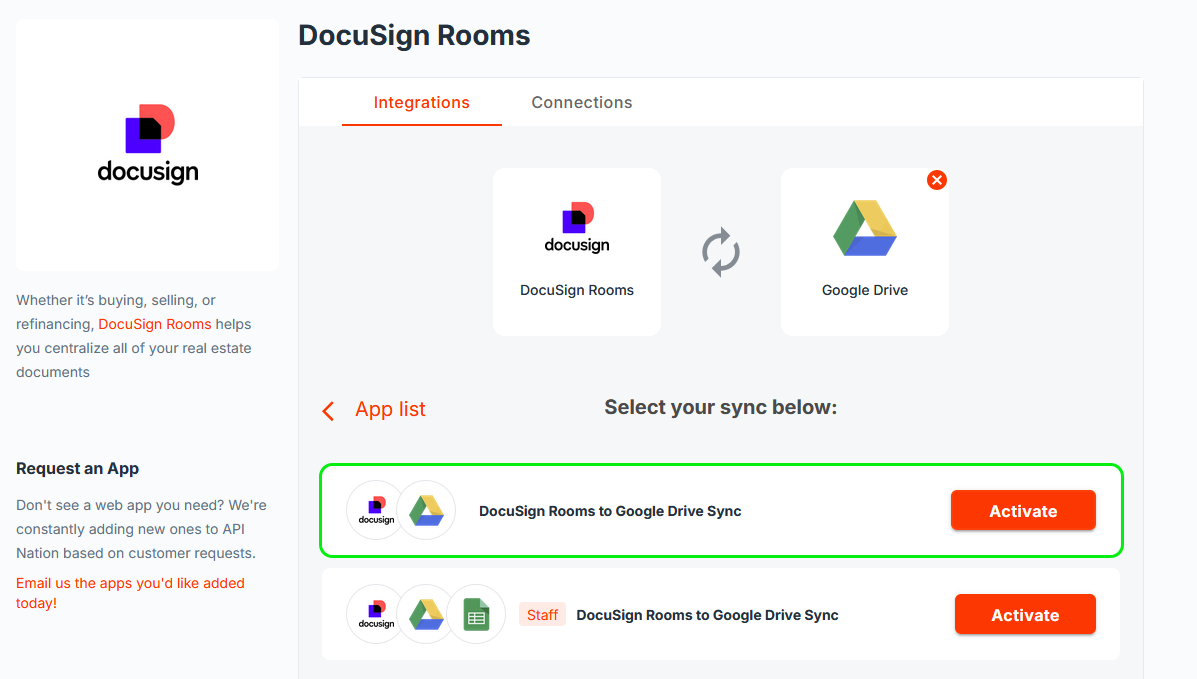
Log in to my.apination.com and go to DocuSign Rooms to Google Drive Backup. Click the Activate button to get started.
Connect your DocuSign account
Click Connect DocuSign and sign in with your DocuSign credentials.
Connect your Google Drive account
Click Connect Google Drive and sign in with the Google account where you want backups stored.
Connect your Google Sheets account
Click Connect Google Sheets and sign in with the same Google account used in the previous step.
Configure your trigger settings
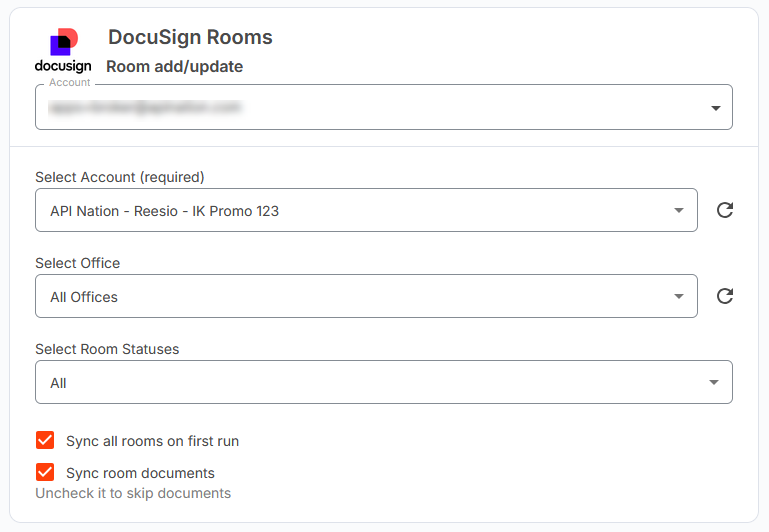
With all accounts connected, configure the following options:
- Select Account (required) — Choose the DocuSign account to back up.
- Select Office — Filter by a specific office, or leave as All Offices to include every office.
- Select Room Statuses — Choose which room statuses to include. Defaults to All.
- Sync all rooms on first run — Checked by default. Backs up your entire workspace on the first run. Uncheck to only pick up new rooms going forward.
- Sync room documents — Checked by default. Backs up all files inside each room. Uncheck to sync room data only, without documents.
Set your sync schedule
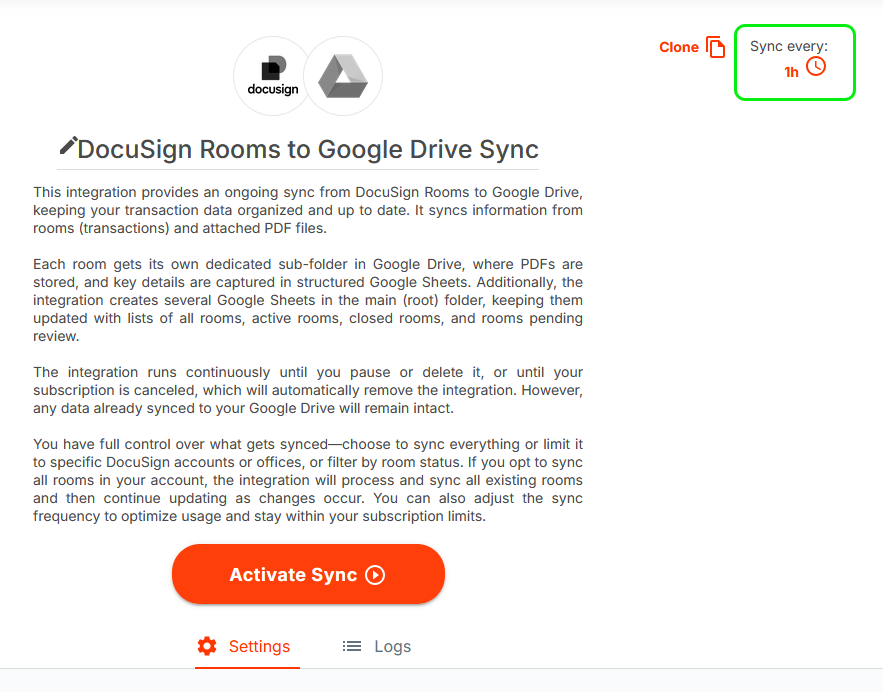
Choose how often the integration runs. The default is every 1 hour. You can set it anywhere from every 5 minutes to every 99 hours depending on how current you need your backup to be.
Turn on the integration
Review your settings, then click Activate Sync. The first backup will begin based on the timer setting. You'll find your files in Google Drive under the folder you specified once the initial run completes.
Things to Keep in Mind
- File limits apply — Your plan includes a monthly records limit. If your DocuSign workspace has more files than your plan covers, only files up to the limit will be backed up. Visit my.apination.com/subscriptions/products to review or upgrade your plan.
- Google Drive only — This integration supports Google Drive as the backup destination only. Dropbox and other storage providers are not currently supported.
Still not working?

