

ONE Suite to Follow Up Boss: Setup Options & Field Reference
This quick reference covers the setup options and field mapping for the workflow that sends your ONE Suite contacts into Follow Up Boss. Whenever a contact is created or updated in ONE Suite, this workflow creates or updates a matching contact in Follow Up Boss.
Before you begin
- ONE Suite connected to API Nation (see "How to Connect Your ONE Suite Account to API Nation").
- A Follow Up Boss account with API access enabled.
Steps to configure
Navigate to the integration
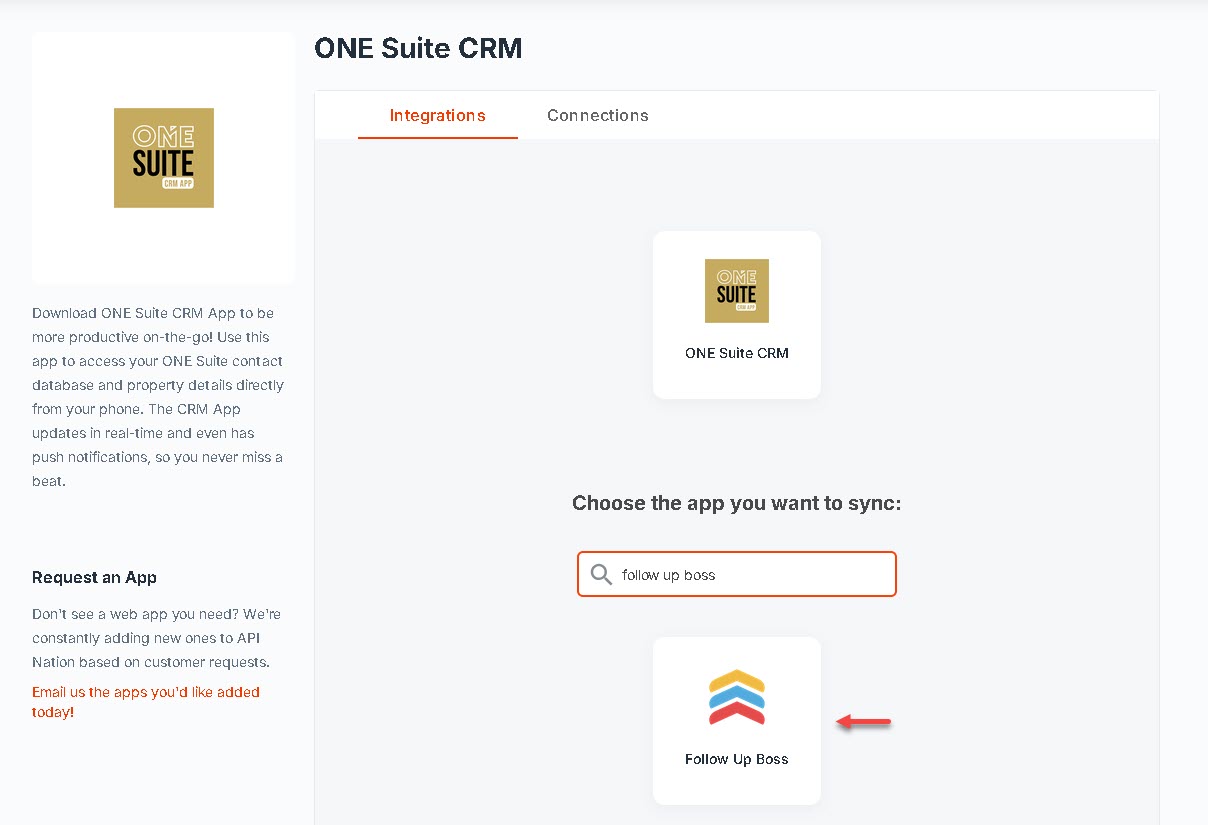
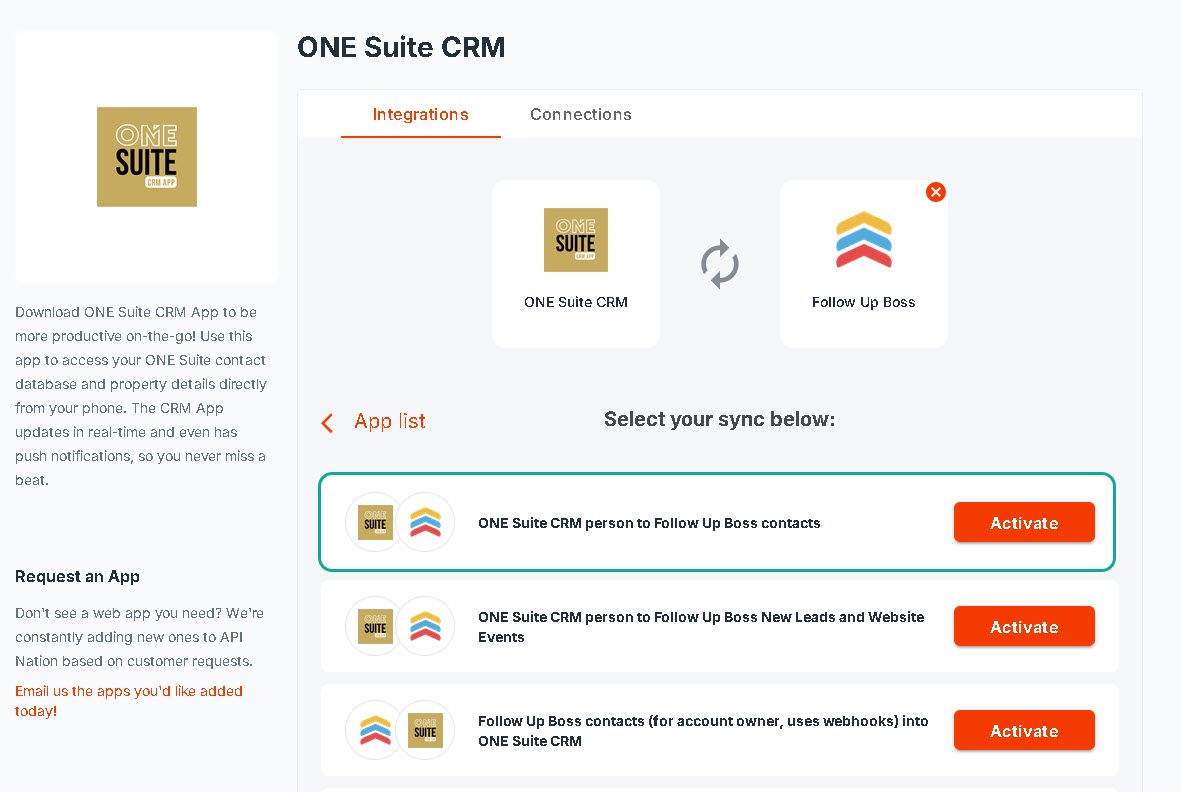
Select My Apps at the top of the page, then click the ONE Suite tile. In the search bar, type "Follow Up Boss" and select the Follow Up Boss tile. When ready, click Activate next to the Setup Wizard.
Connect your accounts
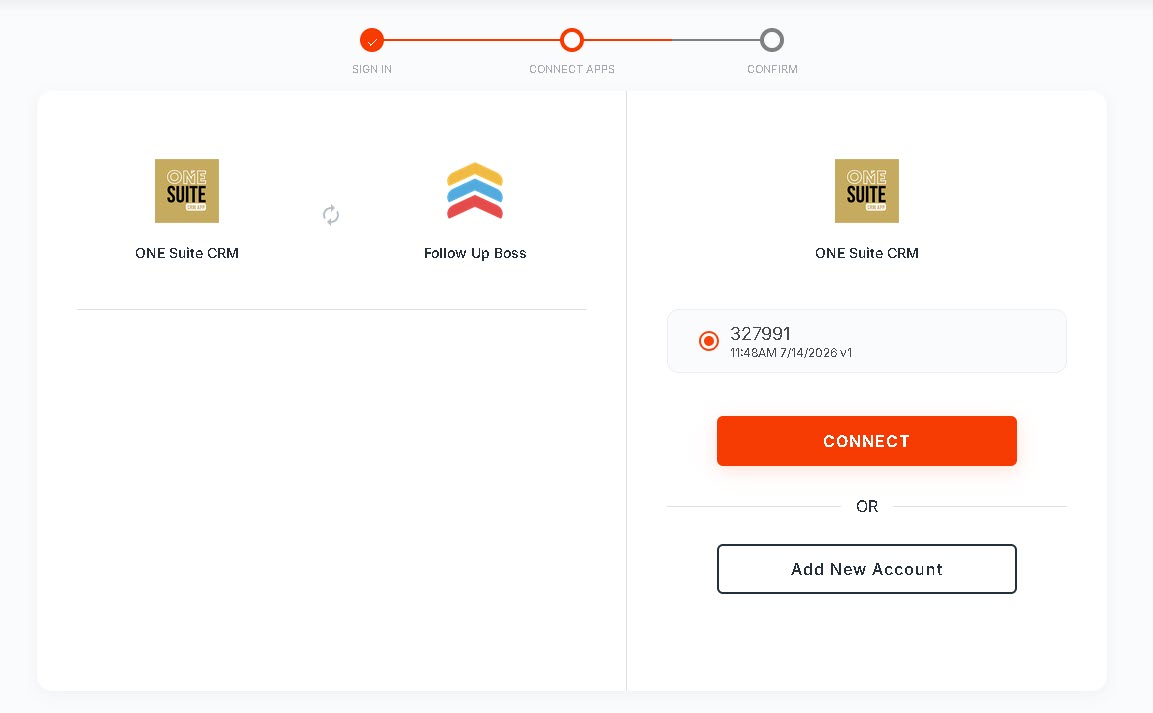
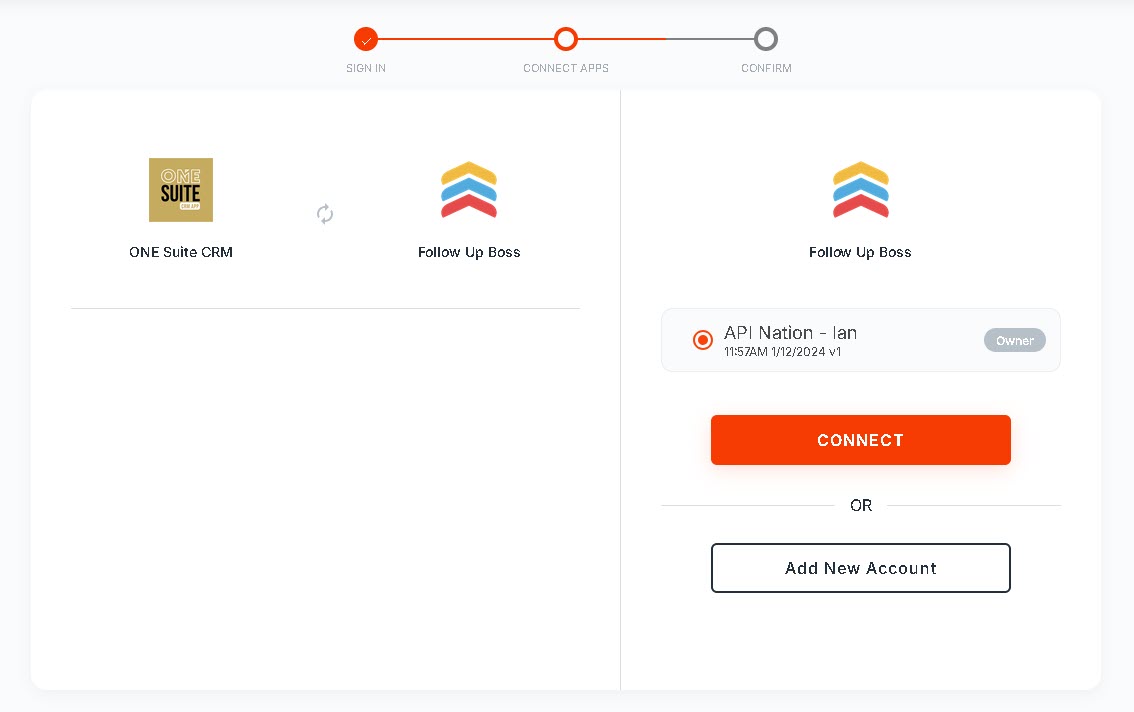
You'll be prompted to select which ONE Suite and Follow Up Boss accounts to use for this workflow. If you've already connected both, simply click Connect for each. Otherwise, you'll be asked to sign in and authorize each account now.
Configure your trigger settings
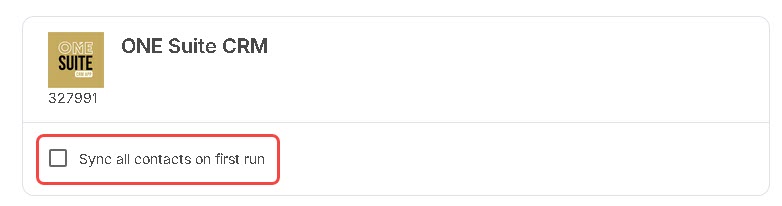
Decide whether to check Sync all contacts on first run. See Setup Options below for what this does.
Configure your action settings
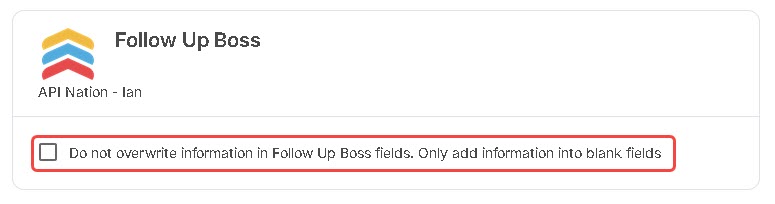
Decide whether to check Do not overwrite information in Follow Up Boss fields. See Setup Options below for what this does.
Review the field mapping
Confirm or adjust which ONE Suite fields map to which Follow Up Boss fields. See Fields You Can Transfer below for the default mapping and other fields available.
Turn on the integration
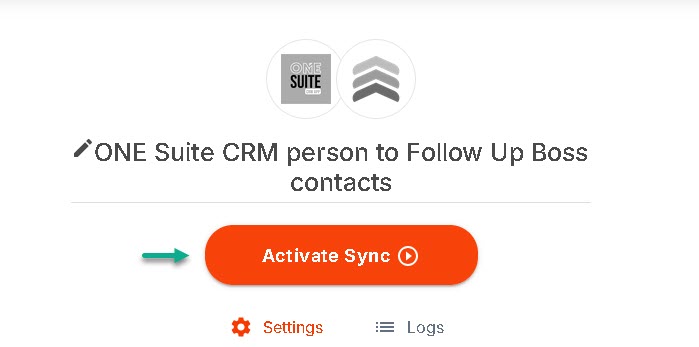
Review your settings, then click Activate Sync. If you don't already have an active subscription, you'll be prompted to choose a plan.
Setup options
- Sync all contacts on first run (Trigger option) — when checked, every existing ONE Suite contact is sent to Follow Up Boss the first time the workflow runs. Leave unchecked to only sync contacts created or updated in ONE Suite from that point forward.
- Do not overwrite information in Follow Up Boss fields (Action option) — when checked, matching Follow Up Boss contacts keep their existing field values, and ONE Suite data is only used to fill in fields that are currently blank. Leave unchecked to let ONE Suite data overwrite existing Follow Up Boss values each time the workflow runs.
Fields you can transfer
These ONE Suite contact fields are mapped to Follow Up Boss by default:
| ONE Suite Field | Follow Up Boss Field |
|---|---|
| First Name | First Name |
| Last Name | Last Name |
| Email Address | |
| Mobile Phone | Phone |
| Home Phone | Home Phone |
| Street / City / State / Zip Code / Country | Matching Follow Up Boss address fields |
You can also map any of the following ONE Suite fields during setup: Date of Birthday, Email Address 2 & 3, Business Phone (and Business Phone 2), Business Fax, IM Address, Business Home Page, Company Name, and Notes. Follow Up Boss offers over 40 fields to map these into, including Stage, Source, Tags, Assigned To, Background, and a wide range of custom fields.
Good to know
- One-way sync — this workflow only sends data from ONE Suite to Follow Up Boss. Changes made directly in Follow Up Boss don't flow back through this workflow.
- Mapping is set during setup — you choose which ONE Suite fields map to which Follow Up Boss fields (including custom fields) when you configure the workflow, and you can revisit the Mapping step at any time to make changes.

