


Mojo to BoldTrail (formerly kvCORE): Integration Setup & Field Mapping
This integration automatically syncs contacts from a specified Group in Mojo into BoldTrail (formerly kvCORE), keeping names, phone numbers, emails, property details, and call notes up to date without any manual exporting.
Before you begin
- An active Mojo account with the contacts you want to sync organized into a Group.
- An active BoldTrail (kvCORE) account.
- If you plan to assign new leads to a specific office or team, a BoldTrail API token created with the "All*" scope from Lead Engine > Leads Sync in BoldTrail.
- Know which Mojo Group(s) you want this sync to pull from — you'll select them during setup.
STEPS TO CONFIGURE
Find and activate the integration
In API Nation, search for Mojo to BoldTrail and select the integration. Click Activate to start setup.
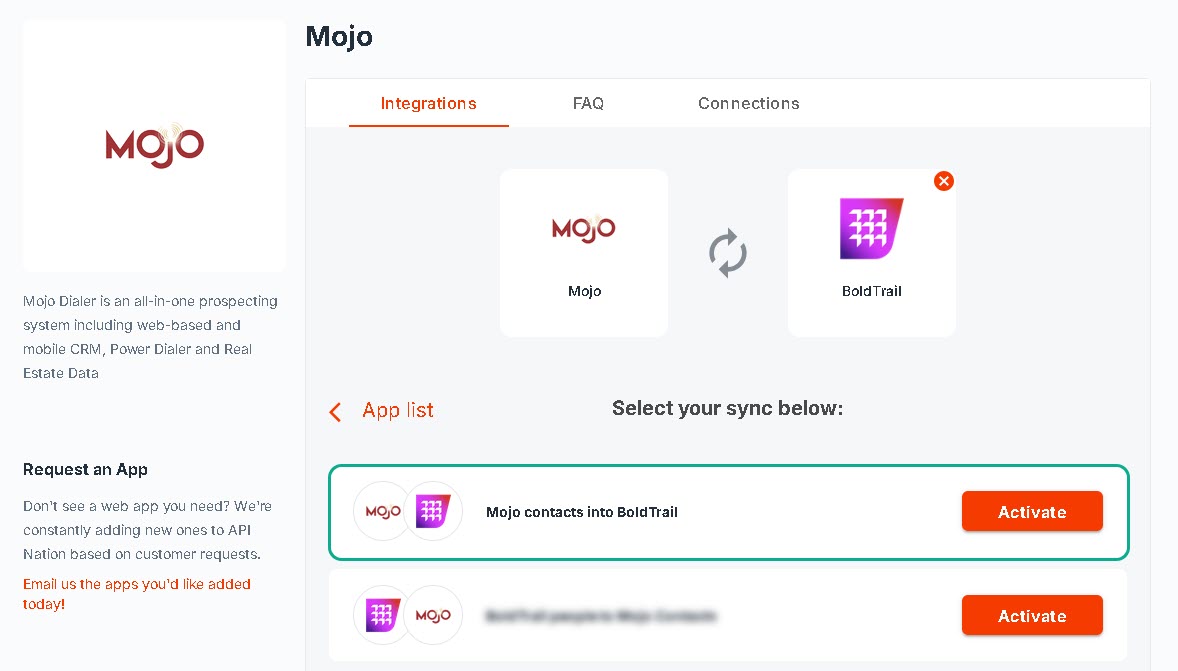
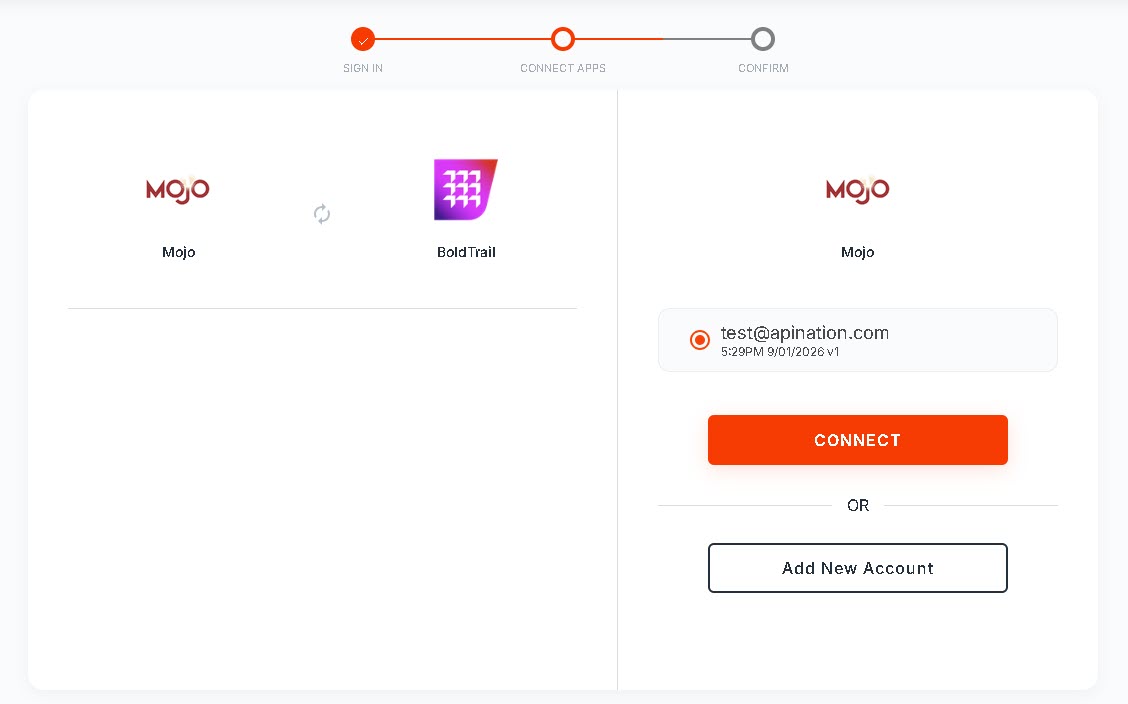
Connect your Mojo account
When prompted, connect your Mojo account directly from the activation flow and log in with your Mojo username and password.
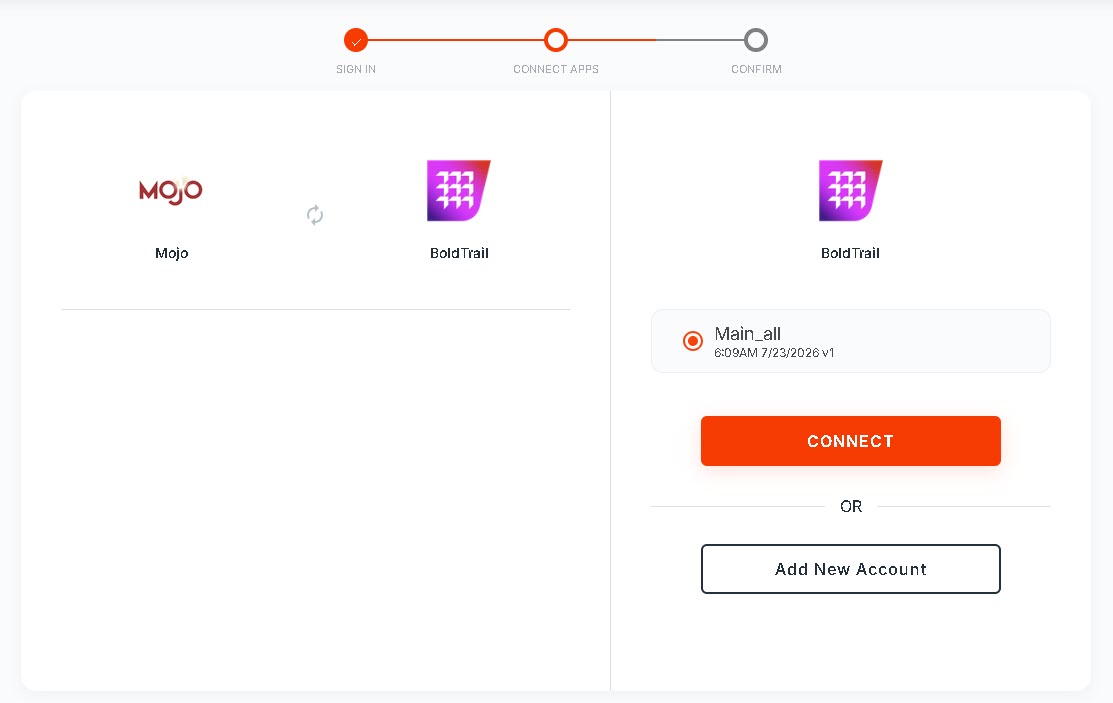
Connect your BoldTrail (kvCORE) account
Connect your BoldTrail account directly from the activation flow and paste in your BoldTrail API token. If you plan to assign leads to a specific office or team, make sure this token was created with the "All*" scope.
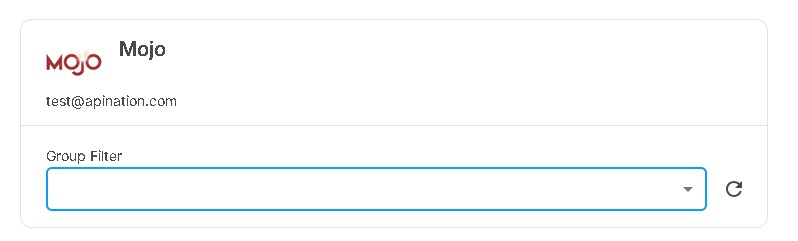
Choose the Mojo group to sync from
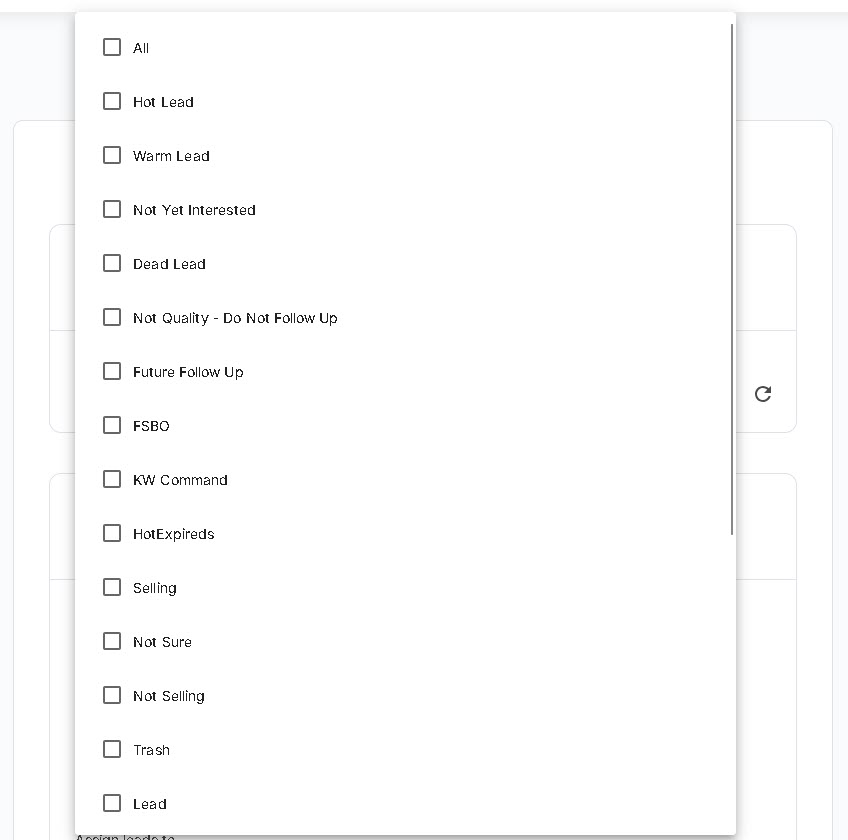
Open the Mojo contacts into BoldTrail workflow from your My Syncs list. On the Trigger step, use the Group Filter to select which Mojo Group(s) should feed this sync. Only contacts in the selected group(s) will be sent to BoldTrail.
Configure how contacts are added and updated
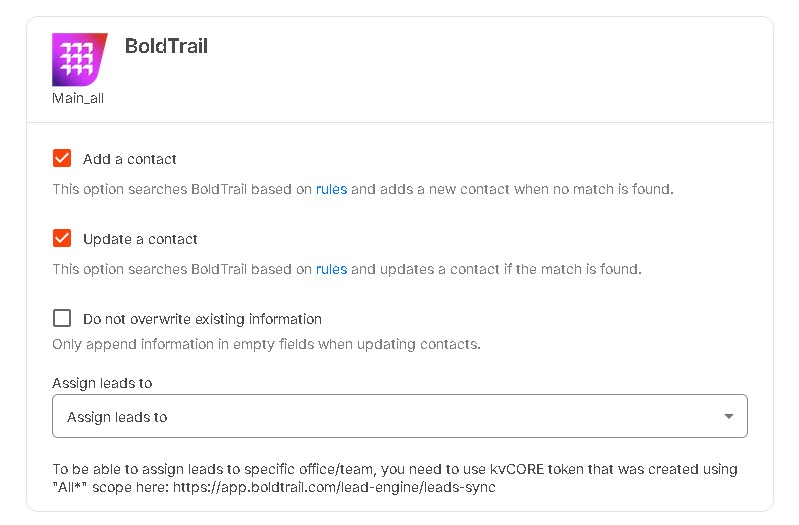
On the Action step, check Add a contact to create new BoldTrail contacts when no match is found, and/or Update a contact to update an existing match. If you enable Update, you can also check Do not overwrite existing information to only fill in empty fields rather than replace existing data. Optionally, use Assign leads to to route new contacts to a specific team member.
Review and adjust the field mapping
Open the Mapping step, titled Mojo contacts into BoldTrail. API Nation pre-fills a default mapping between Mojo fields and BoldTrail fields. Review the Field Mapping Reference below and adjust any fields to fit how your team works.
Turn on the workflow
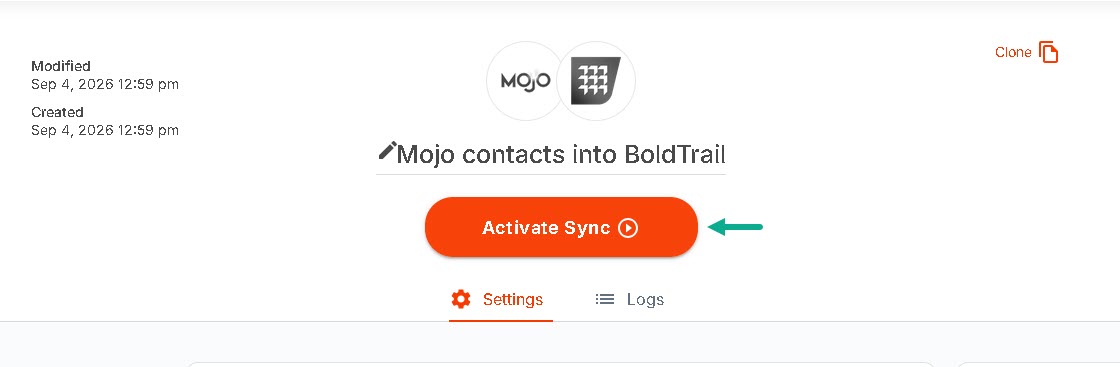
Save your changes and toggle the workflow to enabled. Once active, matching contacts sync automatically going forward.
Field mapping reference & best practices
These are the most commonly used field pairings between Mojo and BoldTrail. Use this as a starting point when reviewing the default mapping.
| Mojo Field | BoldTrail Field | Notes |
|---|---|---|
| Full Name / First & Last Name | Full Name / First Name | One of these must be mapped. |
| Primary Email | Either this or Primary Phone must be mapped. | |
| Primary Phone | Phone | Either this or Primary Email must be mapped. |
| Additional Mobile Phone | Cell Phone 2 | Recommended if your team texts leads from BoldTrail. |
| Additional Home / Work Phone | Home Phone / Work Phone | Optional. |
| Property Address, City, State, Zip | Primary Address, City, State, Zip | Useful for farming and location-based marketing in BoldTrail. |
| Priority Note + Additional Notes | Note | Both note fields are combined into one Note automatically. |
| Additional Emails | Second Email | Optional. |
💡 Advanced tip: Tag contacts by which Mojo group they came from (click to expand)
Want a contact's BoldTrail record tagged with the Mojo group it came from (for example, contacts from a "FSBO" group getting an FSBO hashtag)? Map a fixed text value into the Hashtags field on the Mapping step instead of mapping it to a Mojo field. Because a single workflow can only carry one tag value, this approach requires a separate workflow per group — syncing 5 tagged groups means setting up 5 workflows, each with its own Group Filter and Hashtags value.
Good to know
- The sync is triggered automatically whenever a contact in the selected Mojo group is created or updated — there's no manual export step.
- BoldTrail matching for Update follows its own contact-matching rules. See How does creating/updating contacts work in BoldTrail (kvCORE) for details.
Common setup issues
A contact won't sync into BoldTrail if the mapping is missing required fields:
- No name mapped — BoldTrail requires either a First Name or a Full Name to be mapped for every contact.
- No email or phone mapped — BoldTrail requires at least one of these to accept a contact.
- Assign leads to isn't working — this option requires a BoldTrail API token created with the "All*" scope. A standard token can't route leads to a specific office or team.
Still not working?

