


How To Connect Follow Up Boss to API Nation
API Nation connects to Follow Up Boss with an API Key. You copy the key from your Follow Up Boss account and paste it into API Nation. This article shows how to connect Follow Up Boss for the first time, and how to reconnect it if your connection stops working.
Before you start
- You can sign in to Follow Up Boss as the user whose data you want to sync.
- You can sign in to your API Nation account at my.apination.com.
Part 1: Copy your API Key from Follow Up Boss
Steps
Open the API page in Follow Up Boss
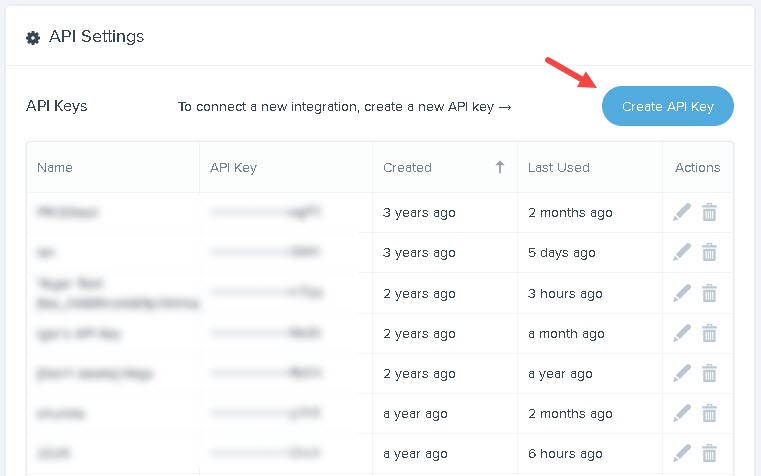
Sign in to Follow Up Boss. Go to Admin > API.

Create a new API Key
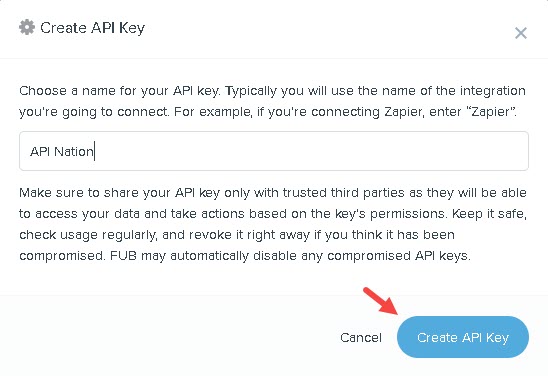
Create a new API Key and label it API Nation. The label tells you later which key API Nation is using.
Copy the key
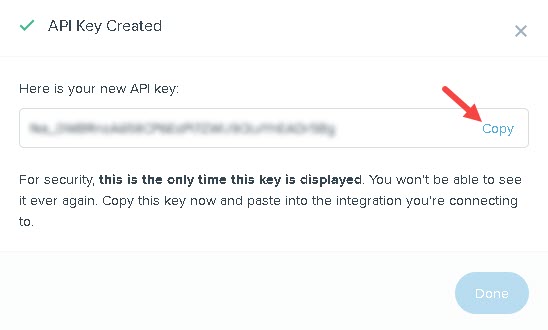
Copy the new key right away and keep it handy for Part 2.
Part 2: Connect Follow Up Boss in API Nation
Steps
Click Connect
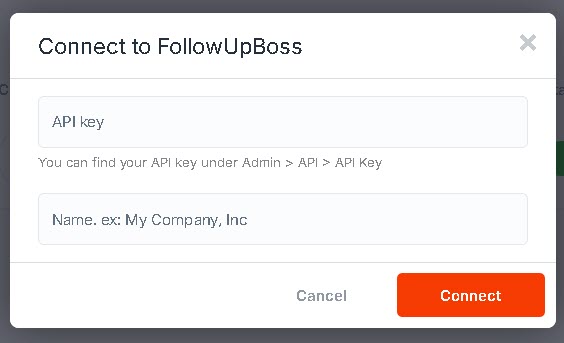
In API Nation, open the workflow you are setting up and click Connect next to Follow Up Boss. The Connect to FollowUpBoss window opens.
Enter your API Key and a name
API key — paste the key you created in Part 1.
Name — give the connection a name you will recognize, such as your company or the user's name. This helps if you have more than one Follow Up Boss connection.
Click Connect
Click the orange Connect button. Follow Up Boss is now connected to API Nation, and you can finish setting up your workflow.
Reconnecting Follow Up Boss
A connection can stop working if the API Key changes or is removed in Follow Up Boss, or if the user who owns the key is deactivated. When this happens, your workflows cannot reach Follow Up Boss until you reconnect.
Follow Up Boss does not let you view an existing API Key, so reconnecting always means creating a new key.
Steps
Remove the old API Key (optional)
In Follow Up Boss, go to Admin > API. Find the key labeled API Nation and remove it. This keeps your list of keys clean so there is only one key for API Nation.
Create a new API Key
On the same page, create a new API Key and label it API Nation. Copy the key right away.
Go to My Apps
Sign in at my.apination.com and open My Apps.
Find your Follow Up Boss connection
Locate the Follow Up Boss connection that is no longer working and click Reconnect.
Enter the new API Key
The Connect to FollowUpBoss window opens. Paste the new key and click Connect.
Still not working?

