


Summary
Contacts in KW Command and Contacts in Fello can be synced using this integration. In particular, by setting up this sync, your Enriched Contacts from Fello will update into KW Command with their new information.
Please see below for a list of configurable settings on each integration, varying depending on whether you are syncing To or From Fello.
Sync Setup
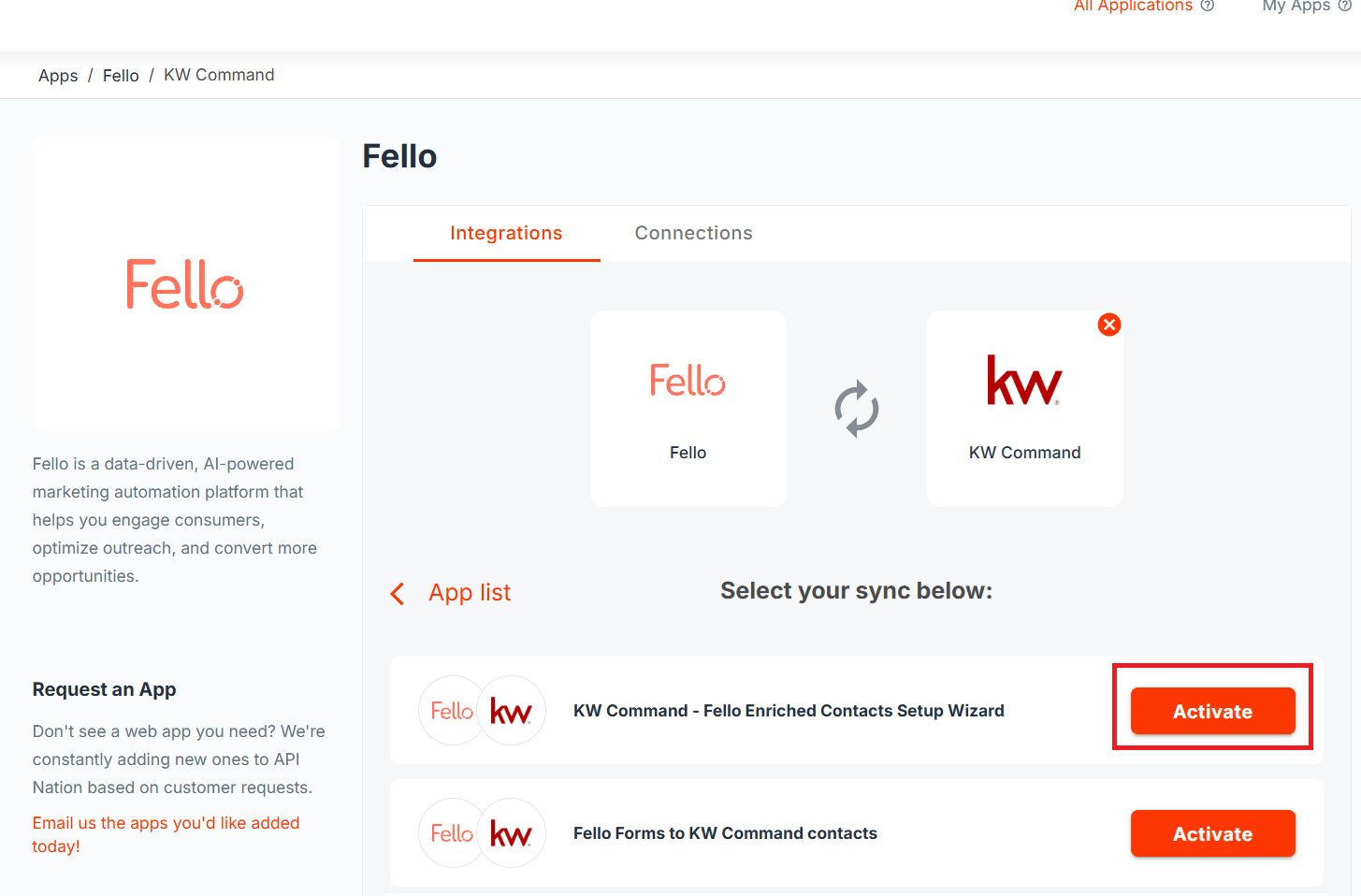
- On the 2 App Page for Fello and KW Command, click on "Activate" for "KW Command - Fello Enriched Contacts Setup Wizard".
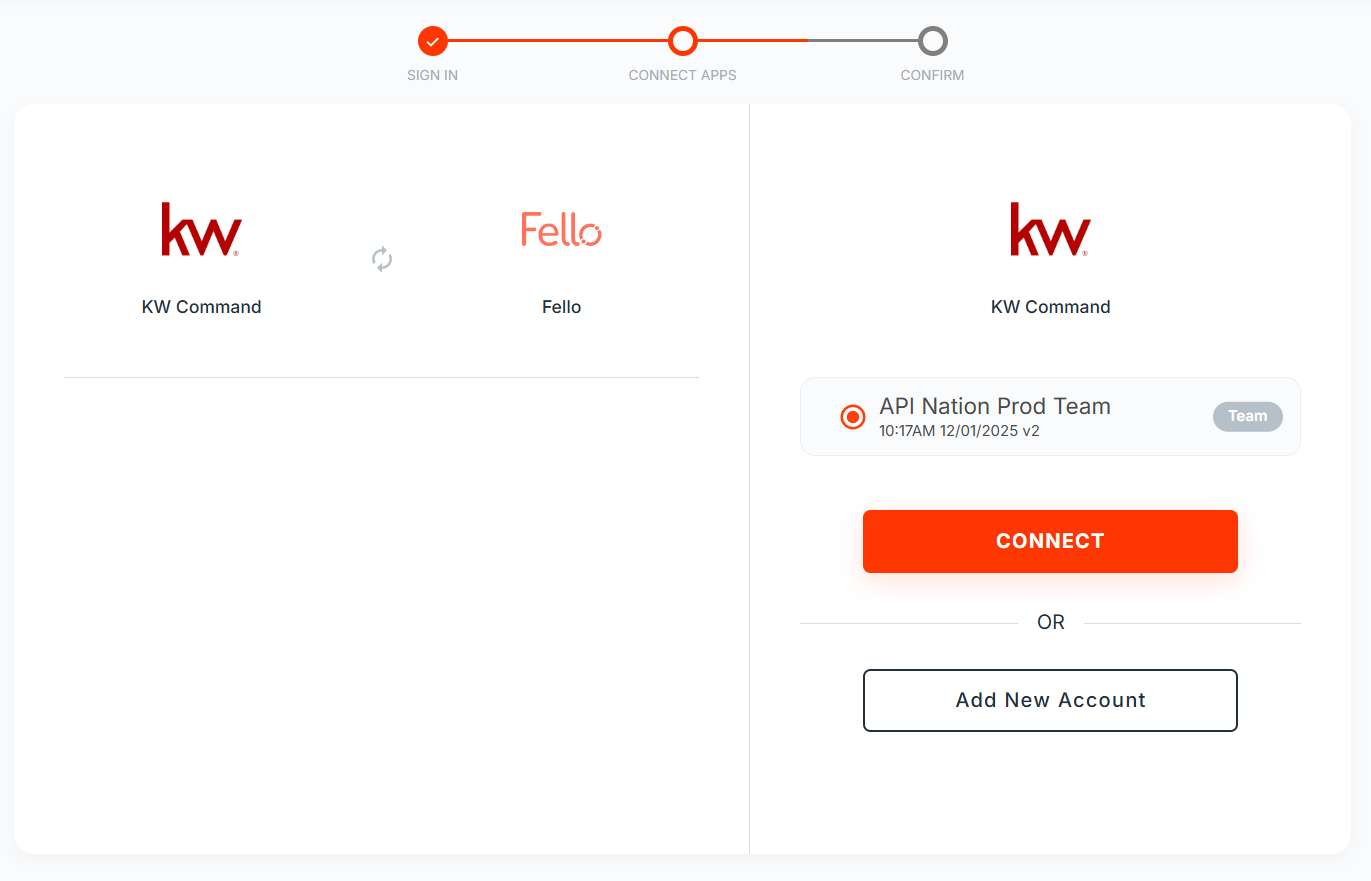
- Setup your KW Command connection: either select an existing Connection, or press "Add New Account" and follow the dialogue boxes.
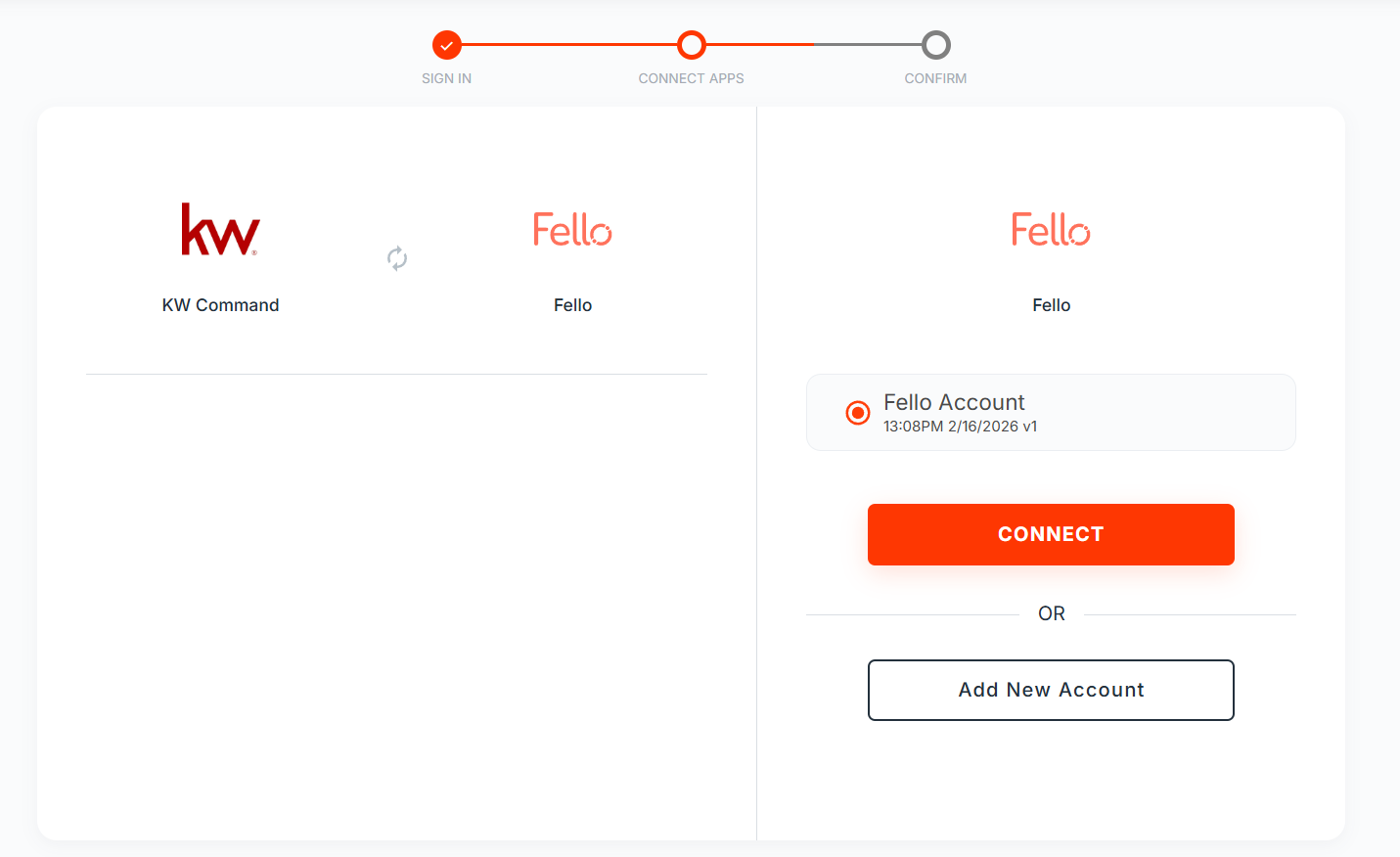
- Setup your Fello connection: either select an existing Connection, or press "Add New Account" and follow the dialogue boxes.
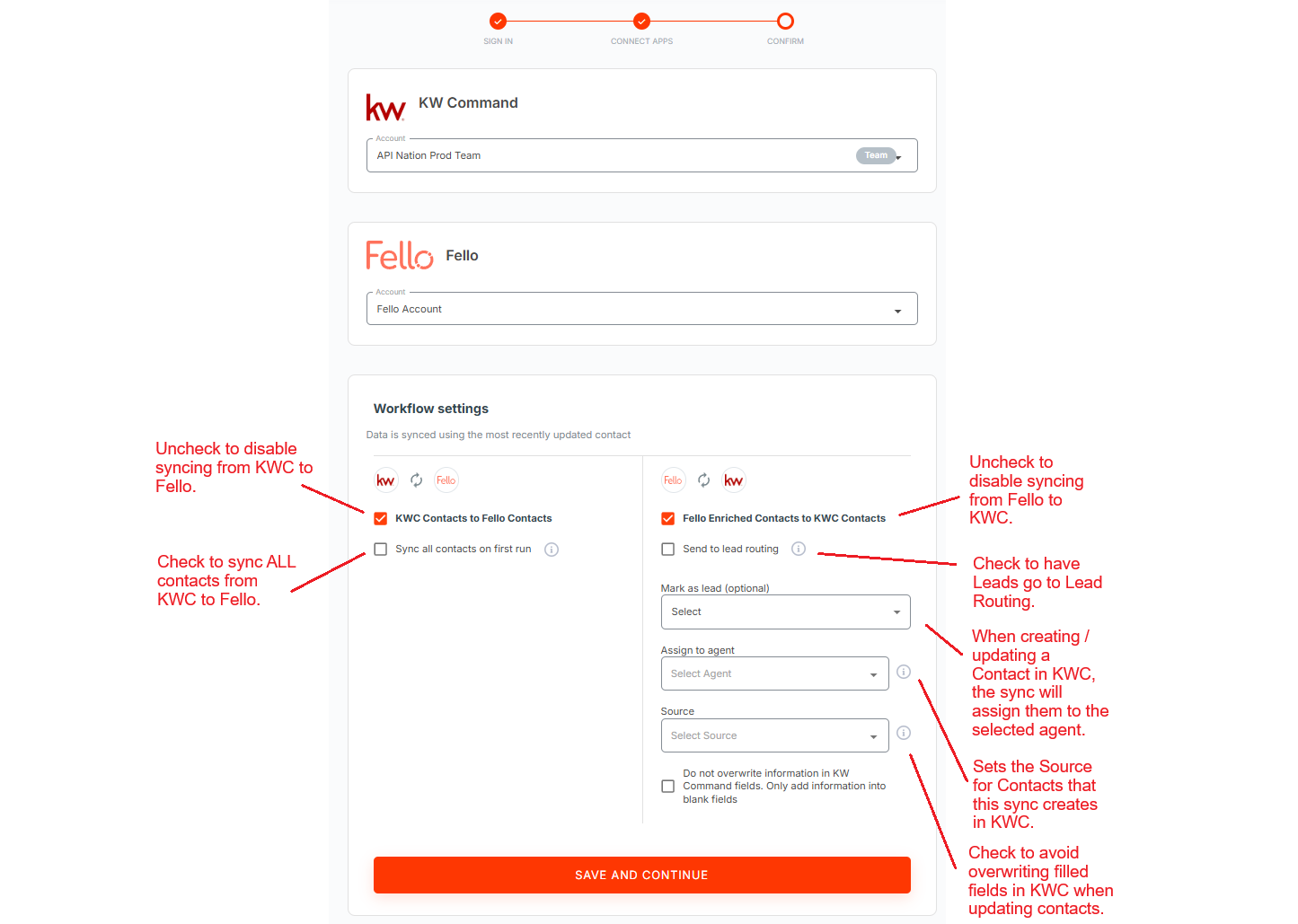
- Configure your desired integration settings! For more information on each of these settings, please see the sections below.
- Hit "Save and Continue" to activate your syncs. Data will begin syncing automatically without further input.
KWC Contacts to Fello Contacts
What does it do?
When a Contact in KW Command is Created or Updated, this sync will search Fello foir matching Contacts based on Email. If the Contact does not exist in Fello, the sync will create a matching Contact. If the Contact does exist in Fello, it will update the Contact with the new information.
In both cases, the sync will also add the ID of the contact in KW Command to the "CRM" field in Fello.
Settings
When setting up this portion of the integration, there are two options available.
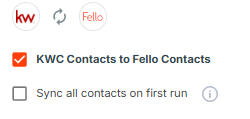
- KWC Contacts to Fello Contacts: This checkbox designates that you wish to sync data from KWC into Fello. Unselecting this checkbox will disable syncing in this direction and will NOT create a Workflow from KWC to Fello.
- Sync all contacts on first run: Selecting this checkbox will, after the workflow is created, begin syncing ALL contacts from KW Command into Fello. This will take some time and will impact your total records count.
- This option disappears once the Workflow is set up. In a created workflow's "Settings" (see below), there is a button that says "Resync all contacts" if you wish to restart this process.
Pre-Mapped Fields
For ease of use, several fields have been pre-mapped. Please see below of a list of these fields and an explanation of the pre-mapped values. It is recommended to leave these as is unless there is a specific need to adjust them.
If you wish to adjust them, navigate to the Workflow in your API Nation account, click on "Settings", and then scroll down to "Mapping".
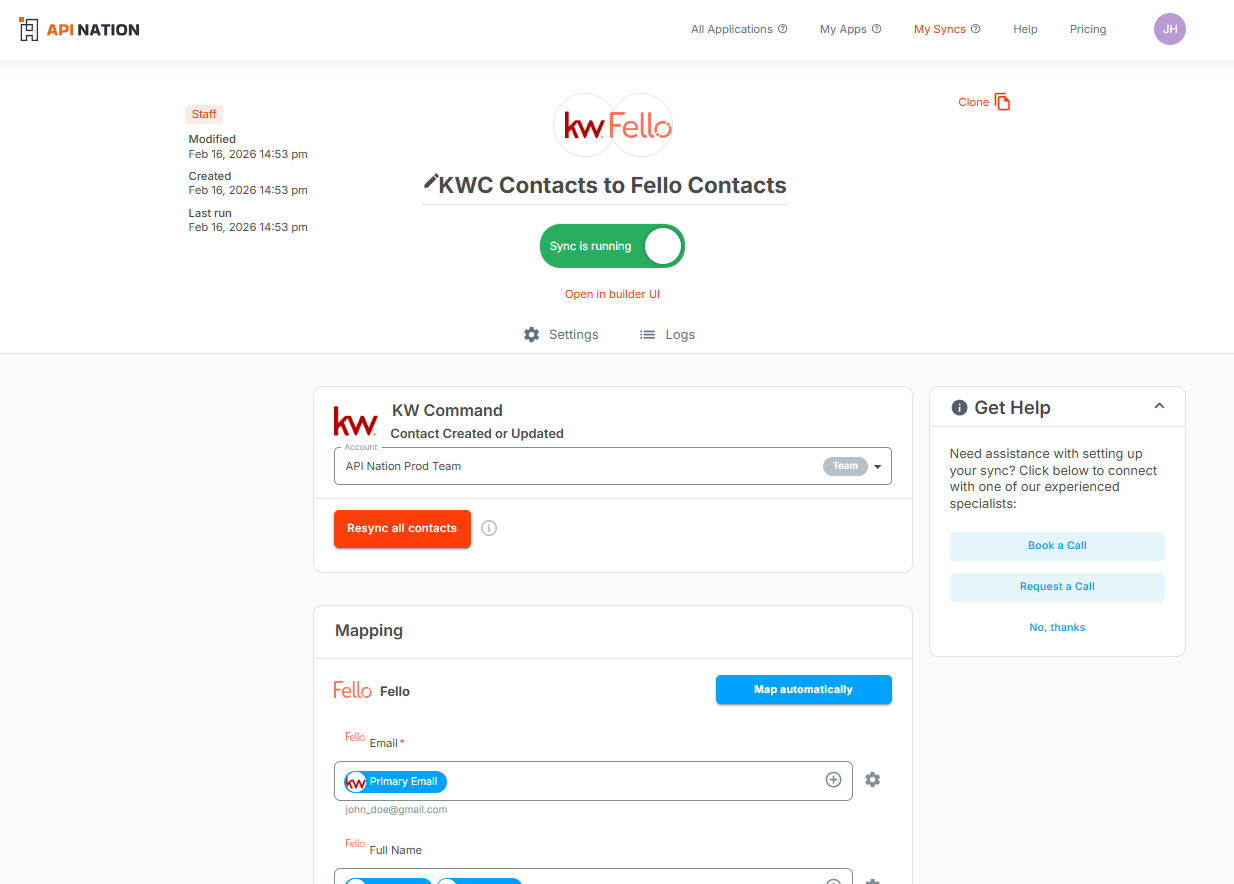
- Email: Mapped to KWC's "Primary Email".
- Full Name: Mapped by combining KWC's "First Name" and "Last Name".
- Phone: Mapped to KWC's "Primary Phone".
- Tags: Mapped to KWC's "Tags".
- Address: Mapped by combining KWC's "Primary Address Line 1", "Primary City", "Primary State", and "Primary Zip Code".
- CRM Fields Name: Mapped to KWC's "ID".
Fello Enriched Contacts to KWC Contacts
What does it do?
When a Contact in Fello is enriched, the sync will search KW Command for a matching ID (based on the CRM field) or for a matching Email. If it can find a match, it will update the matching Contact. If it cannot, it will create a matching Contact and then update its CRM field with the KWC ID.
In addition, after updating / creating the contact in KWC, the sync will create an Activity summarizing the results of the Contact Enrichment!
Settings
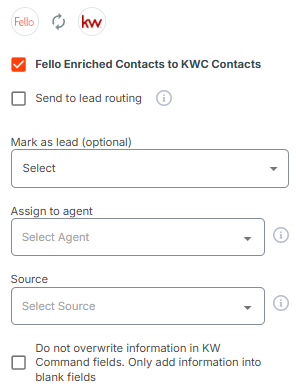
- Fello Enriched Contacts to KWC Contacts: This checkbox designates that you wish to sync data from Fello into KWC. Unselecting this checkbox will disable syncing in this direction and will NOT create a Workflow from Fello to KWC.
- Send to lead routing: If checked, the sync will attempt to send all Contacts into KW Command's lead automation via lead routing. If this is chosen, you will not be asked to choose whether the Contact will be marked as a Lead or if it needs to be Assigned to an Agent.
- Mark as lead: If some contacts should be marked as a Lead, select the criteria in this box.
- Only Mark as Lead when contact updated
- Only Mark as Lead when contact created
- Mark as Lead when contact is created or updated
- Don't mark contacts as leads
- Assign to agent: If all of the synced Contacts should be assigned to one agent INSTEAD of attempting to find and assign agents based on email, select the agent here.
- Source: If all of the synced Contacts should have Source set as a specific field INSTEAD of having it dynamically changed based on Source in Fello, define it here.
Visual Filter
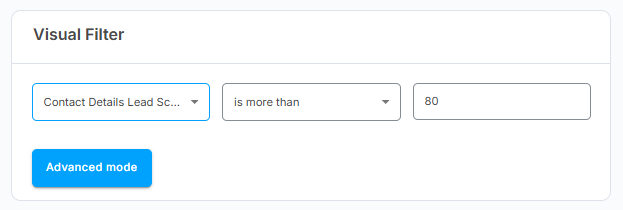
Your sync can be customized to only let some Contacts through.
- For example, a possible filter, shown below, reads as such “Only sync Fello Enriched Contacts whose Contact Details Lead Score is more than 80.”
- On the left is the field that will act as the “reference field” for the Filter.
- The center box is the logic operator - the Workflow will use this as the “rule” for what is allowed through. This is a dropdown menu with predesignated options for you.
- The right box is the specified value. Any string can be entered here.
Additional Questions
If you have any questions about onboarding, feel free to contact API Nation's Support team.

