


Overview
By setting up an integration between Boldtrail Backoffice and SetWave, you'll gain the ability to automate Documents Submitted for Review into SetWave's Audit Reports! Whenever a document is submitted for review in Boldtrail Backoffice, this integration will sync it and its Transactional information over to SetWave to automatically generate a Transaction Card + Audit Report.
How do I set up my Integration?
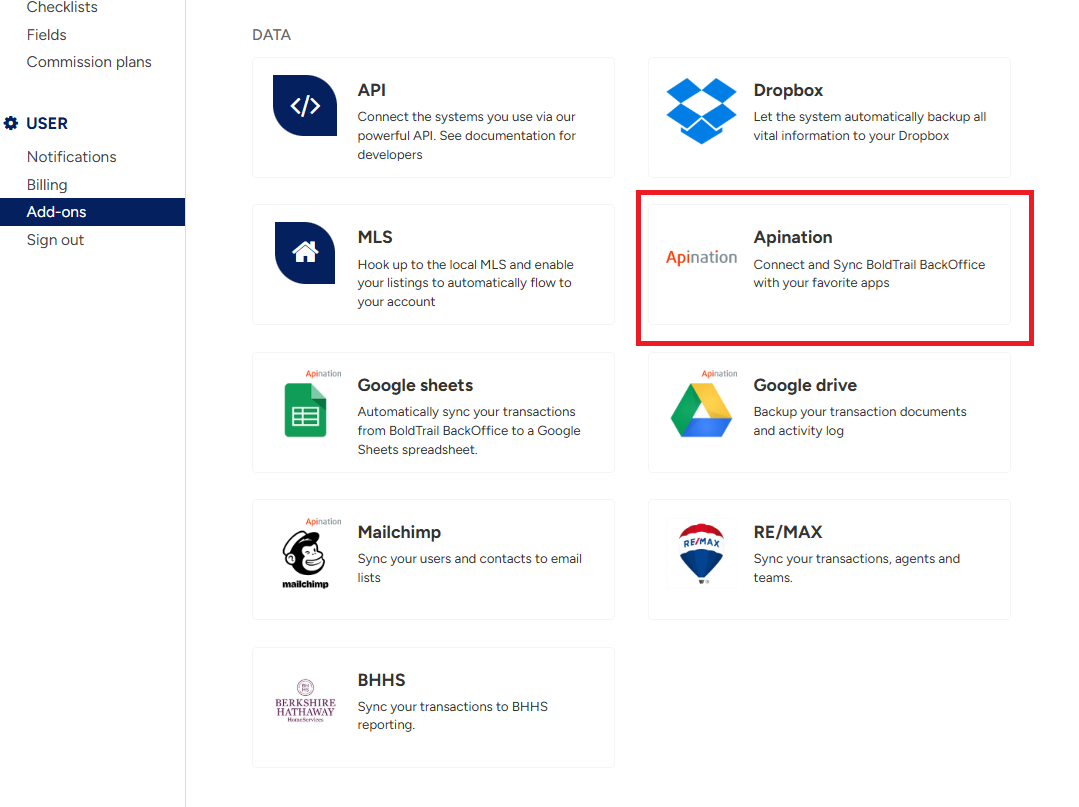
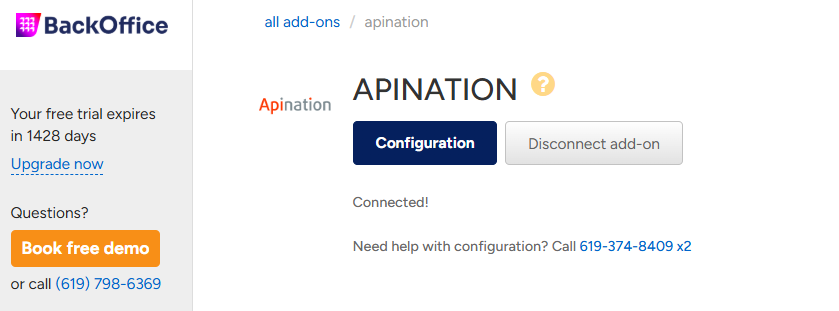
- Starting in Boldtrail Backoffice, navigate to your Add-ons and find "Apination."
- Click on "Get Started" or "Configuration" at the top of your screen.
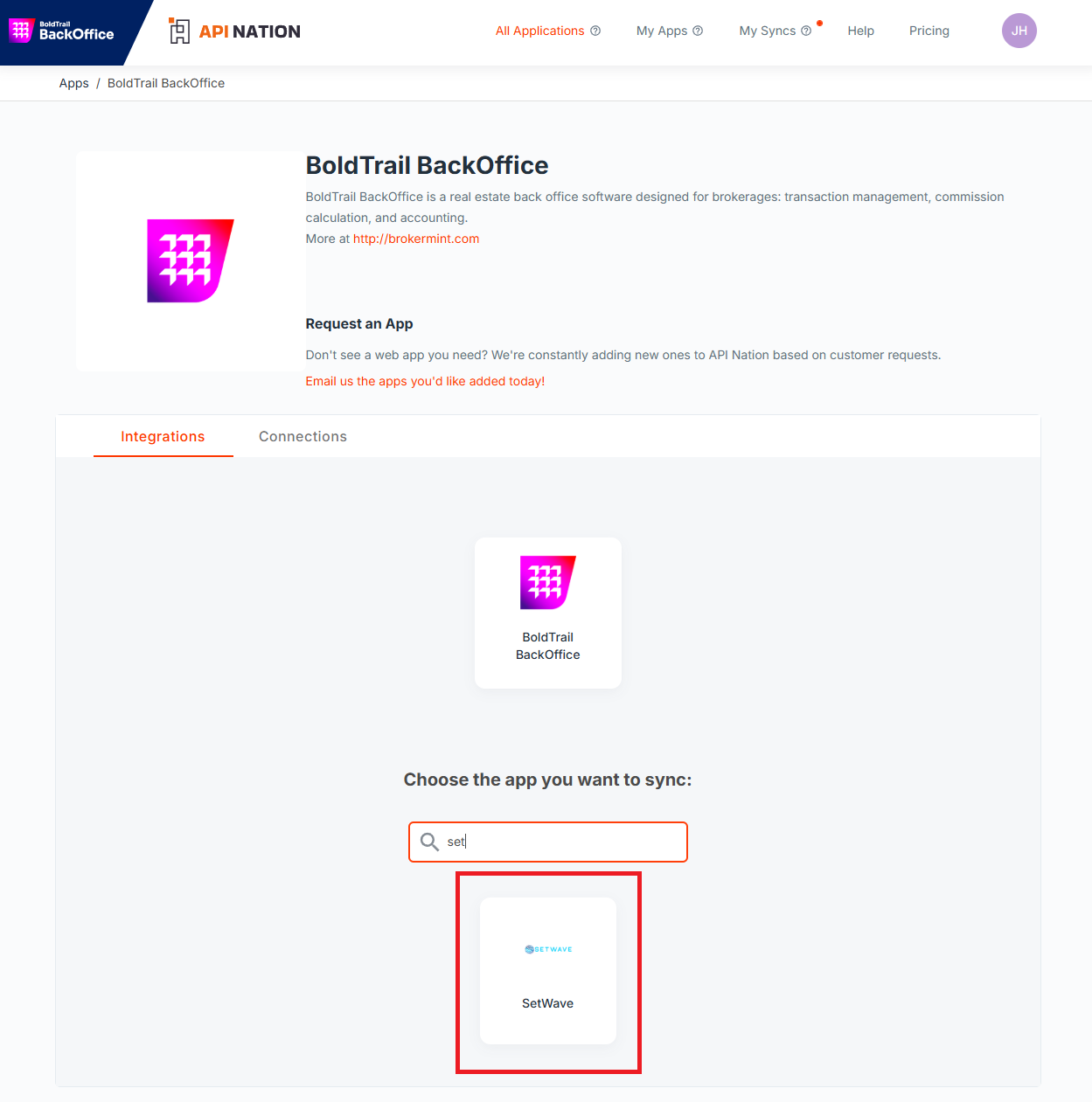
- Type in "SetWave" into the search box. Click on the SetWave Tile that appears.
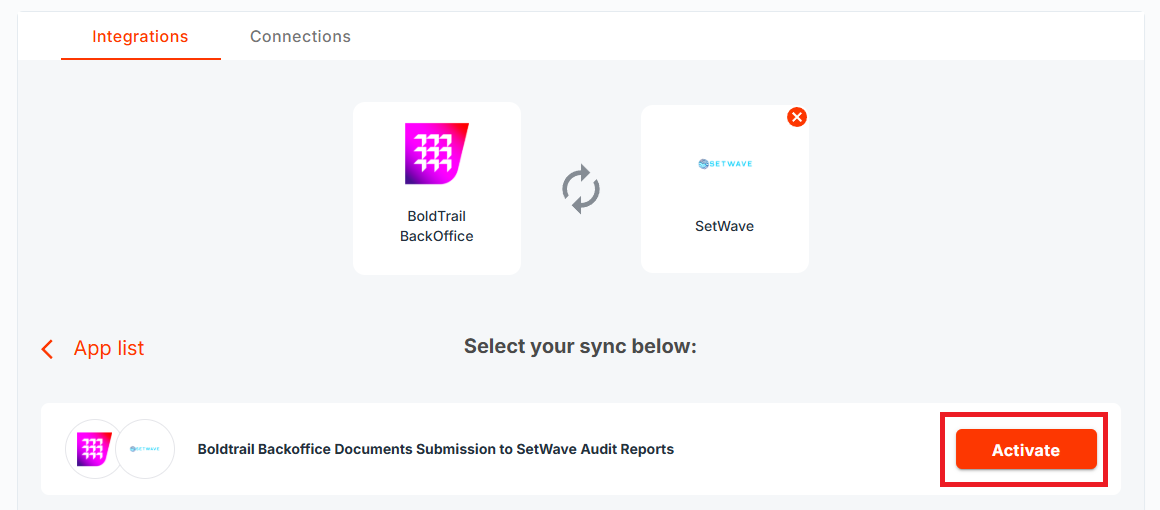
- Press "Activate" on "Boldtrail Backoffice Documents Submission to SetWave Audit Reports".
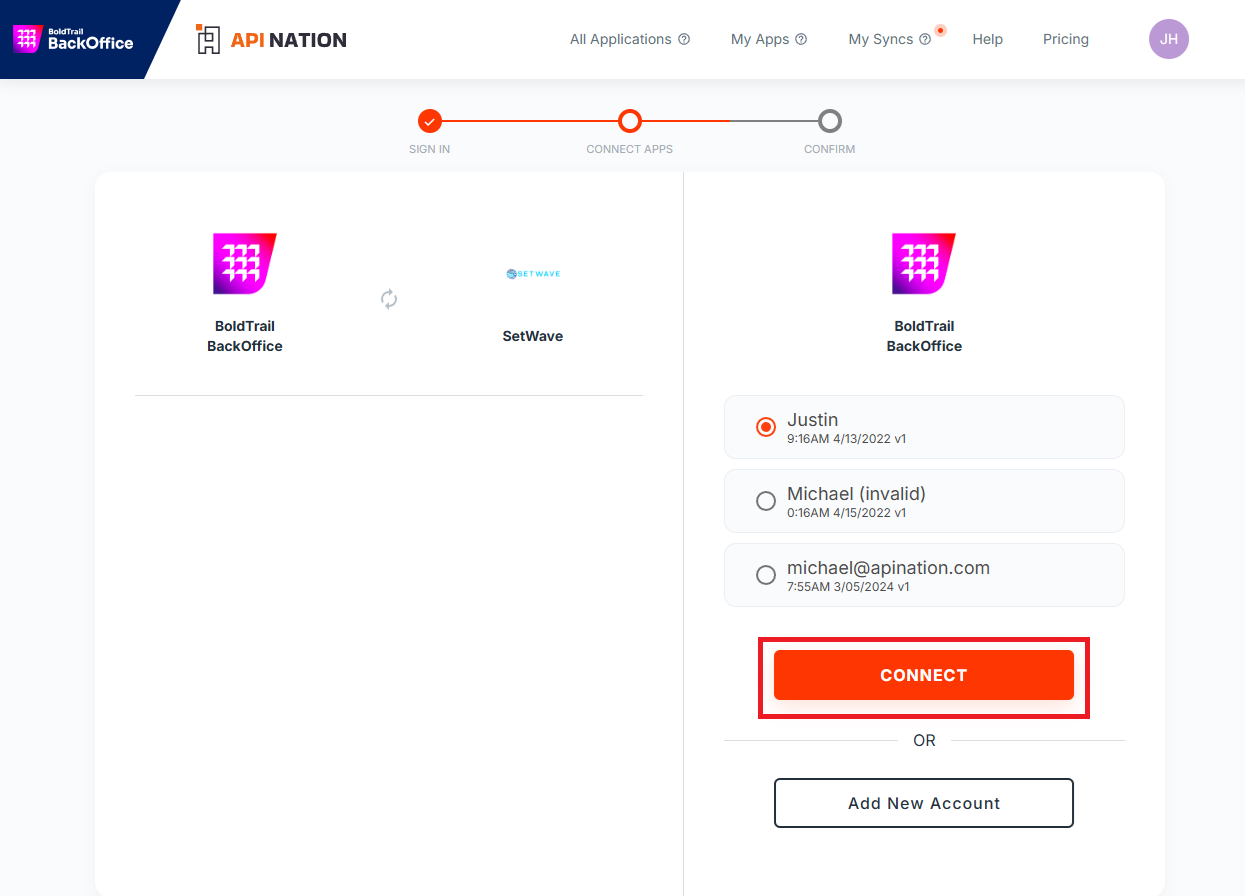
- Select your desired Boldtrail Backoffice connection and press "Connect".
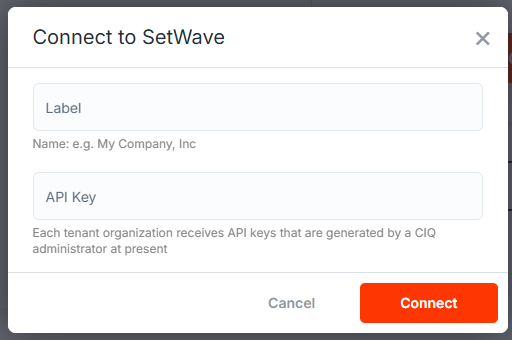
- Select your desired SetWave connection and press "Connect". If you don't have one, press "Add account".
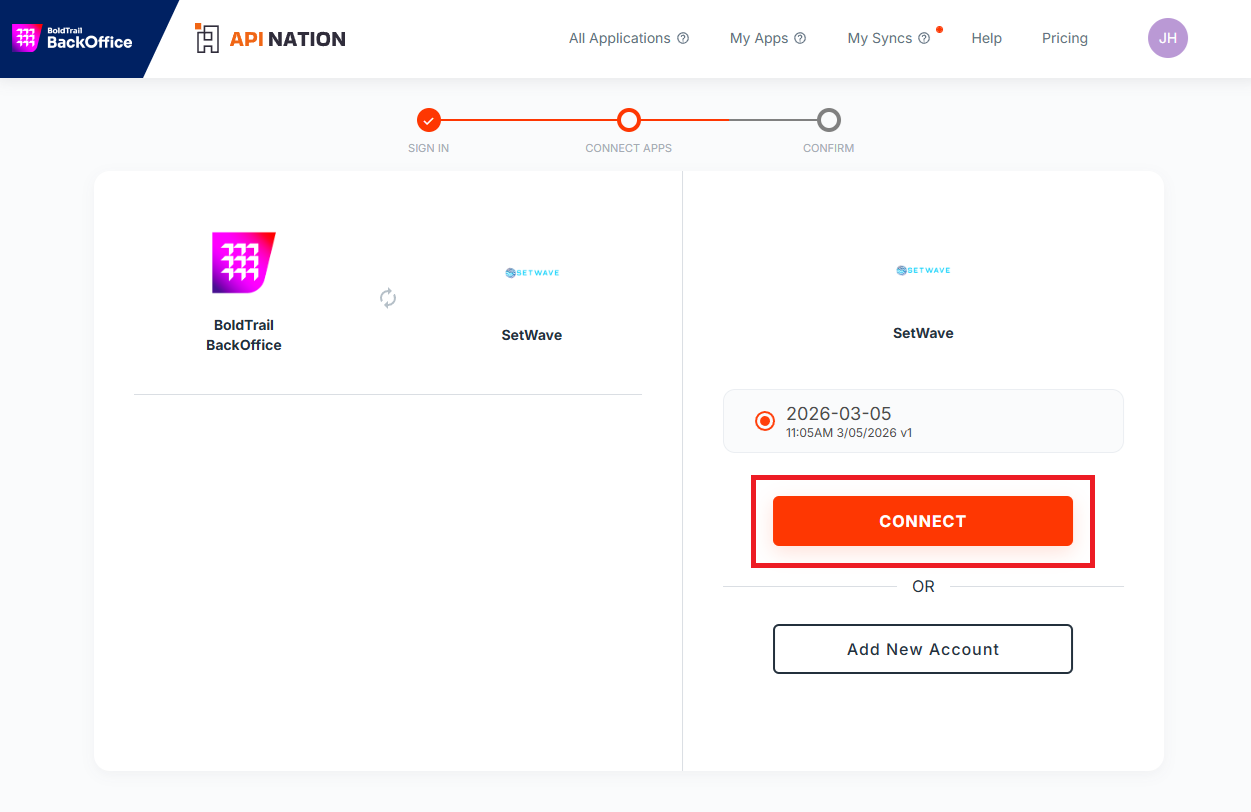
- To add a new connection, you will need your API Key from SetWave - please contact their team for assistance retrieving this.
- Press "Confirm" to complete your Workflow setup. The workflow will start in a "Draft" state.
- Set any desired Filters (see below).
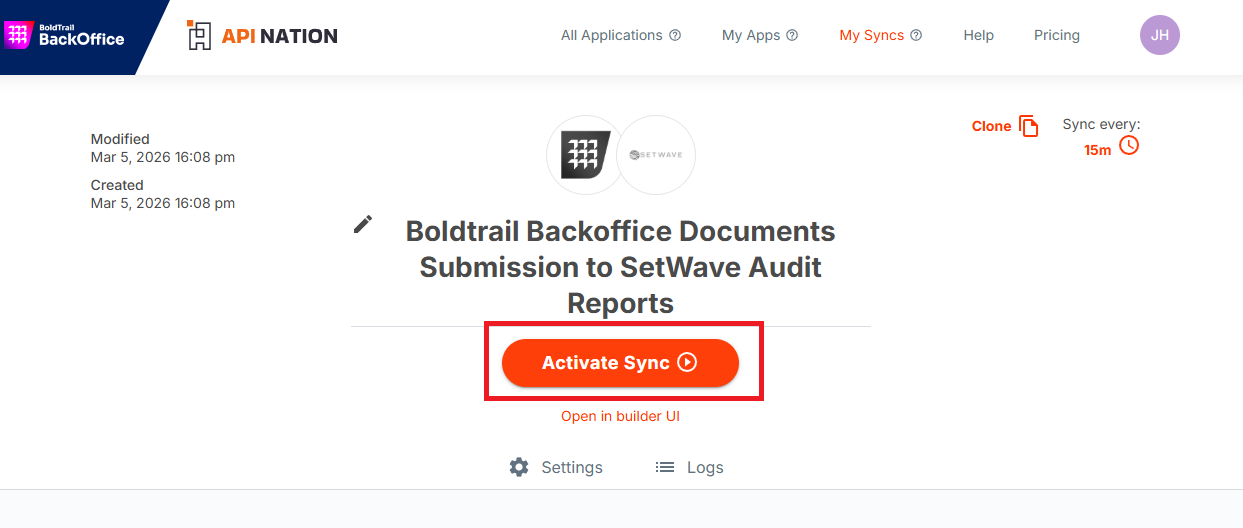
- Press "Activate Sync". Your integration is now up and running!
Boldtrail Backoffice Documents Submission to SetWave Audit Reports
When a Document is submitted for review inside of Boldtrail Backoffice via the Checklist or Documents Tab on a Transaction, the integration will sync the Document over to Compliance IQ (SetWave).
- Documents will be uploaded to their corresponding Transactions / Cards in CIQ, creating new Cards as necessary. Reuploads of revised documents will upload to the same Transaction / Card in CIQ.
- The Agent on the CIQ Transaction will be set to the Primary Agent on the BTBO transaction.
Fields
Fields are not customizable on this integration - the following list is how the integration maps from BTBO to SetWave.
BTBO → SetWave
- Document Name → File Name
- Transaction Name → Transaction Name
- Transaction Task Name → Document Type
- BTBO Transaction ID → CIQ External Reference
- BTBO Participants → CIQ Participants
- Name
- Role
- Listing Agent → Listing Agent
- Buyer's Agent → Buying Agent
- Office Administrator → Transaction Coordinator
- Broker → Broker
- Owner → Broker
- Phone
Filter
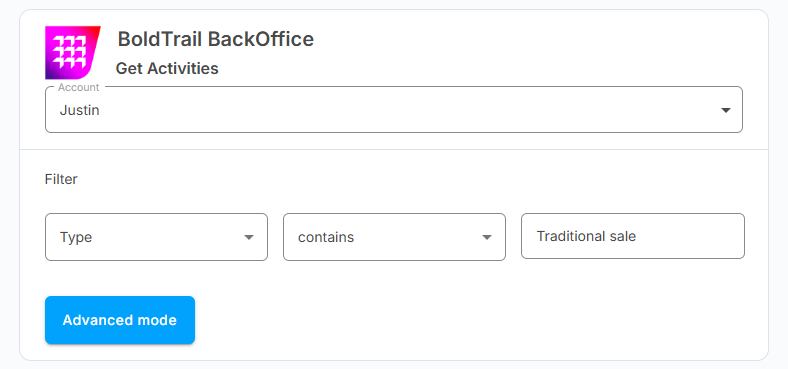
Your sync can be customized to only allow specific events through. If you wish to append more than one rule, select "Advanced Mode" and "Add Filter". Each time this "Add Filter" is pressed, an additional requirement is added to the Documents that are permitted to sync over.
A simple example of a basic filter is below. It reads as such: “Only sync Documents whose Transactions are of Type 'Traditional sale'.”
- On the left is the field that will act as the “reference field” for the Filter.
- The center box is the logic operator - the Workflow will use this as the “rule” for what is allowed through. This is a dropdown menu with predesignated options for you.
- The right box is the specified value which can be a string, date, etc.
FAQ
Q: I pressed Submit for Review in BTBO - why is it not syncing?
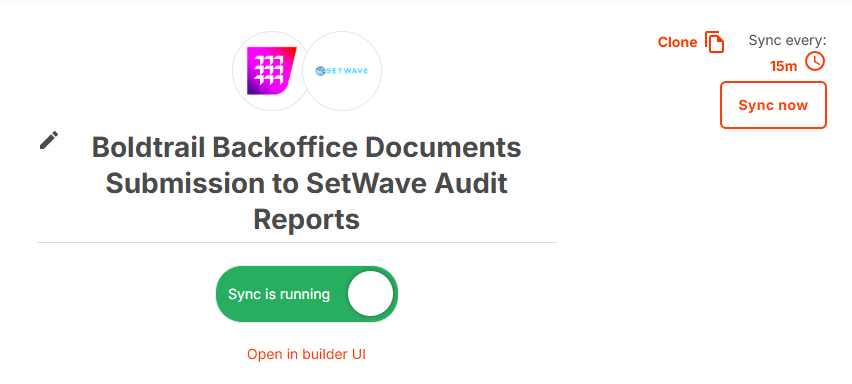
A: The integration runs every 15 minutes by default and will grab all Documents submitted for review in this timeframe. It can be adjusted by clicking on the clock symbol on the top right of the workflow. The workflow can also be manually forced to sync early by pressing "Sync Now", after which it will return to its scheduled sync rate.
Schedule a Set Up Call
If you have any questions about onboarding, feel free to contact our Support team at [email protected]! We will walk you through the onboarding process so that it's as smooth as possible.

