


Follow Up Boss to ONE Suite: Setup Options & Field Reference
This quick reference covers the setup options and field mapping for the workflow that sends your Follow Up Boss contacts into ONE Suite as new leads. This workflow uses webhooks, so new and updated Follow Up Boss contacts flow into ONE Suite in real time.
Before you begin
- ONE Suite connected to API Nation (see "How to Connect Your ONE Suite Account to API Nation").
- A Follow Up Boss account with API access enabled, using the account owner's login.
Steps to configure
Navigate to the integration
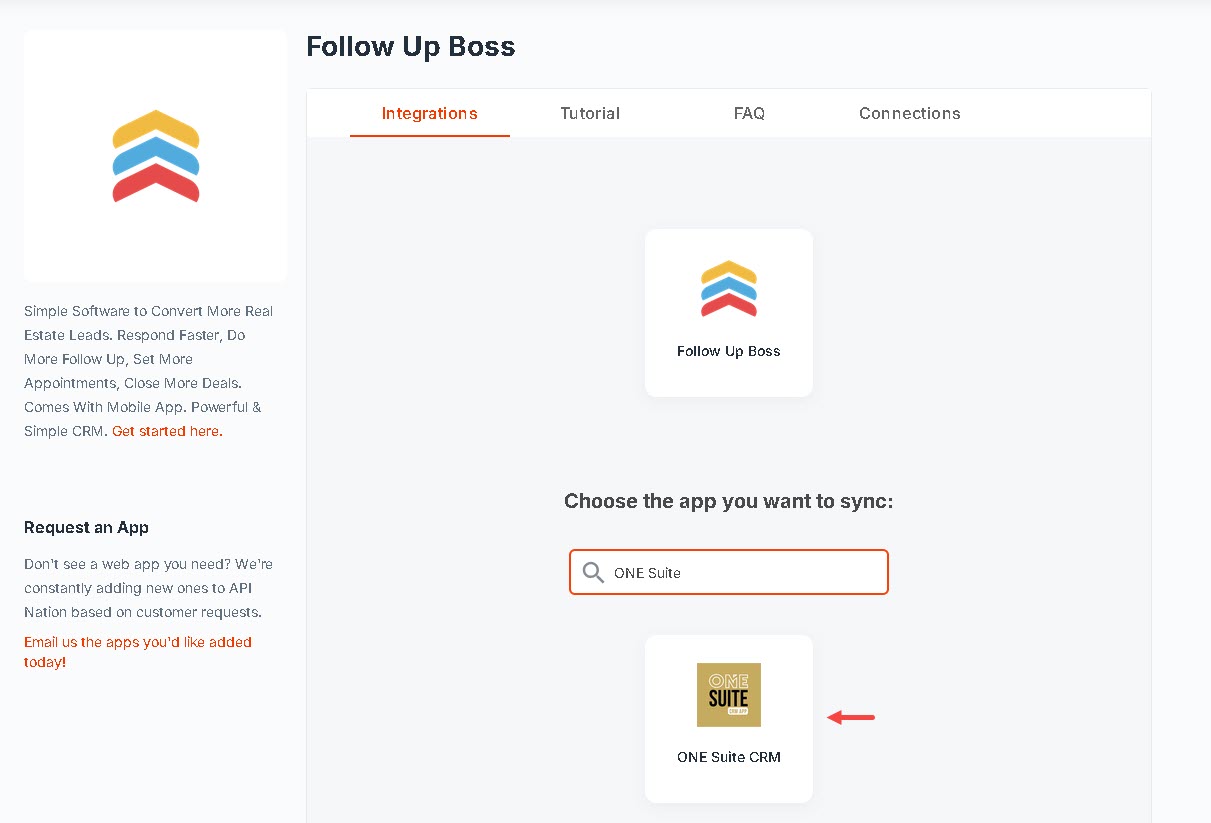
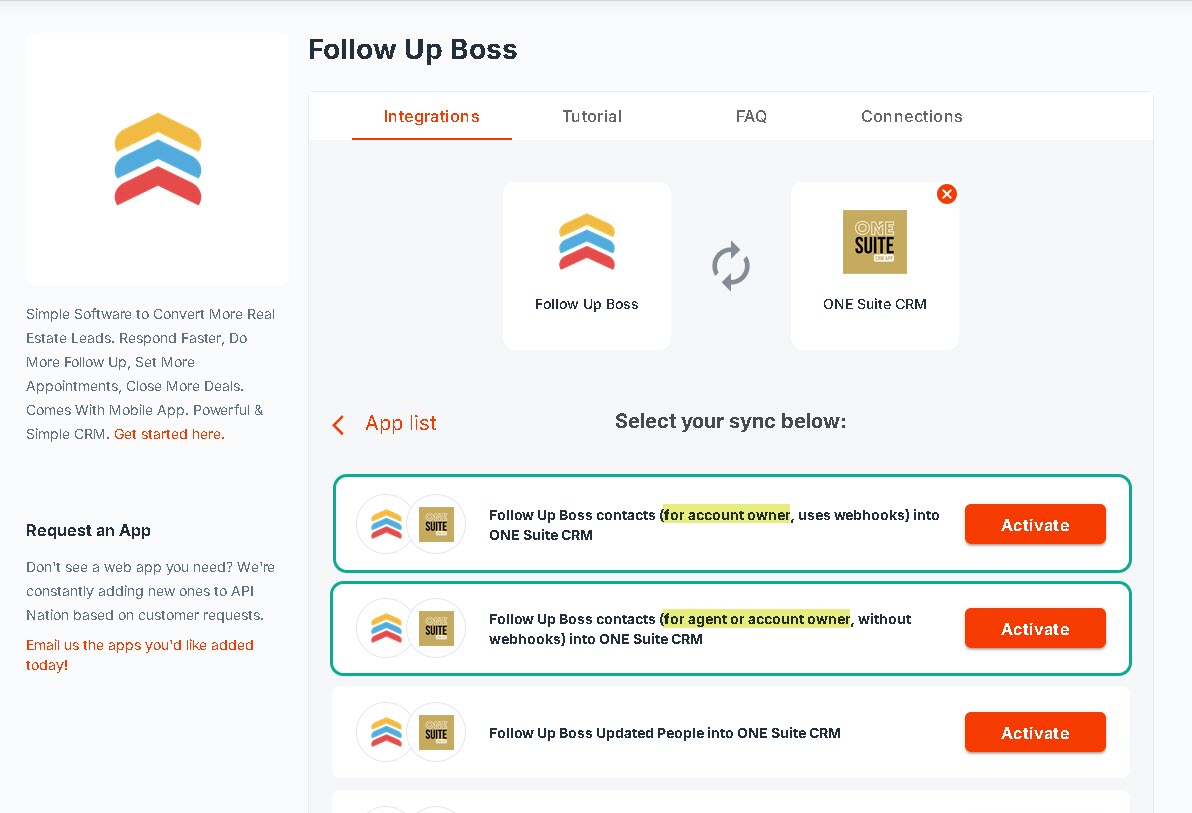
Select My Apps at the top of the page, then click the Follow Up Boss tile. In the search bar, type "ONE Suite" and select the ONE Suite tile. When ready, click Activate next to the Setup Wizard.
Connect your accounts
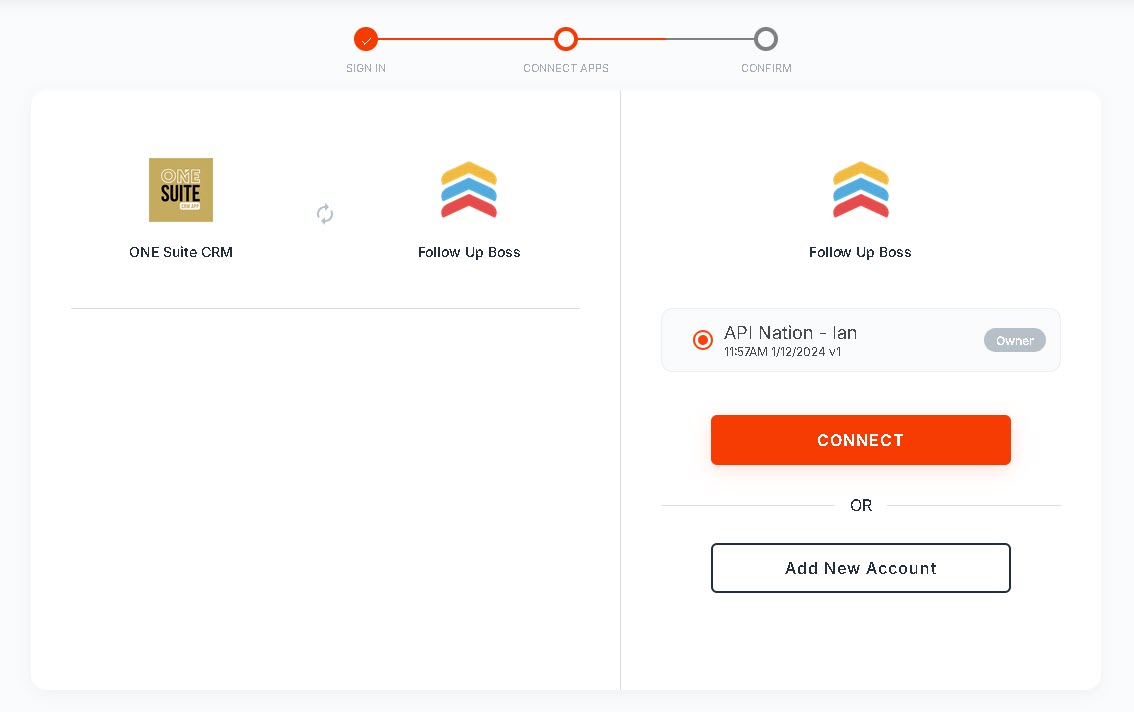
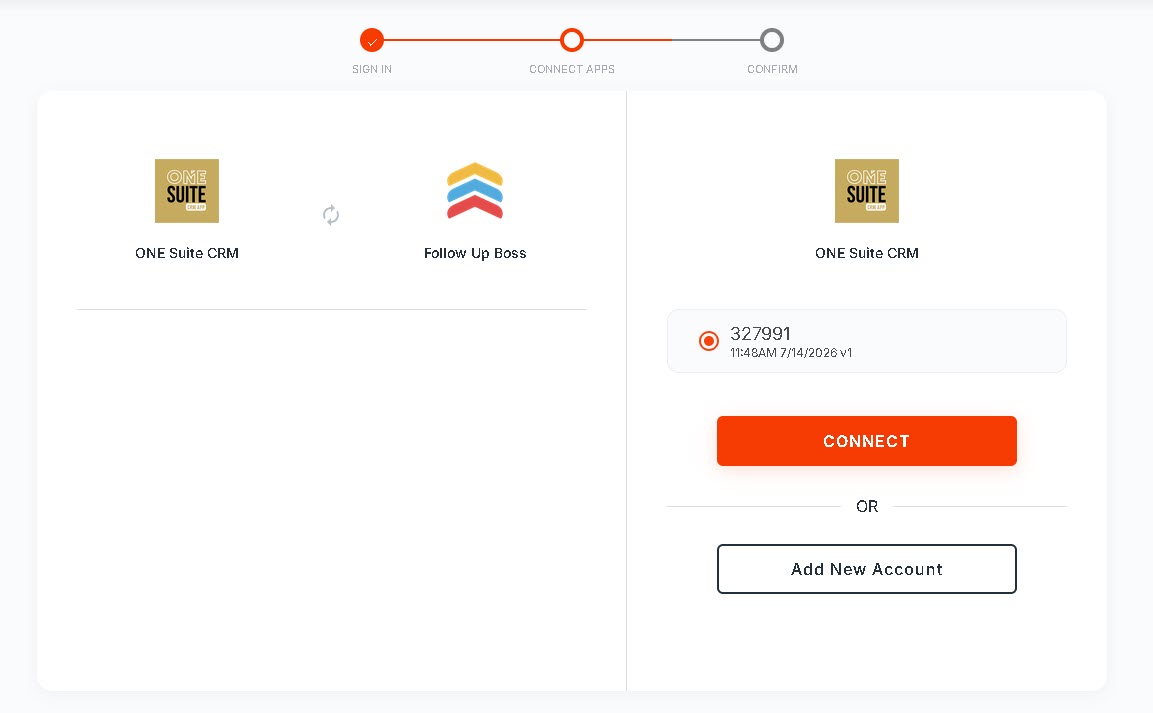
You'll be prompted to select which Follow Up Boss and ONE Suite accounts to use for this workflow. If you've already connected both, simply click Connect for each. Otherwise, you'll be asked to sign in and authorize each account now. Follow Up Boss must be connected using the account owner's login, since this workflow relies on webhooks.
Configure your trigger settings
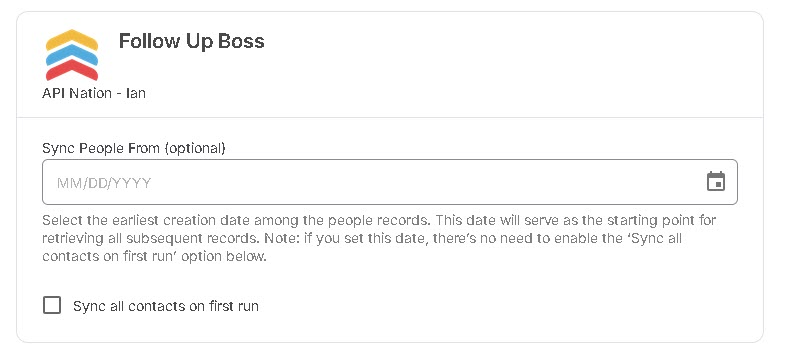
Set Sync People From and/or check Sync all contacts on first run. See Setup Options below for what these do.
Configure your action settings
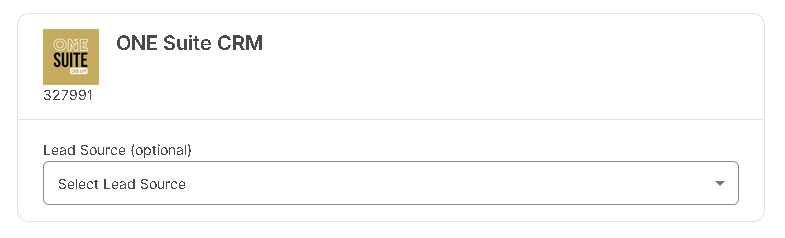
Choose a Lead Source if you'd like new leads tagged with one. See Setup Options below for details.
Review the field mapping
Confirm or adjust which Follow Up Boss fields map to which ONE Suite fields. See Fields You Can Transfer below for the default mapping and required fields.
Turn on the integration
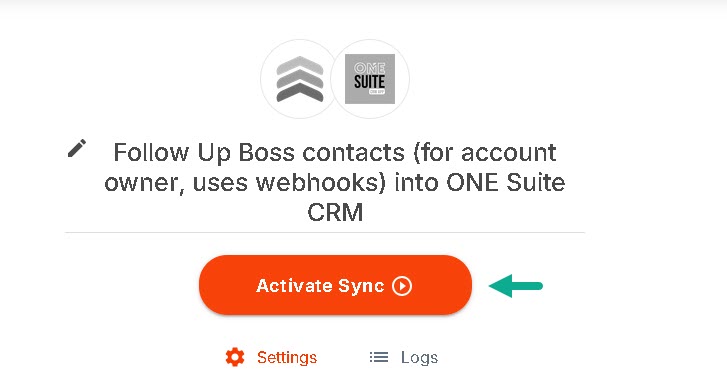
Review your settings, then click Activate Sync. If you don't already have an active subscription, you'll be prompted to choose a plan.
Setup options
- Sync People From (optional date) — set a date to use as the starting point for the first sync, pulling in Follow Up Boss people created on or after that date. Leave blank if you don't need a cutoff date.
- Sync all contacts on first run — when checked, every existing Follow Up Boss contact is sent to ONE Suite the first time the workflow runs. You only need to use this option or the "Sync People From" date above — not both.
- Lead Source (optional) — choose which ONE Suite lead source new leads from Follow Up Boss should be tagged with. Leave blank to use ONE Suite's default source.
Fields you can transfer
These Follow Up Boss fields are mapped to ONE Suite by default:
| Follow Up Boss Field | ONE Suite Field |
|---|---|
| Email (required) | |
| First Name | First Name (required) |
| Last Name | Last Name (required) |
| Phone | Mobile Phone |
| Deal Status, Deal Stage & Deal Name | Combined automatically into Notes |
| Address (city, state, zip, street) | Matching ONE Suite address fields |
Good to know
- Real-time sync via webhook — this workflow listens for Follow Up Boss "person created" and "person updated" events, so new leads generally appear in ONE Suite within moments.
- Set up under the account owner — because it relies on Follow Up Boss webhooks, this workflow needs to be connected using the Follow Up Boss account owner's login.
- One-way sync — this workflow only sends data from Follow Up Boss to ONE Suite. Changes made directly in ONE Suite don't flow back through this workflow.

