

Syncing Dotloop Loops to Follow Up Boss Deals
This integration turns your Dotloop loops into Follow Up Boss deals and keeps them current as the transaction moves forward. Price, closing date, commission, and stage flow from Dotloop into Follow Up Boss automatically, and loop participants can be added as Follow Up Boss contacts attached to the deal. This article covers how the sync works and how to set it up.
How it works
The sync polls Dotloop every 15 minutes — there is nothing to trigger manually. On each run it checks for loops in the profiles, transaction types, and statuses you selected during setup. For each loop returned, it looks for the matching Follow Up Boss deal and updates it; if no match is found, a new deal is created.
Deals are matched by name. When the integration creates a deal it names it <loop name> [Dotloop <loop ID>], and that tag is how it finds the same deal on every run afterward. If a deal already in your account has the loop name inside its own name, the integration matches that deal instead, updates it, and adds the tag. See Working with deals you already created below.
Before you begin — prerequisites
- You have an active Dotloop account with access to the profile whose loops you want to sync.
- You have an active Follow Up Boss account with permission to create and edit deals and pipelines.
- You have an active API Nation account with both Dotloop and Follow Up Boss connections authorized.
- If you are setting this up for a team, you are using a Follow Up Boss account owner connection, and you know which Dotloop profiles hold the team's loops.
- Your agents exist in Follow Up Boss under the same email addresses they use in Dotloop, so deals land with the right owner.
Setting this up for a team
Two choices during setup decide whose loops sync and who the deals land on. Both fail quietly if they are set wrong — runs still report as successful — so it is worth getting them right the first time.
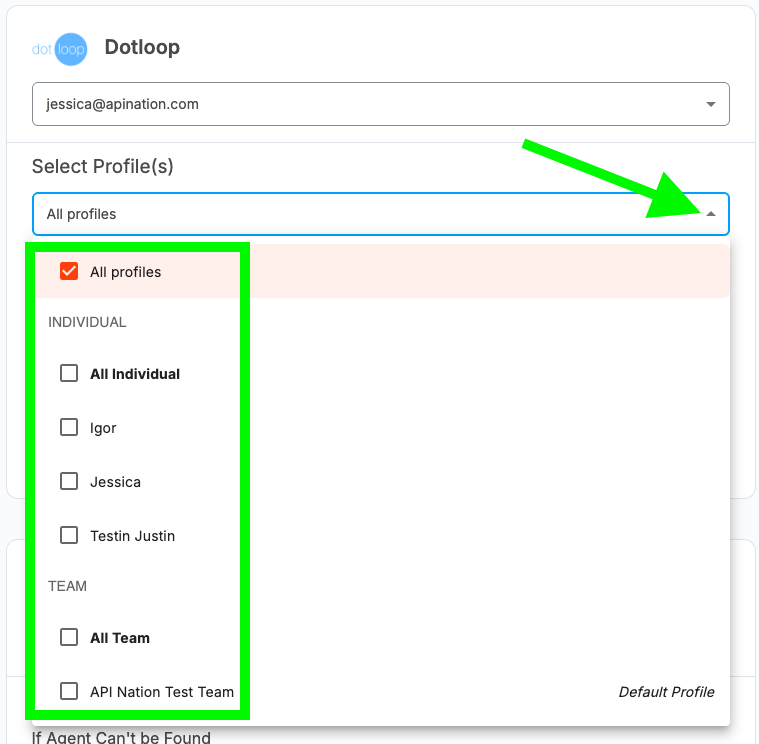
Choose the right Dotloop profiles. In the profile picker, your own Individual profile is listed separately from the Team profile your team works out of. Select the Team profile so the whole team's loops are covered — selecting only your Individual profile can leave your team's loops out entirely. Leaving All profiles checked syncs loops from every profile you have access to, so deals may appear in Follow Up Boss for transactions outside the team's book of business. After the first run, check that the deals arriving are the ones you expected, and adjust your profile selection if not.
Use an account owner connection for Follow Up Boss. Deals are assigned by matching the loop's agent to a Follow Up Boss user by email address. A connection that cannot see your full user list will fail to match those agents, and every deal falls through to whatever you chose under If Agent Can't be Found — landing on one person, or not syncing at all. On the connection screen, an account marked Owner is an account owner connection.
Known limitations
Review these constraints before activating the workflow.
- One-way sync only — loops drive deals. Changes made directly in Follow Up Boss are not written back to Dotloop, and depending on your overwrite setting they may be replaced on the next run.
- No real-time sync — updates appear on the next scheduled run rather than the moment the loop changes, so a loop change can take up to 15 minutes to reach Follow Up Boss.
- Name matching is exact — deal matching is case-sensitive, and the full loop name must appear inside the deal name. Address fields, contacts, and custom fields are not used to identify a deal.
Create the sync
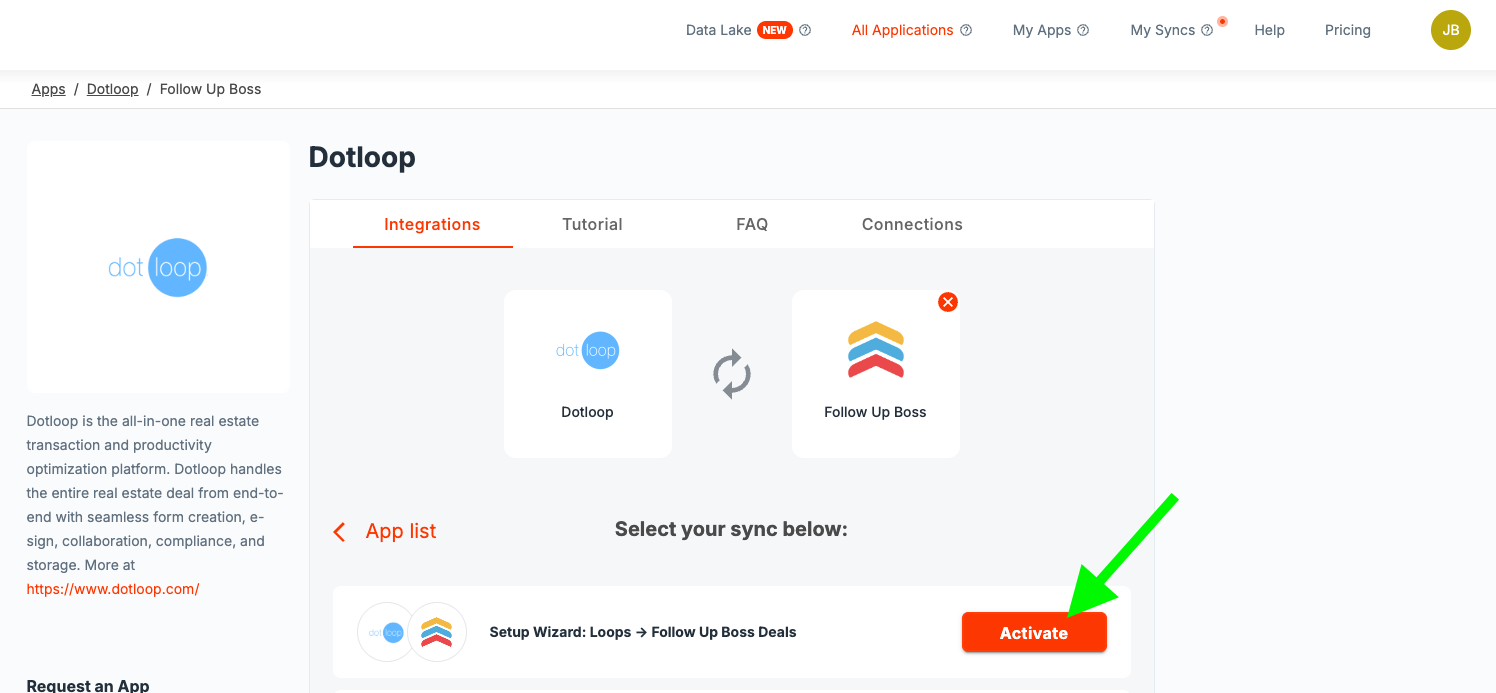
Go to All Applications and open Dotloop. On the Integrations tab, select Follow Up Boss as the app to pair it with. Under Select your sync below, find Setup Wizard: Loops → Follow Up Boss Deals and click Activate.
Connect your Dotloop account
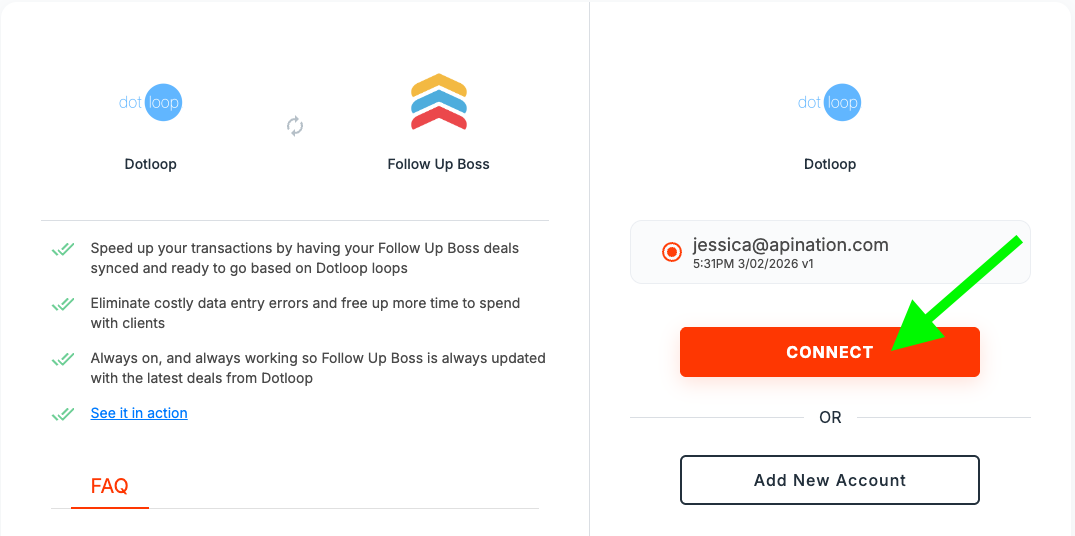
Select the Dotloop account that owns the loops you want to sync and click Connect. If the account is not listed, click Add New Account and authorize it.
Connect your Follow Up Boss account
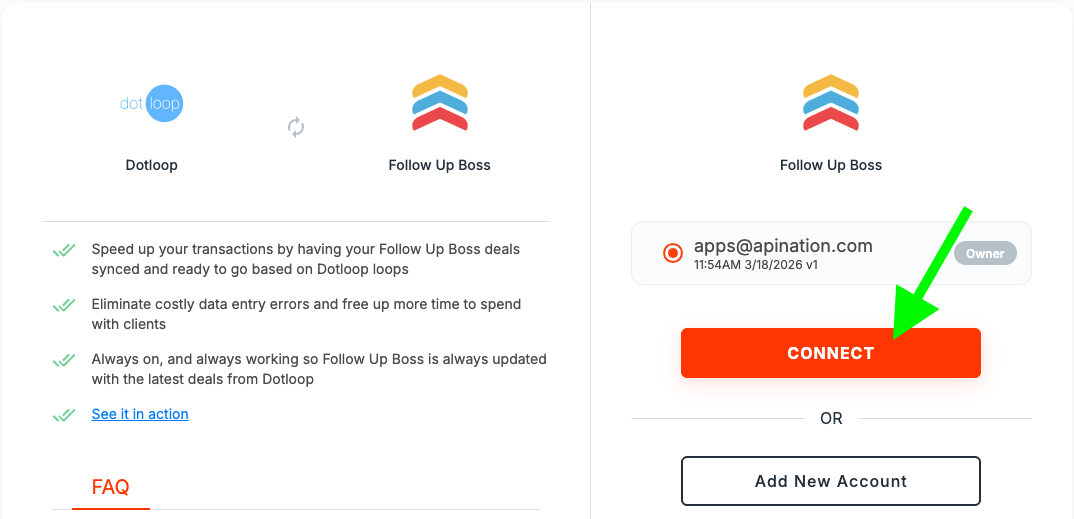
Select the Follow Up Boss account that should receive the deals and click Connect, or use Add New Account to authorize a new one. An account marked Owner is an account owner connection. Use one if you are setting this up for a team — agent matching depends on the connection being able to see your full Follow Up Boss user list.
Select your Dotloop profiles
The Workflow Configurator opens automatically once both accounts are connected, starting with the Dotloop card. Open the Select Profile(s) dropdown. Profiles are grouped under Individual and Team, with All Individual and All Team shortcuts for each group, and your Dotloop default profile marked Default Profile. Leave All profiles checked to sync everything, or check only the profiles you want. Loops in profiles you do not select are never picked up. If you are setting this up for a team, select the Team profile your team works out of rather than only your own Individual profile.
Set the start date
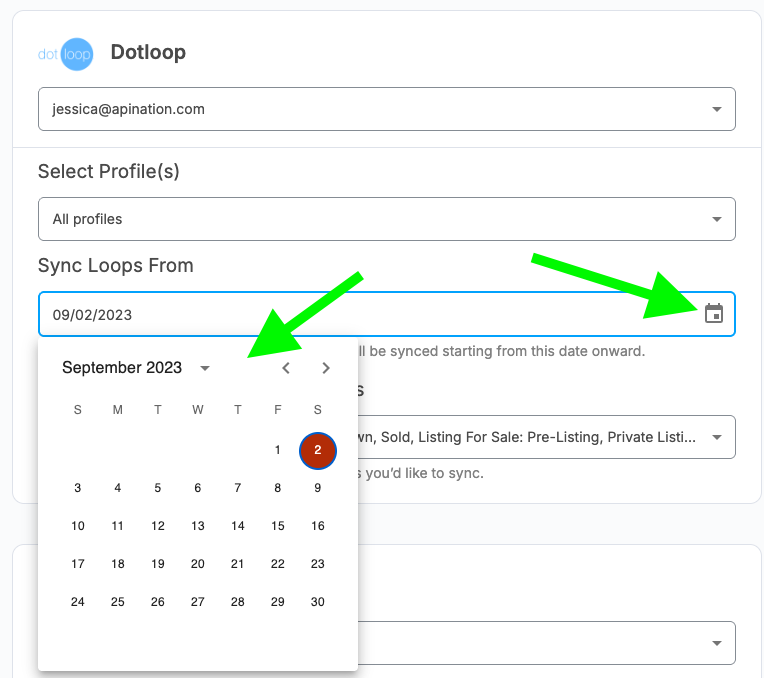
This date is optional. Set Sync Loops From to the earliest date you want loop updates synced from, either by typing it or using the calendar picker, or leave it blank to bring over all available loop history. Set it to today if you only want loops going forward.
Select transaction types and statuses
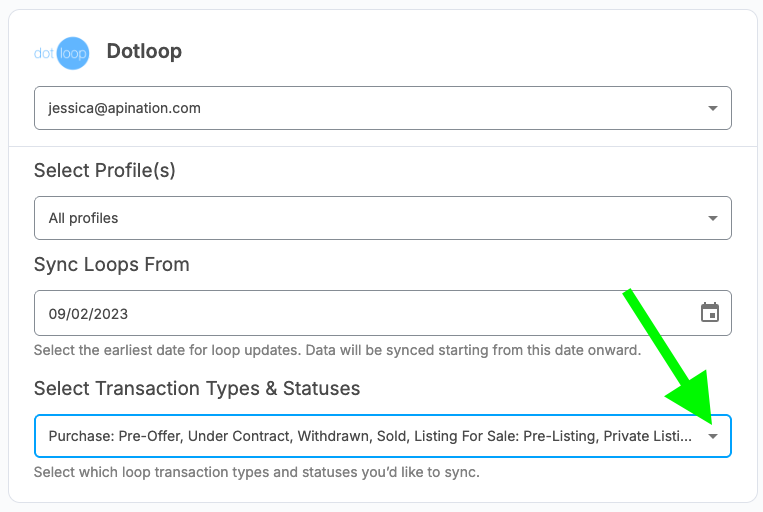
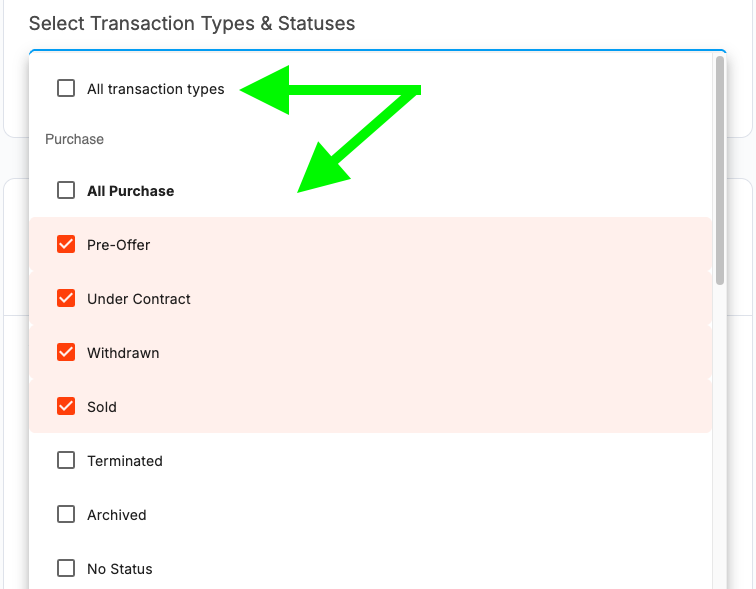
Open Select Transaction Types & Statuses. Statuses are grouped by transaction type, with an All transaction types option at the top and an All Purchase style shortcut for each type. Check the individual statuses you want — for example Pre-Offer, Under Contract, Withdrawn, and Sold under Purchase. Only the combinations you check are picked up, so include every status your transactions pass through, including the ones at the end of the process, so deals keep updating all the way to close.
Decide how unmatched agents are handled
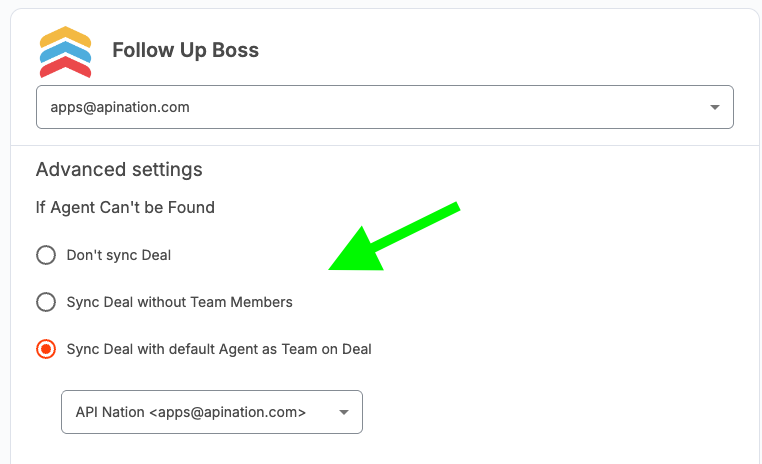
Under Advanced settings, use If Agent Can't be Found to choose what happens when a loop's agent has no matching Follow Up Boss user. There are three options:
| Option | Result |
|---|---|
| Don't sync Deal | The loop is skipped entirely and no deal is created |
| Sync Deal without Team Members | The deal syncs with no team assigned, so it lands on your Follow Up Boss account owner |
| Sync Deal with default Agent as Team on Deal | The deal syncs and is assigned to the fallback agent you select from the dropdown below the option |
Map your pipelines and stages
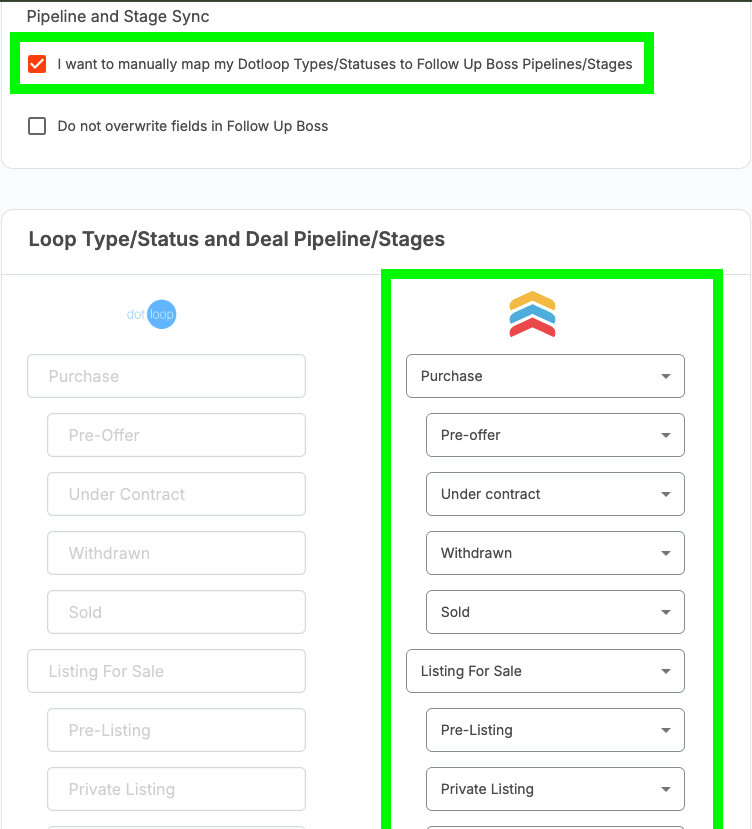
Under Pipeline and Stage Sync, check I want to manually map my Dotloop Types/Statuses to Follow Up Boss Pipelines/Stages. A Loop Type/Status and Deal Pipeline/Stages section appears below, listing your selected Dotloop types and statuses on the left. For each row, choose the Follow Up Boss pipeline and stage it should map to on the right. The Dotloop column is read-only — it reflects the selections you made earlier.
Choose whether Dotloop can overwrite existing values
Leave Do not overwrite fields in Follow Up Boss unchecked to let Dotloop drive deal financials, or check it to protect values your team enters directly in Follow Up Boss.
Start the sync
Click Start Sync at the bottom of the configurator. The first run begins at the next scheduled interval — check your Follow Up Boss Deals list afterward to confirm loops are arriving in the pipeline and stage you expect, and use the Logs tab on the sync to review individual runs.
Configuration options
A summary of the choices in the setup wizard and what each one controls.
| Option | What It Controls |
|---|---|
| Select Profile(s) | Which Dotloop profiles the integration pulls loops from |
| Sync Loops From | The earliest date the integration reaches back for loop updates |
| Select Transaction Types & Statuses | Limits the sync to the type and status combinations you select, and drives the deal stage |
| If Agent Can't be Found | Skips the loop, syncs without a team, or assigns a fallback agent |
| Pipeline and Stage Sync | Maps statuses onto an existing pipeline, or creates pipelines automatically |
| Do not overwrite fields in Follow Up Boss | Protects existing Follow Up Boss values from being replaced by Dotloop |
Default field mapping
These are the deal fields the integration writes. Any other field on the deal is left untouched.
| Dotloop Source | Follow Up Boss Field |
|---|---|
| Loop name, plus a [Dotloop <loop ID>] tag | Deal name |
| Loop status | Stage |
| Financials → Purchase / Sale Price | Price |
| Contract Dates → Closing Date | Projected close date |
| Commission split or rate applied to price, falling back to Sale Commission Total | Commission value |
| Loop participants and their matched users | People and assigned users |
With Do not overwrite fields in Follow Up Boss unchecked, a value filled in on the loop replaces what is on the deal, including something entered by hand. A value left blank on the loop does not clear the deal — existing price and commission figures are kept.
Working with deals you already created
Because deals are matched by name, the integration only recognizes a deal you created yourself if the full loop name appears inside the deal name. If it does not, a second deal is created for that transaction.
The simplest way to avoid that is to name your loops after the property and keep that same text at the start of the Follow Up Boss deal name. A loop named 412 Oak Street will match a deal named 412 Oak Street - Buyer, update it, and stay linked to it from then on. The deal is renamed to include the Dotloop tag when this happens, so any suffix you had is replaced.
Here is how that plays out. In each row the loop is named 412 Oak Street and its loop ID is 98765432:
| Your Follow Up Boss deal name | What happens on the next run |
|---|---|
| 412 Oak Street - Buyer | Matched. Your deal is updated and renamed to 412 Oak Street [Dotloop 98765432], so the "- Buyer" suffix is dropped |
| 412 Oak Street | Matched. Updated and renamed the same way |
| Oak Street Purchase - Nguyen | No match, because the loop name does not appear in it. A second deal named 412 Oak Street [Dotloop 98765432] is created |
| 412 oak street - Buyer | No match, because matching is case-sensitive. A second deal is created |
| 412 Oak Street [Dotloop 98765432] | Matched by the tag. This is the state every synced deal ends up in |
Fixing a deal that has already been duplicated. Say the sync created 412 Oak Street [Dotloop 98765432] and your own deal is Oak Street Purchase - Nguyen, with the notes and contacts you want to keep:
Copy [Dotloop 98765432] from the deal the sync created, including the brackets.
Rename your deal to Oak Street Purchase - Nguyen [Dotloop 98765432].
Delete the deal the sync created.
On the next run, the tag matches your deal and it updates in place.
Still not working?

