

How the SkySlope to BoldTrail BackOffice Integration Works
API Nation sends your Active and Pending SkySlope transactions to BoldTrail BackOffice as Incoming Transactions, along with their buyers, sellers and agents. Your back office team then reviews each one and accepts it into BoldTrail BackOffice. This article explains how the integration works, how to set it up, and what it can and cannot do.
How it works
The integration runs on its own once it is turned on. Here is what happens:
API Nation checks SkySlope every 15 minutes
Each check looks for SkySlope transactions that were created or changed since the last check.
Each transaction is checked before it is sent
A SkySlope transaction is sent only when it passes all three of these checks:
Status — the transaction is Active or Pending in SkySlope. This is built into the integration. It is not a setting you can change, so you will not see it in the workflow.
Transaction type — the transaction’s Type (for example Purchase, Listing or Lease Tenant) is one you selected in the Transaction types to sync drop-down. This is the setting you control.
Agent — the transaction’s agent has a first and last name in SkySlope.
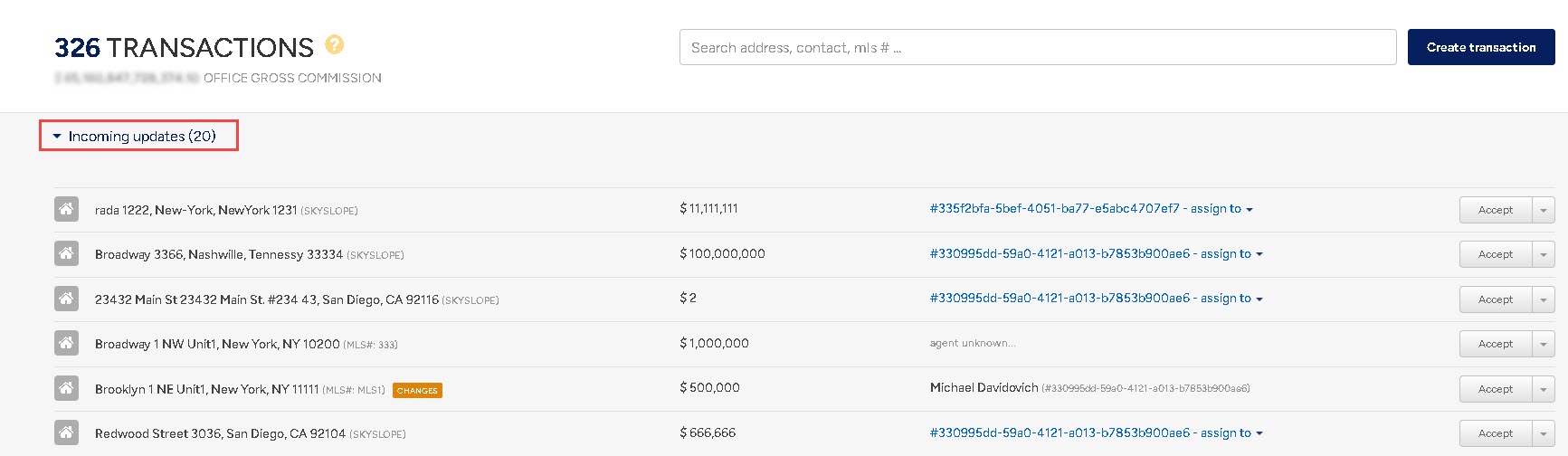
The transaction arrives in BoldTrail BackOffice as an Incoming Transaction
It includes the property address, price, key dates, gross commission, MLS number, and the buyers, sellers, agent and other-side agent as contacts. The source is shown as SkySlope.
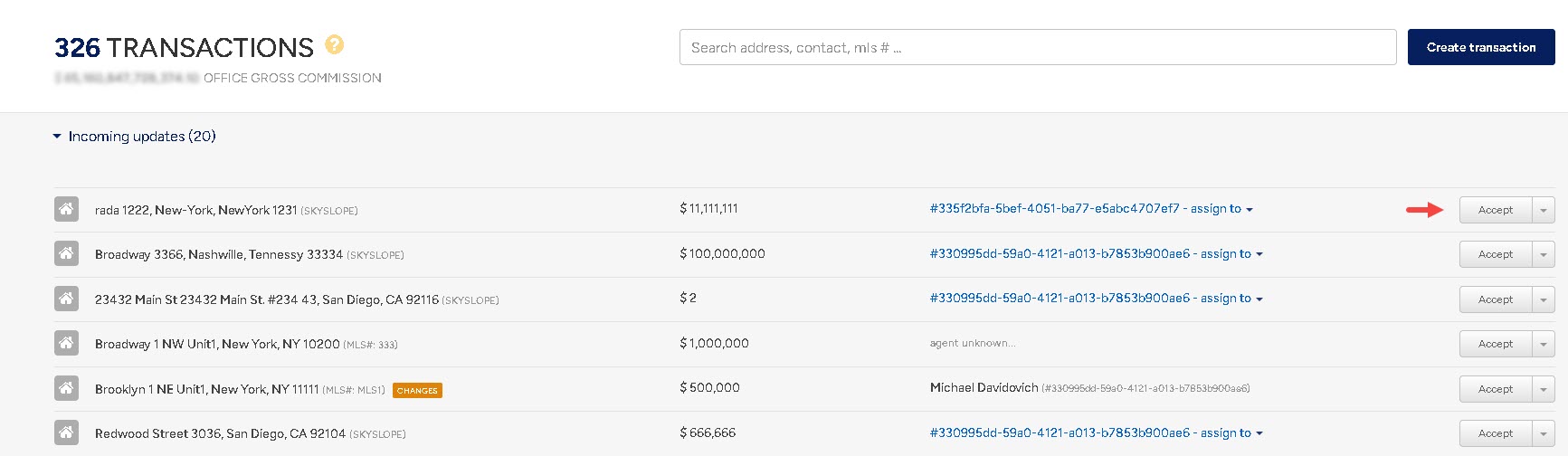
Your team accepts it in BoldTrail BackOffice
Incoming Transactions wait for review. A BoldTrail BackOffice user accepts each one to turn it into a full transaction, or discards it.
What the integration can and cannot do
What it does
- Sends new SkySlope transactions to BoldTrail BackOffice automatically, every 15 minutes.
- Sends transactions again when they change in SkySlope, so BoldTrail BackOffice gets the latest details.
- Lets you choose which SkySlope transaction Types are sent (for example Purchase, Listing or Lease).
- Creates the buyers, sellers, your agent and the other-side agent as contacts on the transaction.
- Sends the property address, price, key dates, office gross commission, MLS number, county, year built and lead source.
- Can send your existing Active and Pending transactions the first time it runs, if you choose to.
What it does not do
- It does not send Closed, Expired, Canceled or Archived transactions. Only Active and Pending transactions are sent.
- It does not send SkySlope listing files that are not yet a transaction. A listing is sent once it is a transaction in SkySlope.
- It does not send documents or checklist items.
- It does not send commission splits or agent-level commission amounts. Only the office gross commission is sent.
- It does not accept Incoming Transactions for you. Someone in BoldTrail BackOffice has to review and accept each one.
- It does not send anything from BoldTrail BackOffice back to SkySlope. Data only flows one way.
- It does not send transactions whose agent is missing a first or last name in SkySlope.
Before you start
- You have access to your brokerage's SkySlope account and its API credentials. See How To Connect SkySlope to API Nation.
- You have access to your BoldTrail BackOffice account and its API key. See How To Connect BoldTrail BackOffice to API Nation.
- You know which SkySlope transaction Types your office wants in BoldTrail BackOffice.
- No other tool is sending SkySlope transactions to BoldTrail BackOffice. Two syncs running at once can create duplicate Incoming Transactions.
How to set it up
Steps to configure
Open the workflow
Sign in to API Nation and go to the SkySlope and BoldTrail BackOffice integration page. Find Sync SkySlope Transactions to BoldTrail BackOffice Incoming Transactions and click Activate.
Connect SkySlope
Click Connect next to SkySlope and enter your SkySlope API credentials. For help, see How To Connect SkySlope to API Nation.
Connect BoldTrail BackOffice
Click Connect next to BoldTrail BackOffice and enter your API key. For help, see How To Connect BoldTrail BackOffice to API Nation.
Choose the transaction types to send
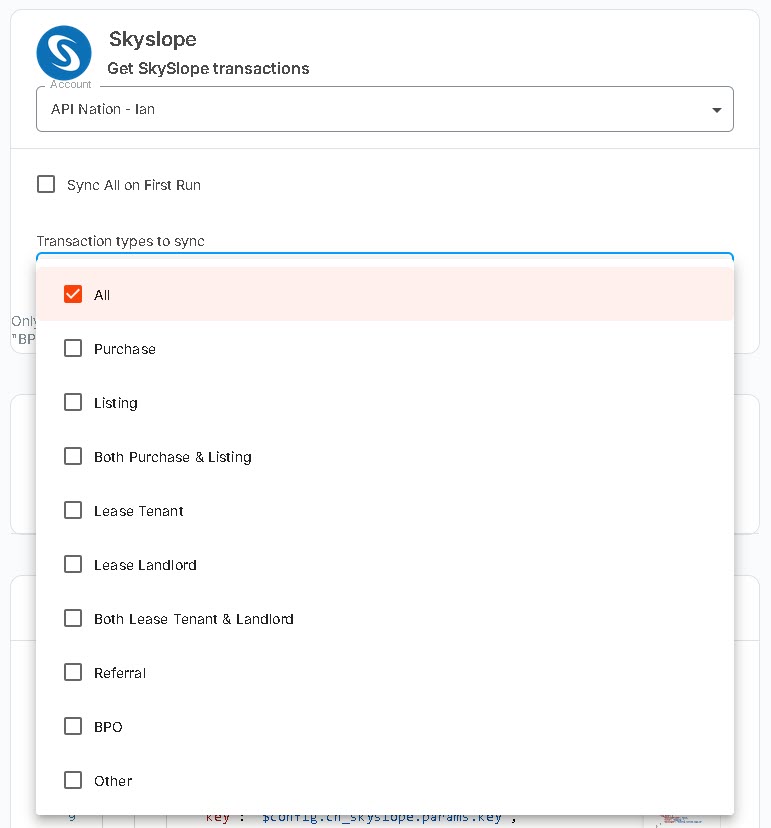
In the Trigger section, use Transaction types to sync to pick which SkySlope transaction Types are sent. Only transactions with a selected Type are sent to BoldTrail BackOffice.
| Option | What it sends |
|---|---|
| All | Every transaction type below |
| Purchase | Purchase transactions |
| Listing | Listing transactions |
| Both Purchase & Listing | Dual-agency sale transactions |
| Lease Tenant | Tenant-side lease transactions |
| Lease Landlord | Landlord-side lease transactions |
| Both Lease Tenant & Landlord | Dual-agency lease transactions |
| Referral | Referral transactions |
| BPO | Broker price opinion transactions |
| Other | Transactions with the Type Other |
All is selected by default. To send only some types, uncheck All and check the types you want. Status is not part of this list: only Active and Pending transactions are sent, whatever types you pick.
Decide whether to send existing transactions
Also in the Trigger section:
Sync All on First Run — check this to send all of your existing Active and Pending transactions the first time the workflow runs.
Leave it unchecked to send only transactions created or changed from about two days before you turn the workflow on.
Save and turn on the workflow
Click Save on each section, then turn the workflow on. The first check runs within 15 minutes.
Review your Incoming Transactions
In BoldTrail BackOffice, open your Incoming Transactions. SkySlope transactions show SkySlope as their source. Review each one and accept it to create the transaction.
What data is sent
This is the information each SkySlope transaction sends to its BoldTrail BackOffice Incoming Transaction.
| SkySlope | BoldTrail BackOffice |
|---|---|
| Transaction ID | External ID (links the two records) |
| Street number, street name, direction, unit | Address |
| City, State, ZIP | City, State, ZIP |
| Sale Price or List Price (see below) | Price |
| Type | Transaction type |
| Type (or checklist type) | Representing (Buyer, Seller or Both) |
| Created date | Listing date |
| Listing expiration date | Expiration date |
| Contract acceptance date | Acceptance date |
| Escrow closing date | Closing date |
| Actual closing date | Closed date |
| Office gross commission | Total gross commission |
| Source | Lead source |
| Agent first and last name | Agent name |
| (set automatically) | Source: SkySlope |
| MLS number, Type, Source, County, Direction, Year built | Custom attributes: MLS #, Property type, Lead source, County, Direction, Year built |
Contacts
These people are added as contacts on the Incoming Transaction. Each contact includes name, email, phone, mobile phone, fax, company and address when SkySlope has them.
| SkySlope | BoldTrail BackOffice contact type |
|---|---|
| Every buyer on the transaction | Buyer |
| Every seller on the transaction | Seller |
| Your agent | Agent |
| Other side agent | Brokerage |
Which price is sent
| SkySlope Type | Price sent |
|---|---|
| Listing, Lease Landlord | List Price |
| Purchase, Lease Tenant | Sale Price |
| Any other Type | Sale Price if there is one, otherwise List Price |
If the preferred price is blank, the other price is used instead.
Good to know
Still not working?

